An expansion standard controls how a device connects to other hardware and supports updates and accessories. Standards like USB, PCI Express, Thunderbolt, HDMI, DisplayPort, Wi-Fi, Bluetooth, and storage interfaces affect what you can connect now and in the future.
This matters since buying a device goes beyond just meeting your needs. Later, you can add a faster external drive, numerous monitors, a newer wireless accessory, storage, or specialized gear. If the device has the wrong connection or uses an obsolete standard, you may need adapters, hubs, or a replacement. Thus, understanding expansion criteria can help you avoid unwanted restrictions and make more flexible purchases.
Definition of Expansion Standards
An expansion standard defines how devices interact, transport data, give power, and connect. Standards let products from various firms function together when they follow the same technical rules. USB is a popular technology for connecting computers to peripherals. PCI Express (PCIe) is an internal expansion standard for desktop computers’ graphics cards and storage devices. Compatible devices communicate wirelessly with networks using Wi-Fi standards.
Standards change throughout time. The latest models usually offer faster data transfer, better power delivery, efficiency, or sophisticated functionality. A newer standard does not guarantee that all devices with the same connector operate the same. The difference matters when choosing hardware. Two devices with identical ports may have differing capabilities. For instance, a USB-C connector describes its structure rather than its transfer speed, display capability, or charging performance.
Why Future Devices Need Expansion Standards
Device expansion standards affect how readily you can adjust to changing needs. Computers with several modern and versatile connections may support new accessories longer than those with restricted or old connectivity. Consider getting a laptop for office work. You can start with a mouse and charger. A year from now, you might want an external SSD, second monitor, wired network, and professional docking station. A hub or dock may be needed for a laptop with few ports. A high-quality dock may not have all the functions you want if its ports don’t meet standards.
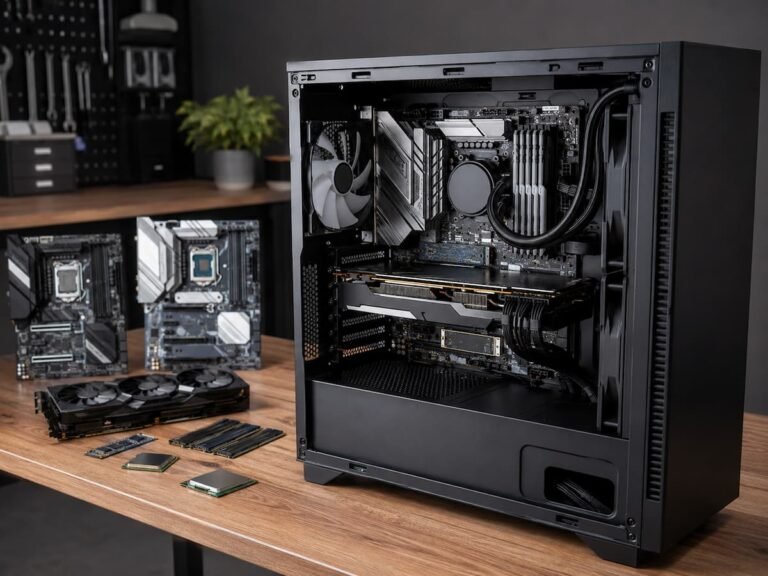
Similar logic applies to desktops. The motherboard’s PCIe expansion slots may let you add or swap components. With restricted expansion, you may need to replace the machine sooner. Choosing a device with robust expansion support offers hidden benefits like future flexibility.
Understanding USB Standards
Daily devices use USB, a key connecting standard. For keyboards, mice, storage devices, smartphones, cameras, printers, docking stations, and other accessories. Due of its inconsistent connector form and capabilities, USB might be confusing. USB generations determine performance, but USB-C is a connector. Depending on the device, USB-C ports can carry data, charge, or output video.
This means you shouldn’t buy a laptop or desktop because it has USB-C. Check the specs to see what each port supports. Flexible USB connections allow one connector to fulfill numerous purposes, making them useful for future device choices. Buyers should consider data speed, power delivery, and display support beyond the connector. When comparing devices, check each USB port’s capabilities rather than assuming all USB-C ports are the same.
PCIe Matters in Desktops
Desktop PCs use PCI Express (PCIe) for internal expansion. It connects the motherboard to graphics cards, network adapters, sound cards, and some storage devices. Multiple generations of PCIe exist. Newer generations offer higher bandwidth, however performance varies on component and workload.
PCIe impacts desktop expansion choices for builders and buyers. A motherboard with suitable slots allows for further hardware addition. An available slot does not guarantee endless upgrading options. The motherboard may limit lane allocation, physical slot size, bandwidth, and slot-storage connector interaction. Before buying a desktop system for expansion, read the motherboard manual or specs. This can highlight limits not apparent in a product summary.
The Role of Thunderbolt and Fast Links
Thunderbolt can transmit data, connect displays, and give power through suitable connectors. The limited physical expansion options of laptops and tiny computers make it handy. A laptop can connect to a docking station, external storage, screens, and other peripherals via a suitable high-speed connector. This makes tiny laptops more versatile for desk workers.
Compatibility must be tested thoroughly. Some USB-C ports enable Thunderbolt, although not all high-speed devices support all features. If you plan to use professional docks, several high-resolution screens, or rapid external storage, confirming the connectivity standard may be more crucial than counting ports.
Future Monitor Options and Display Standards
Display connectors affect monitor resolutions, refresh rates, and usability. HDMI and DisplayPort are popular, however some USB-C and Thunderbolt connectors can also transmit display signals. Consider your current monitor and future displays when buying a computer. A user with one conventional workplace monitor may prefer a high-resolution, high-refresh-rate gaming monitor or many screens.
Graphics hardware, cable, connection standard, and display determine capabilities. An HDMI or DisplayPort connector does not ensure resolution and refresh rate capability. Before buying a monitor, check its full specs to avoid unpleasant surprises when upgrading.
Wireless Standards and Device Life
Ports are not the only expansion point. Wireless standards also affect device compatibility with future networks and accessories. Wi-Fi standards improve speed, capacity, efficiency, and performance in congested areas. Bluetooth evolves, improving connectivity and functions.
In environments with updated routers and accessories, wireless devices may last longer. Compatibility is usually built to support many generations, so an older device may still work with a newer standard. If you want to retain a laptop, smartphone, or tablet for years, wireless standards may be worth considering. A current-generation technology may offer more flexibility over its lifecycle, but the latest standard is not always necessary.
Standards and Upgrades for Storage
Future storage technology choices also depend on expansion standards. Some laptops and desktops support SATA and M.2-based storage. M.2 is mostly a physical form factor and does not indicate a storage interface. M.2 slots support different technologies depending on the motherboard or laptop.
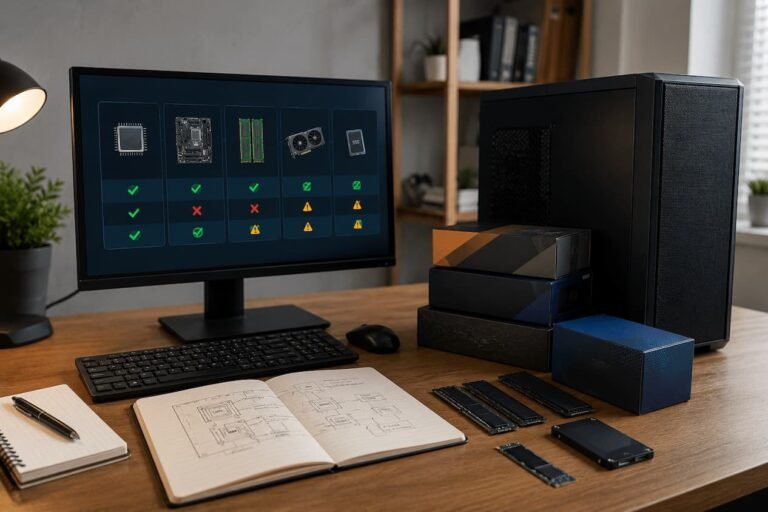
Beginners often get confused with this. New storage drives may fit in slots but not support the system’s interface. Check device documentation for supported storage types before upgrading. Check storage slots too. Computers with several storage slots allow you to expand storage without removing the original drive, while those with one may require replacement.
Compatibility Goes Beyond Port
Planning future updates by believing matching connectors means full compatibility is a serious mistake. Multilayered compatibility is genuine. Two devices with the same connector may have different data speeds. A cable can link two devices yet not work as planned. Charging ports may not output video. An expansion slot can physically accept a component yet limit its performance.
Also consider software and firmware. Certain devices need drivers or OS support for additional functions. The best method is to compare the devices’ technical specs. Check the connector’s capabilities, not just its name.
When Hubs and Adapters Help
Devices with limited connectivity can benefit from adapters and hubs. A hub or docking station can connect a laptop with few USB-C ports to multiple accessories. However, adapters are not a panacea for all problems. A hub cannot provide capabilities the computer’s port doesn’t support. A passive adapter cannot suddenly enable video output from a port.
Another factor is bandwidth. When devices share a connection, they may share bandwidth. Performance while transferring huge files or using several high-speed peripherals can suffer. Although adapters are essential, native support is frequently simpler and more dependable when you regularly utilize a feature.
Planning Future Expansion
Future-proofing doesn’t imply buying the most costly or latest equipment. Products cannot stay cutting-edge indefinitely due to rapid technology evolution. Identifying the types of expansion you’ll need is preferable. If you want to connect numerous displays, prioritize display support. Fast storage connections are ideal for massive file transfers. When replacing a desktop with a laptop, consider its docking and high-speed connectivity.
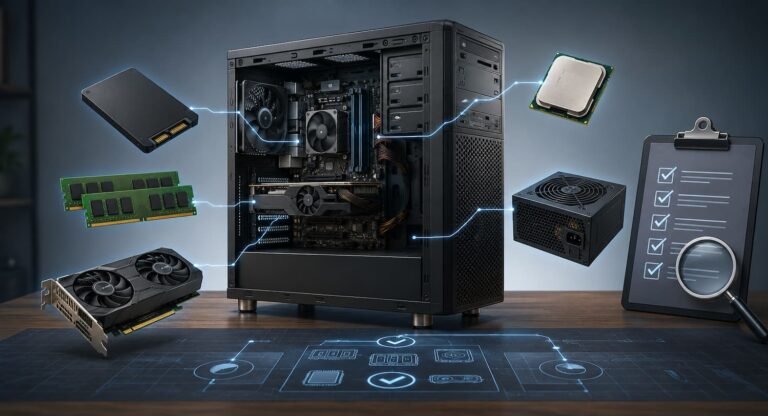
Consider expansion slots, storage, power supply headroom, and motherboard support when buying a desktop. Laptop buyers should check ports because internal updates may be limited. How long you plan to keep the item is also important. Someone who replaces a laptop every two years may not worry about connectivity as much as someone who uses it for five or six years.
Common Mistakes to Avoid
A common mistake is buying based on port count. Three powerful ports may be more beneficial than five basic ports. The capabilities of those ports matter more than the count. Assuming the latest connector gives the latest standard is another mistake. Connectors might look the same yet have different functions between generations.
Cables should not be ignored by buyers. The promised capabilities of a high-performance device may require a compatible cable. An outdated cable can reduce performance. Finally, avoid paying for extra features you’ll never use. While future flexibility is desirable, it should be balanced against your needs and budget. Instead than paying for unneeded specs, go for smart flexibility.
Quick Comparison of Important Standards
| Standard | Common Use | Why It Matters for Future Choices |
|---|---|---|
| USB | Peripherals, storage, charging | Influences accessory compatibility and data transfer options |
| USB-C | Modern device connectivity | Connector is versatile, but exact capabilities must be checked |
| PCIe | Internal expansion cards and storage | Affects desktop upgrade and expansion options |
| Thunderbolt | High-speed external connectivity | Useful for docks, displays, and fast external devices |
| HDMI | Displays and televisions | Affects compatibility with current and future display equipment |
| DisplayPort | Computer monitors | Important for advanced display configurations |
| Wi-Fi | Wireless networking | Influences performance and compatibility with newer networks |
| Bluetooth | Wireless accessories | Affects connectivity with keyboards, headphones, controllers, and more |
| SATA | Storage devices | Relevant for older and widely compatible storage upgrades |
The important lesson is that no single standard determines whether a device is future-ready. Expansion flexibility comes from the combination of connectivity, internal upgrade options, compatibility, and the needs of the person using the device.
Conclusion
Expansion standards may not be the most exciting part of buying a new device, but they can affect its longevity. You may add new gear as your needs change thanks to ports, internal slots, wireless technologies, storage interfaces, and display connectors. The biggest lesson is to look beyond connector designs and marketing jargon. Not all USB-C ports have the same capabilities. Not all M.2 drives fit in M.2 slots. An expansion slot does not guarantee infinite upgrades.
When buying a computer or other linked device, consider your current and future needs. Check the supported standards, review the accessories you plan to add, and understand the limits of adapters and hubs. Technology trends need not be predicted for effective future planning. Simply choose a device that can adapt to realistic changes in your needs. Before buying, consider expansion standards to make smarter hardware choices and lessen the likelihood that your next device will be outdated because it cannot connect to your equipment.
FAQs
1. Why should I consider expansion requirements while buying a computer?
What you can connect to a computer now and later depends on expansion standards. A gadget with current ports and internal expansion can adapt to your demands. You may desire quicker external storage, more displays, or a docking station. You can avoid buying hardware that becomes restrictive too quickly by knowing its standards.
2. Does USB-C resemble USB?
USB-C is a connection form, while USB is a series of connectivity protocols. USB-C ports vary in speed and functionality. Some USB-C connections provide charging, display output, or high-speed technology, while others just connect data. Always check the manufacturer’s specifications before thinking all USB-C ports are the same.
3. Does having additional ports make a computer future-proof?
Not necessarily. What ports can do matters more than their number. Fewer but faster ports may make a computer more adaptable. Consider external storage, monitors, docks, and networking devices you may connect. Then verify that the computer meets criteria and performance.
4. Are adapters beneficial for limited ports?
Adapters and hubs are useful for contemporary laptops with fewer ports. However, they cannot add capabilities the port does not support, and numerous devices connected to one hub may share bandwidth. For occasional use, an adapter is ideal. Native connections or a well-designed docking solution may improve demanding workloads.
5. Should I always buy expansion standards new?
No. The latest standard may not be best for all buyers. It has benefits if your devices and workloads can use them. When buying a gadget you’ll retain for years, a current-generation standard may be wise, but cost and practicality should be considered. Prioritize features you’ll utilize.
6. How do I assess PC upgradeability?
Find the model number and consult the manufacturer’s technical manual. For desktop PCs, check motherboard specs for PCIe slots, memory, storage, and CPU compatibility. Check if laptop memory and storage can be replaced and expanded. Reviews and service manuals can help, but manufacturer requirements are preferable for compatibility.
References
- USB Implementers Forum (USB-IF) — Official USB specifications, terminology, and USB-C information.
- PCI-SIG — Official PCI Express specifications and technology information.
- Intel — Official Thunderbolt technology and connectivity documentation.
- Wi-Fi Alliance — Official information about Wi-Fi generations and wireless networking standards.
- Bluetooth SIG — Official Bluetooth technology specifications and resources.
- HDMI Licensing Administrator — Official HDMI technology and specification information.
- VESA — Official DisplayPort standards and display connectivity resources.