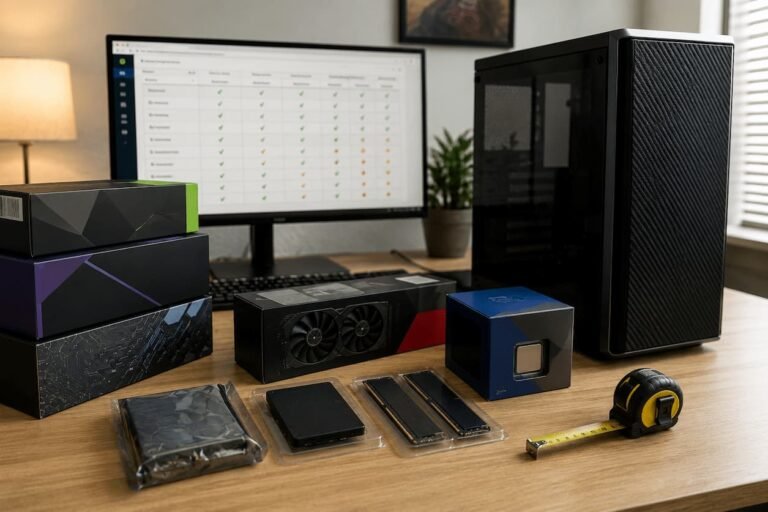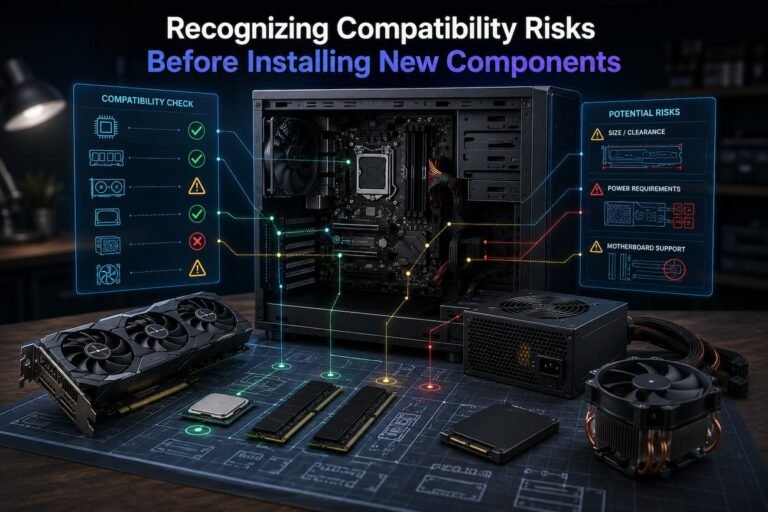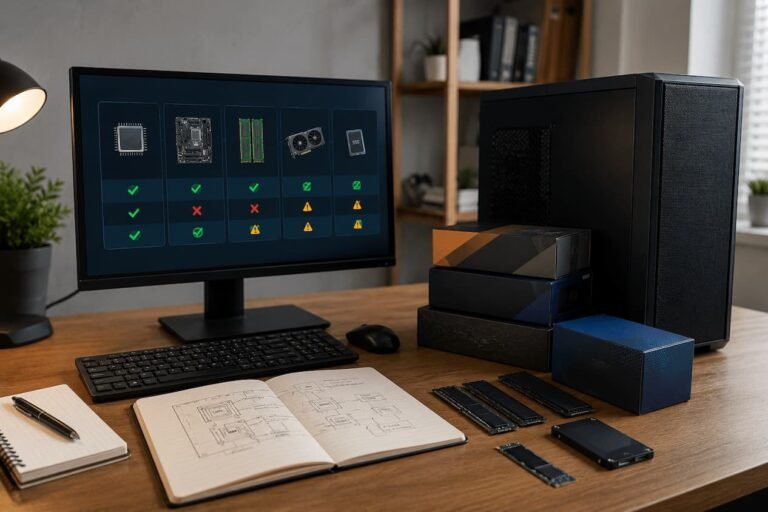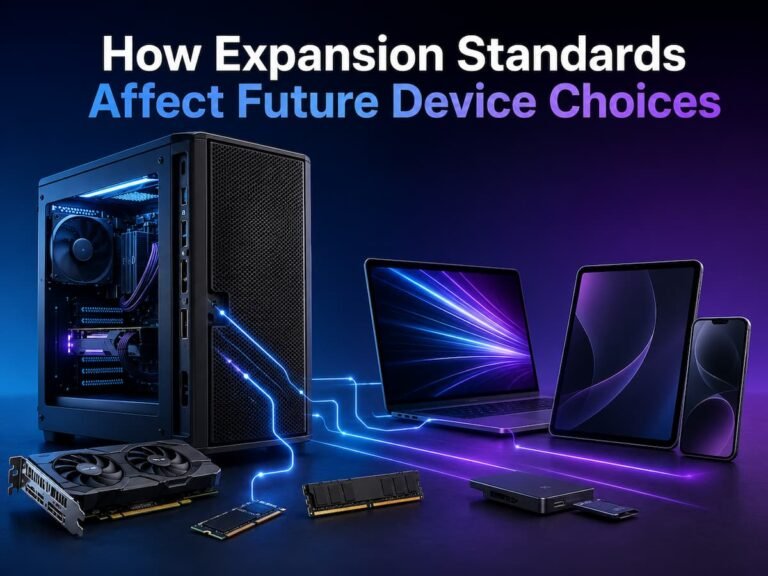
Purchasing and installing the latest component is not always the simplest approach to upgrade a computer. All hardware needs to be compatible with one another. An upgraded power supply can be necessary for a new graphics card. If the computer is running on an outdated processor, adding more RAM might not make much of a difference. Though it won’t help with demanding apps, a faster storage drive might speed up starting times. Additionally, there are laptops that include components that are completely unupgradable.
First things first: take stock of your present PC and figure out what issue you’re hoping to address with the upgrade. This manual will walk you through the steps of taking stock of your system, identifying performance issues, verifying compatibility, prioritizing updates, keeping expenses in check, and avoiding the unnecessary replacement of components.
The Significance of Upgrading Strategy
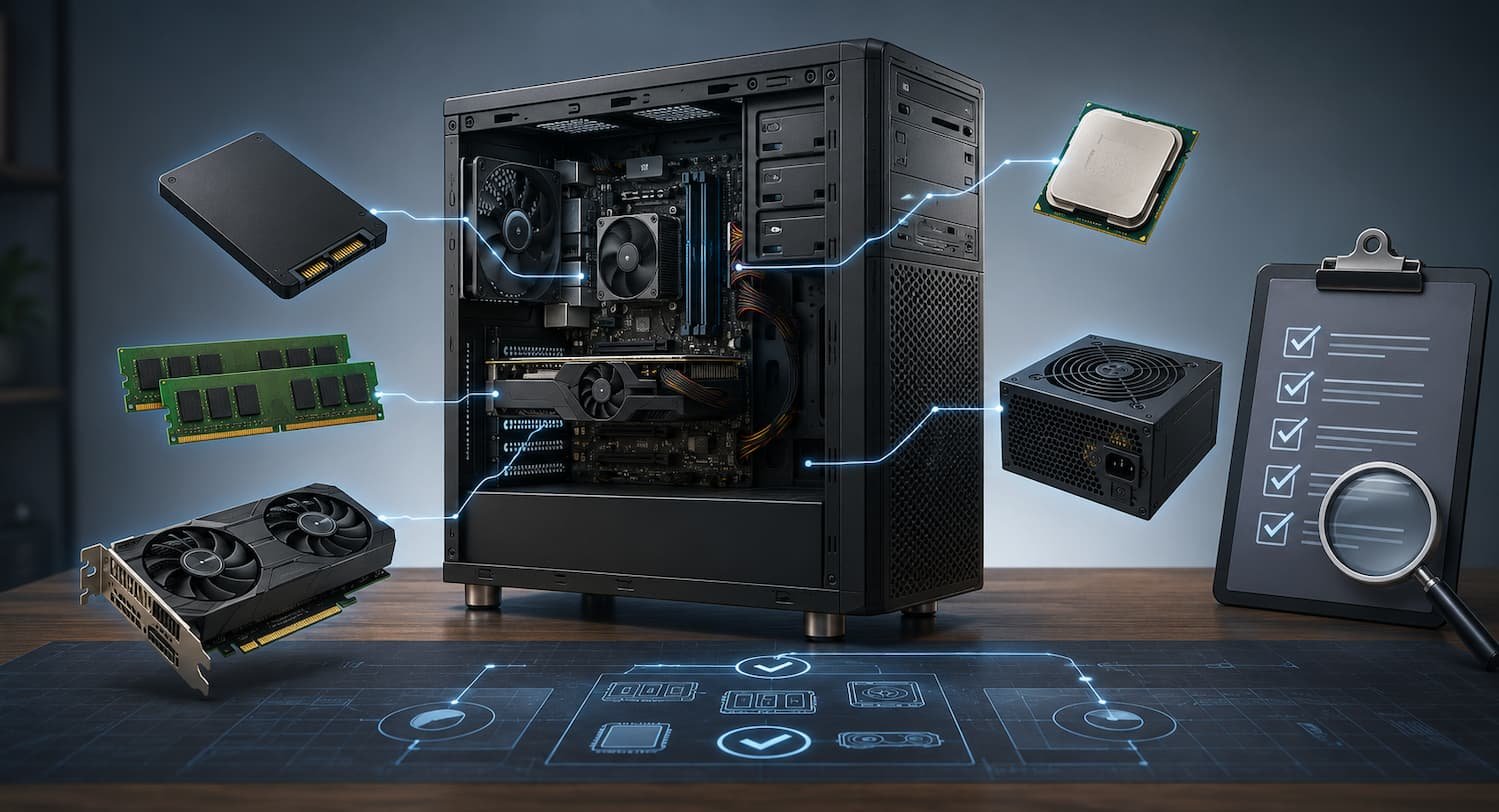
Rather than being a singular functioning unit, a computer is actually a network of interconnected parts. The motherboard, operating system, graphics card, memory, storage, power supply, cooling system, and processor all have an impact on the machine’s behavior. While enhancing one component could occasionally yield substantial results, doing the same to another might produce negligible results.
When you’re using an older computer with a standard hard disk drive, for instance, you could notice that it takes a while to launch apps or even boot up the OS. Swapping out the drive for a solid-state one might make regular activities feel a lot snappier. A new CPU may not be worth it in this case for everyday tasks.
However, a graphics card upgrade can be more worthwhile for a PC that plays graphically intensive games. Some systems have distinct objectives, such as those used for video editing, while others, like those used for office work, may simply require faster storage or more memory. The most important thing to remember is not to upgrade the part that is easy to replace, but rather to upgrade the part that fixes the real problem.
Find the Root of the Issue First
Specify precisely what you feel is wrong with your PC before you shell out any cash. To pinpoint the appropriate update, “It is slow” is insufficiently precise. Find out as soon as possible when the issue arises. Storage can be the culprit if your computer is sluggish to boot, opens programs slowly, or files load slowly. When multiple applications and browser tabs are active simultaneously, the system may become slow due to a lack of memory. The graphics card could be the primary culprit if frame rates are low in games.
Software, not hardware, is another possible source of performance issues. Poor performance can be caused by a number of factors, including an excess of background applications, a lack of available storage space, drivers that are too old, malware, or an operating system that needs repair. Perform slow-feeling chores while monitoring system resource utilization before updating. Keeping an eye on how much power is being used by various components can give you a good idea of what’s ready to crash. Find the slowest process and keep an eye on your computer while it runs. In most cases, this is more practical than simply upgrading components as they age.
Understand Computer Bottlenecks
When the operation of one part of a system is hindered by another part, the result is called a bottleneck. Depending on the job at hand, every computer has its own unique bottleneck. What matters most is figuring out which component is limiting the effort. Take the case of a powerful graphics card and an older processor. While the former may handle select games well, the latter may limit performance. If RAM was never the bottleneck to begin with, then adding more RAM won’t magically make the computer run quicker.
Also, bottlenecks can shift based on the use case. While a computer’s processor may be its limiting factor when producing videos, its graphics card becomes the deciding factor when playing games. This is why, instead of making broad assumptions, upgrade decisions should be grounded in real usage. Finding out which components routinely reach high utilisation while others have available capacity is a good way to keep an eye on your computer while it’s under typical workloads.
Storage Upgrade Timings
When it comes to older computers that still use mechanical hard disk drives, storage is a realistic improvement. A solid-state drive can greatly enhance responsiveness; therefore, it’s worth considering moving the OS and commonly used apps to one. You might notice that programs run more quickly, files open more smoothly, and starting times are shorter. Having an SSD will not, however, instantly speed up all of your processes. Neither the CPU nor the GPU will directly enhance performance.
When your existing drive is almost full, it’s a sensible idea to upgrade your storage. The quantity of free space needed to keep a system running normally varies with the operating system and the workload, however keeping enough free space is helpful. Before you replace a drive, make sure you inspect its physical format and interface. In contrast to laptops, desktop computers often support a wider variety of drive types. Before you change any storage, make sure you back up any vital files.
Rationale for RAM Upgrades
RAM, short for “system memory,” is what allows your computer to multitask and run multiple applications at once. To make your system more responsive, you might increase the amount of RAM if it frequently runs out of available memory. Having a lot of tabs open, editing big papers, using creative apps, or having numerous programs open at once can make the issue stand out.
Memory (RAM) is not necessarily an asset. Adding more memory might not make much of a difference if your machine is already equipped to handle your typical workload. Find out what kind and how fast your motherboard or laptop can handle RAM before you buy any. Verify the maximum capacity and the number of memory slots that your motherboard supports. Because the RAM is soldered directly to the motherboard in some systems, it is not possible to upgrade. Memory modules must be compatible with one another. The most foolproof method is to check the motherboard manual or the computer manufacturer’s specs before making a purchase.
If You Should Get a New Graphics Card When
Those who engage in graphically intense activities, such as playing graphically demanding games, using 3D programs, working with certain artistic tools, or similar jobs, typically benefit the most from upgrading their graphics card. Before upgrading, please ensure that the graphics card is not the bottleneck. There may not be much use in upgrading your graphics card if your games are currently running at the specs you’re looking for.
In addition, make sure you verify the physical dimensions, power needs, connectors, and power supply capabilities. It is possible that a newer graphics card will be substantially bigger or more power demanding than the current model. And then there’s the matter of equilibrium. Depending on the workload, a powerful graphics card may not perform well with an older processor. While it’s not necessary to replace all parts at once, it is important to take the system as a whole into account before making a large purchase.
When Should You Get a New CPU?
Important to the overall performance of the system, the processor (CPU) manages general computing activities. When the processor persistently limits the performance of apps that rely significantly on the CPU, it may be worthwhile to upgrade it. On the other hand, swapping either RAM or storage is usually easier than upgrading the CPU. The firmware and socket on the motherboard should be compatible with the new processor. The motherboard may also limit supported processor generations and power requirements.
Better cooling may also be necessary for a CPU upgrade. The current cooler might not be enough to handle some processors because they produce more heat than the original chip. Therefore, before buying a processor, make sure to verify the manufacturer’s compatibility list for the motherboard. You can’t just assume that two CPUs that seem identical will actually operate together.
Remember to Bring the Power Source
When doing an upgrade, the power supply is often disregarded. The power supply needs to be capable of handling the increased demand caused by a new graphics card or processor, which may be more power-demanding than the original hardware. Before purchasing, make sure you research the power supply’s rated capacity, connector options, dimensions, and quality. A power supply’s suitability is dependent on more than just its wattage rating. The unit’s dependability and quality are also important.
It may be required to replace the current power supply if it is outdated or not suitable for the intended update. Think about this when you’re budgeting for a new power-hungry component, like a graphics card, because it can add to the overall cost of an upgrade. If a computer is functional at the moment, it doesn’t mean the power supply is enough for a significant hardware upgrade. First, make sure you know how much power and what kind of connector the new component requires.
See Whether Your Motherboard Is Compatible
Your computer’s motherboard specifies the CPU, memory, storage ports, and expansion gear that it is compatible with. As a result, it’s crucial to verify it before making any upgrades. Verify the maximum capacity and supported generations for memory. Review the processor’s official support list, firmware requirements, chipset, and socket. When it comes to storage, ensure that the motherboard is compatible with the new drive’s interface and form size.
There must be sufficient physical space and appropriate slots for expansion cards. The specific motherboard and component combination can determine compatibility, and modern systems may use multiple versions of interfaces. You can avoid wasting money on a product that won’t work because you didn’t read the instructions carefully.
Think About Temperature and Room Size
One such thing that can restrict an update is heat. A computer needs sufficient ventilation to dissipate heat, which more powerful components may produce. Verify the case’s internal dimensions before adding a bigger graphics card. There are a few high-performance cards that are noticeably larger in stature compared to their predecessors.
Before upgrading the CPU, be sure the current cooler is capable of handling the new processor. Furthermore, think about whether there’s enough airflow in the casing and if dust is preventing it from cooling properly. Sometimes, improving ventilation rather than replacing main components can provide a more consistent performance from an older computer. You can also improve thermal performance by safely removing dust from fans and vents.
Preparing for Laptop Upgrades
Due to the fact that many contemporary computers have components that are extremely difficult, if not impossible, to repair, upgrading a laptop requires extra care. Memory might be permanently attached to the motherboard, and storage could be format-locked or otherwise inaccessible. You can upgrade the storage on some computers, but not on others. Memory or storage modules can be swapped out in older models, however the specifics differ greatly.
Make sure you have the repair manual and manufacturer paperwork on hand before opening a laptop. Before you open the gadget, find out if the upgrade is officially supported and if opening it will void the warranty. It might not be worth it to upgrade a laptop if it has a processor that cannot be upgraded, RAM that can only be soldered, or limited storage options. At some point, it could be more prudent to optimize the software or get a new computer.
Choose the Right Upgrade Order
There is no universal upgrade order because every computer and workload is different. However, upgrades should generally be prioritized according to the problem they solve and the value they provide.
| Problem | Upgrade to Consider | What to Check First |
|---|---|---|
| Slow startup and application loading | SSD | Drive interface and capacity |
| Slow multitasking | RAM | Maximum capacity and memory type |
| Low gaming performance | Graphics card | Power supply, case space, CPU balance |
| Slow CPU-heavy applications | Processor | Motherboard compatibility and cooling |
| System overheating | Cooling improvements | Airflow, dust, fans, and cooler compatibility |
Start with the upgrade that directly addresses your biggest problem. If two components need attention, consider which one will provide the largest improvement for the money.
How to Upgrade on a Budget
With a tight budget, preparation is key. Think about updating in stages rather than purchasing multiple components all at once. By doing so, you may evaluate the impact of each upgrade before investing further funds. A machine with slow storage and inadequate RAM, for instance, could be given an SSD before any others. You could find that the enhanced system is fast enough for your needs after using it for a while. Just because the computer is old doesn’t mean you should shell out more cash for a new processor.
The overall expense of an improvement should also be taken into account. If you’re upgrading your graphics card, you could need a new power supply. If you’re upgrading your processor, you might need a new motherboard and cooler. The cost benefit of upgrading can diminish once a number of supporting components require replacement. Evaluate the total upgrading price in relation to the price of a brand new computer with identical specs. Instead of focusing on increasing the total number of components, we should aim to maximize performance that is actually helpful.
Avoiding the Most Common Upgrade Errors
Buying a component without first making sure it is compatible is a typical error. This might lead to new gear that doesn’t physically fit or function well with the current setup. Upgrading only on the basis of age is another error. Even if it’s five years old, your computer can be more than capable of handling the jobs you throw at it. While chronological age is helpful, nothing beats real performance.
In addition, people tend to ignore practical considerations in favor of features that appear good on paper. Despite the allure of a more recent graphics card, more random access memory (RAM), or a quicker processor, the actual benefit will be job dependent. And lastly, don’t forget about backups. When upgrading hardware, it may be necessary to reinstall operating systems, relocate storage drives, or alter system settings. Any time you make major changes to your hardware, be sure to back up your vital files beforehand.
Make a Strategy for Future Improvements
Optimal upgrade planning takes into account both immediate requirements and potential future developments. It is advisable to select a power supply and case that can easily accept a graphics card upgrade if you intend to do so in the future. Similarly, you might be able to begin with less memory and add more later if your motherboard is compatible with it. This should only be done if there are suitable upgrade choices and the initial configuration makes sense.
Make a note of everything that goes into your computer. Be sure to jot down the following details: model of motherboard, CPU, RAM configuration, storage drives, graphics card, power supply, and casing. Future updates can be more easily planned with this knowledge. Reviewing your system every few months is also helpful, instead of always going after new gear. While new technology emerges rapidly, it’s wasteful to constantly upgrade. If a component is severely restricting your work or if an upgrade will significantly enhance your experience, then you should upgrade.
FAQs
1. Should I upgrade my computer or buy a new one?
The number of worn-out parts and your needs will determine the best course of action. Targeted upgrades can be very cost-effective if the system’s components—processor, motherboard, power supply, and case—are still usable. But, updating might become nearly as expensive as buying a new system if a number of important components are obsolete or not compatible with current technology. Evaluate the anticipated performance in relation to the overall cost of the upgrade.
2. When upgrading an older computer, what is the recommended initial step?
Upgrading to a solid-state drive (SSD) can significantly improve the performance of many older PCs that are still using mechanical hard drives. Still, not every question has a definitive response. More RAM could help a computer with inadequate RAM, but a better graphics card could be necessary for a gaming PC. Choosing your first improvement should be preceded by identifying the actual bottleneck.
3. Would it be possible to just upgrade the graphics card?
It is possible to upgrade the graphics card separately in a lot of desktop PCs. Before you buy, be sure to verify the processor’s performance, case size, available power connectors, motherboard slot, and power supply. Some games and programs may not be compatible with even the most powerful graphics card if you’re using an older CPU. That being said, it is still advisable to arrange the graphics card upgrading alongside the rest of the system.
4. How can I tell whether additional RAM is necessary?
Keeping an eye on memory utilization while you go about your day is a good idea. You might find that your system responds faster after installing more RAM if it regularly uses almost all of the available memory and begins to rely significantly on storage for extra temporary memory. Memory consumption should be kept much below the available capacity for additional RAM to have any noticeable impact. Be sure to verify the specifications of your motherboard or laptop before buying extra RAM.
Conclusion
It is not necessary to replace every component of a computer as soon as performance starts to degrade if upgrades are planned in advance. Targeted upgrades often fix the core issue while leaving the rest of the system running well. Find the real bottleneck; it’s the most crucial stage. Determine if storage, memory, graphics performance, CPU speed, cooling, or some other component is to blame by observing how your computer acts during the tasks that are important to you.
Prior to buying hardware, make sure it is compatible. Think about the motherboard, power source, physical dimensions, cooling, and connectors that are available. Keep in mind that some laptop components cannot be replaced; therefore, it is more vital to prepare ahead for the future.
A computer’s useful life can be extended, and wasteful spending can be reduced with a well-planned upgrading strategy. Asking, “Which upgrade will solve the problem I actually have?” is more practical than asking, “What is the newest component I can buy?” By taking that route, we may improve our decision-making, increase our value, and ensure that our computers last longer.
References
- Intel — Official processor and desktop platform specifications and compatibility resources.
- AMD — Official processor and graphics product specifications and support documentation.
- Microsoft — Windows system requirements and hardware compatibility documentation.
- Crucial — Memory and storage upgrade compatibility resources.
- Kingston Technology — Memory and SSD installation and compatibility guidance.
- PCPartPicker — Hardware compatibility and component planning resources.