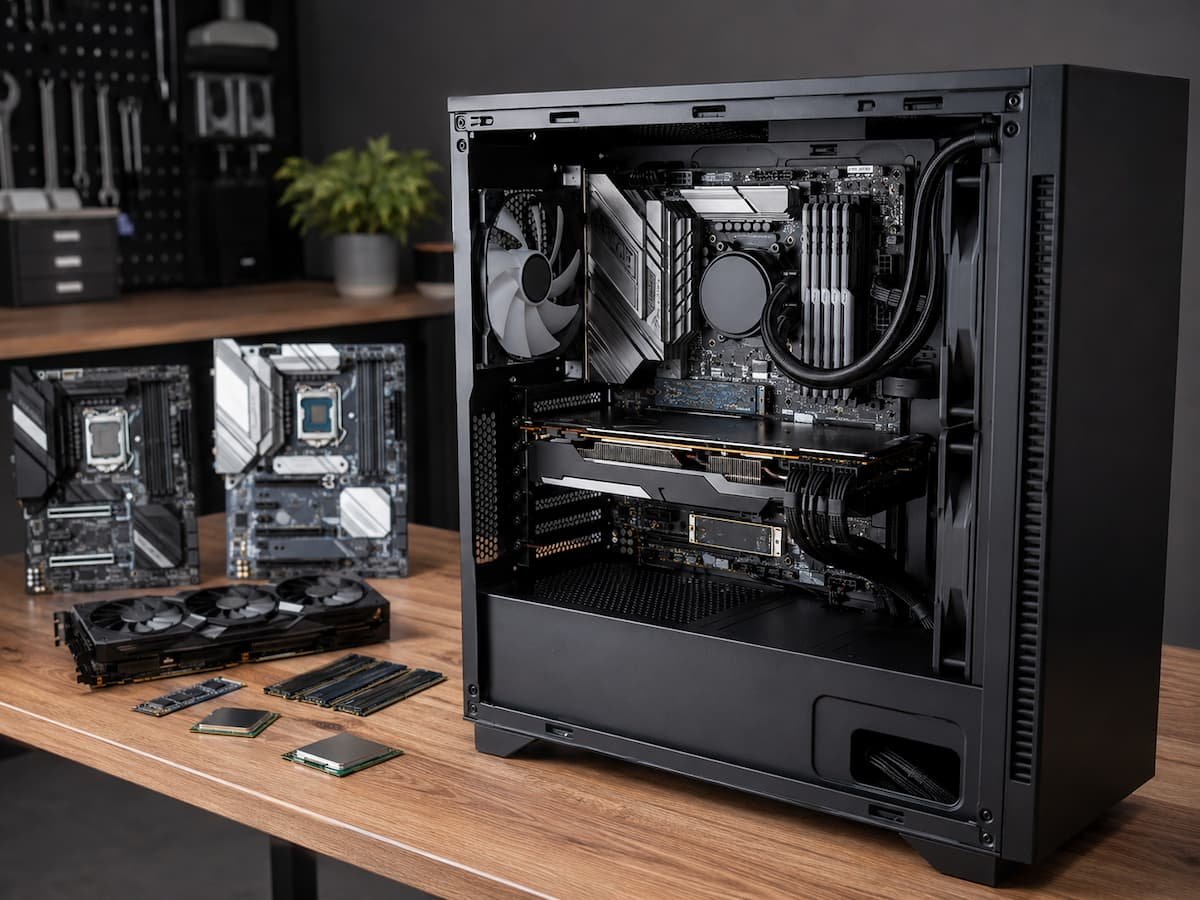
Meaning of a Hardware Generation
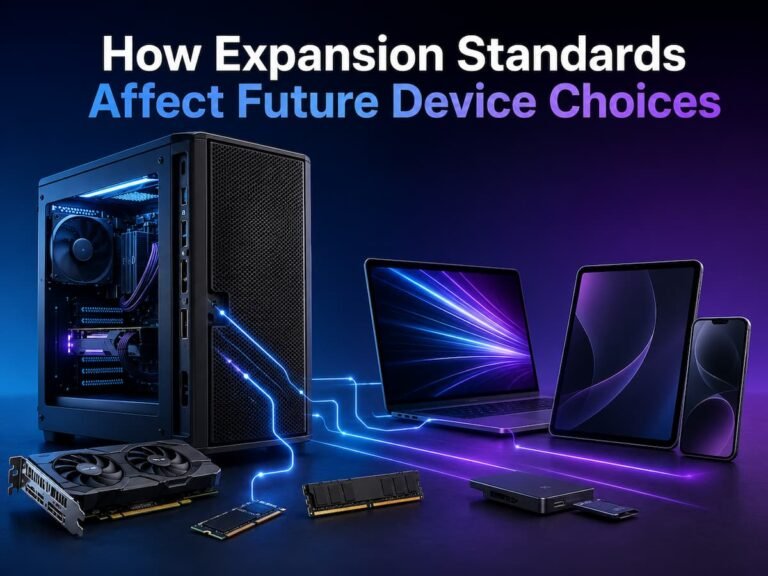
The term “hardware generation” is informal yet can mean numerous things. Processor families, memory standards, and storage interfaces can evolve independently. Graphics cards can also be updated without changing other computer parts.
Often it is best viewed as a mix of technical standards that specify compatibility for upgrade planning. Boards are built for certain CPU sockets or platforms. It supports particular memory rates and types. It features some storage and extension ports. These choices limit future upgrades.
Consider a PC with an older processor. Replace the CPU with a faster model from the same supported family, add memory, a larger SSD, or the graphics card. That can extend machine life significantly. However, a major update may involve replacing the motherboard once the platform reaches its limits. In such cases, upgrading involves more than just replacing a single component. This is why a computer’s age and upgrade potential vary. Some older but flexible desktops can be upgraded more easily than modern ones with tightly connected components.
Motherboards Form Upgrade Paths
When future-proofing a PC, people typically mention the processor. The motherboard controls whether processor families, memory modules, storage devices, and extension gear function together; thus, it demands equal attention. One clear example is the CPU socket. Not all motherboards support a CPU. Even if two CPUs use the same socket, firmware support, chipset constraints, power needs, and manufacturer policies can affect compatibility. A motherboard that supports one CPU generation may support later generations through firmware updates, while another board may stop at the original.
The difference between physical and practical compatibility is significant. A component may fit mechanically but not be a good upgrade if the board lacks power delivery, firmware support, or performance. Thus, before buying a desktop for long-term usage, check the manufacturer’s CPU support list rather than assuming a newer processor would function. The same goes for memory and storage. A board with more expansion slots lets you grow, whereas one with fewer slots forces you to replace components sooner.
Imagine two machines with equivalent processors today. One platform supports more upgrades, while the other is nearing the end of its CPU family. The first system may appeal to those who plan to improve gradually. If the owner keeps it for years, the second may be appropriate. Easy lesson: upgrade flexibility is a platform trait, not a processor specification. A fast CPU doesn’t guarantee flexibility.
Memory Generations Affect Upgrade Costs
RAM is another area where hardware generations affect future flexibility. Not all memory generations are compatible. Because newer modules are faster, a motherboard intended for one memory standard cannot support another. This is important when a computer has limited memory or you want to add RAM years later. Your system may use an older memory generation, making suitable modules scarcer or pricier. When a motherboard has two memory slots and both are full, things get more complicated. Instead of adding modules, increasing capacity may involve eliminating them.
A PC with four memory slots is more upgradeable than one with only two. A laptop with replaceable memory may be more flexible than one with all memory soldered to the motherboard. The practicality of buying capacity today. If you frequently work with large files, virtual machines, creative apps, or demanding development tools, buying enough memory upfront may be better than upgrading later. Upgradeability is important, but don’t buy a weak system.
Storage Interfaces Impact System Growth.
Storage is easy to upgrade, but hardware generations matter. Modern solid-state disks have multiple physical formats and interfaces, which the motherboard chooses. A desktop with numerous M.2 slots and SATA connectors has more storage options than a small machine with one disk bay. The first machine may expand capacity without removing the drive. The second may require a new drive or external storage.
Interface generations also affect performance. While a modern storage interface may have more theoretical bandwidth, it may not improve everyday tasks for all users. If you use your computer for web browsing, office apps, and file management, capacity and stability may be more important than transfer rate. Check the system’s storage type and expansion slots before buying. A workstation with one fast drive may be enough today, but a second drive gives you more alternatives as your files, apps, and projects increase.
| Hardware area | What can change between generations | Why it matters for upgrades |
| Processor platform | Socket, chipset, firmware support, power requirements | Determines which CPUs can be installed later |
| Memory | Memory standard, supported capacity, slot count | Affects whether RAM can be expanded or replaced easily |
| Storage | Interface, connector type, number of drive positions | Determines how easily additional storage can be added |
| Expansion | PCI Express generation, slot availability, physical space | Influences future graphics and expansion-card options |
| Connectivity | USB standards, wireless technology, display outputs | Can affect compatibility with newer peripherals |
Newer Expansion Standards Can Extend a PC’s Useful Life
Laptop Upgrades are Usually Limited
Laptops show hardware generation limits clearly. Manufacturers integrate components tightly for thinner designs, lower weight, higher battery efficiency, and smaller cooling systems. However, laptops sometimes have fewer upgrading choices than desktops. Some laptops offer storage and memory upgrades. Other motherboards have one or both components soldered. In those systems, choosing the proper configuration at purchase is more crucial because the original hardware may last the entire machine.
Another component is simple to overlook. Even when you can replace laptop storage, the manufacturer may use a proprietary design or a less common component format. A technically conceivable update may not be cost-effective or convenient. Before buying a laptop for long-term use, examine the service manual or manufacturer specs. Do not assume all laptops with accessible panels can be upgraded. Check for memory slots, maximum memory, storage places, and soldered components. Paying for a laptop configuration that fits your probable memory and storage demands may be more dependable than upgrading later if you want to maintain it for years.
Limited Hardware Flexibility Due to Software Support
Hardware compatibility is only half of long-term upgrades. A theoretically usable component’s viability depends on software support. Older hardware may not meet operating system requirements. Driver support may change as manufacturers focus on newer platforms. A graphics card may still work, but its driver support may not offer the same capabilities or optimization as newer technology.
Firmware is another factor. Sometimes motherboard firmware updates increase CPU compatibility or support newer devices. However, firmware updates do not ensure future improvements. Manufacturers choose which products to sustain, and older platforms finish their development cycle. Before making a long-term purchase, examine a manufacturer and platform’s support history. A system with clear documentation, regular firmware upgrades, and a large user community may be easier to manage than a mysterious platform with little technical information. Long-term flexibility goes beyond “Can I physically install this component?” Better question: “Will the system support this component properly?”
Why the Youngest Generation Isn’t Always Best Long-Term
One would think buying the latest generation guarantees the longest lifespan. This assumption is sometimes accurate, but the relationship is complicated. New platforms may have updated interfaces and longer manufacturer support. Early adopters may also experience higher component pricing, less reasonable upgrade options, or limited part availability. A mature platform from the previous generation may balance performance with economical replacement parts.
The appropriate choice relies on your computer use. Someone who upgrades their desktop every three years may prioritize performance over CPU compatibility. Replaceable memory, several storage slots, a standard motherboard, and a solid processor upgrade path may appeal to someone who wishes to keep a machine for seven or eight years. Upgrade longevity differs from performance longevity. If it can handle the owner’s job, a computer can last for years without major changes. A highly upgradeable platform may then be ineffective. Hardware that matches your planned ownership duration is usually better than the latest generation.
Assessing Upgrade Flexibility Before Buying
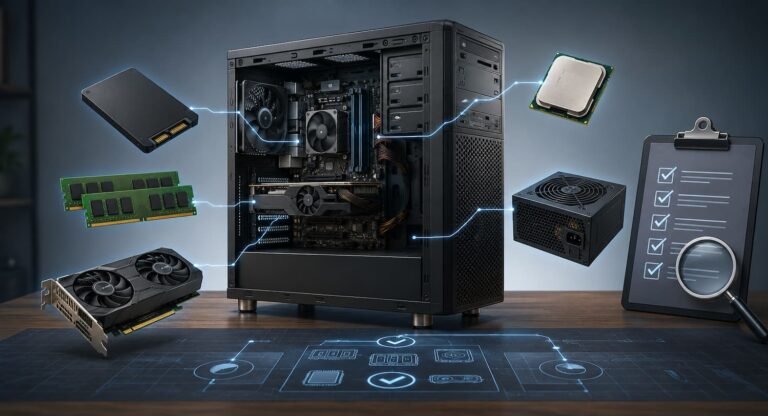
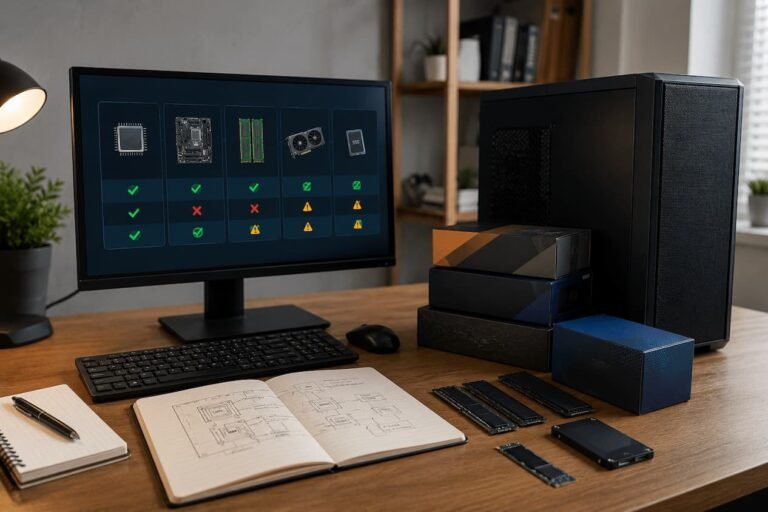
A computer’s upgrade potential can be assessed without being a hardware engineer. Identify your most likely replacement parts. Many associate that with storage and memory. A graphics card or CPU may be included for desktop users. Determine what you wish to upgrade and whether the system offers a feasible approach. Check the case’s memory slots, maximum memory, storage connectors, expansion slots, CPU support, power supply capacity, and space.
Instead of using the product family name, verify the model. Manufacturers sell multiple versions of a computer with different motherboards, memory, or storage options. A review of one setup may misrepresent another. Official desktop motherboard documentation is often best. A laptop’s repair manual can reveal more than a retailer’s marketing page. Consider the uncertainty of ambiguous documentation before buying. Imagine the computer on the day you acquire it, the first time you need more storage or memory, and the moment you require a huge performance boost. Having sensible options at each stage makes the system adaptable.
Common Upgrade Mistakes That Reduce Flexibility
Buying a computer solely on its processor is a typical mistake. The CPU is significant, but it doesn’t tell you how many memory slots the motherboard has, how much storage can be loaded, or whether the power supply can support a future graphics card. Assuming newer interfaces kill older ones is another fallacy. Many modern components can support older standards; however, performance and features may vary. Compatibility should be examined extensively, not only by generation number.
People also sometimes overspend on a high-end component while ignoring the platform. A system with poor cooling or limited expansion capacity may not offer the buyer a flexible upgrade path with a strong processor. Another issue is buying a tiny or proprietary system without knowing its limits. Small computers can be great, but they generally limit component access, cooling, and expansion. If you realize what you’re giving up, you can still use such a system. Finally, an upgradeable computer is not a required upgrade. If a system fits your needs, replacing components with a newer version may not be beneficial. Upgrade flexibility gives you options, not a requirement to upgrade.
Planning Long-Term Upgrades
A good upgrade strategy starts with system lifespan. You may prioritize performance, dependability, and pricing if you only expect to maintain a computer for a few years. If ownership lasts longer, platform flexibility is more important. A balanced desktop motherboard may have enough memory, storage, and expansion slots. You may not use all functionalities immediately. They protect future choices.
Do not plan modifications that require components that may never be inexpensive or available. A theoretical upgrade path is less beneficial than one using available parts. Consider technological compatibility, replacement component cost, and availability when assessing a platform. Flexible platforms benefit from maintenance. Keep cooling systems clean, replace failing storage before it becomes unreliable, update firmware as needed, and monitor component temperatures to extend computer life. If bad maintenance fails the system before you use it, an upgrade path is useless. Thus, “buy the newest hardware” is not the best long-term plan. It is to acquire a system with the right architecture, maintain it, and upgrade only when a component becomes restrictive.
Conclusion
Hardware generations shape a computer’s future in ways that are easy to overlook when focusing on performance. Later freedom depends on processor platforms, memory standards, storage interfaces, expansion ports, firmware, and software support.
The most adaptable system may not be the latest or most expensive. The system’s architecture gives you actual options for changing demands. That may mean replacing laptop storage for one user. Another option is a desktop motherboard that permits extra memory, storage, and processor upgrades.
Consider the computer’s life cycle before buying, not just its specs. Consider what you’ll upgrade, how long you’ll retain the system, and whether the platform makes those upgrades easy. That method can assist you in avoiding paying for flexibility you won’t use and avoid the frustration of realizing years later that your upgrade is impossible.
FAQs
1. Does purchasing the latest generation of hardware guarantee better upgrade options?
No. The latest generation of hardware typically introduces new interfaces and longer support cycles, but the flexibility of upgrades depends on the specific platform. For example, a new laptop with soldered memory may have fewer upgrade options than an older desktop with removable memory slots and multiple expansion options.
2. Is it better to buy more RAM now or upgrade later?
This depends on your system and the expected workload. If the memory is soldered to the motherboard or if your computer has a limited number of memory slots, it is especially important to purchase sufficient RAM from the start. If your system has enough memory slots and supports a higher capacity, it may be more cost-effective to buy a suitable amount of RAM now and expand later.
3. Can a new processor be installed on an older motherboard?
Sometimes yes, but not always. The processor slot, chipset, firmware, power supply method, and official manufacturer support all influence upgrades. Always check your motherboard’s CPU compatibility list before purchasing a processor upgrade.
4. Is older hardware always bad?
No. If the older platform is powerful enough and offers affordable and straightforward-to-upgrade options, it remains a sensible choice. The key is to compare the remaining lifespan and upgrade costs with the cost of switching to a newer platform.
5. Why are desktops generally easier to upgrade than laptops?
Desktops typically offer more physical space, standardized components, easily accessible expansion slots, and replaceable memory and storage. Laptops prioritize compactness and portability, which often leads manufacturers to use soldered components or specialized designs.
6. What are the most important things to check for a future upgrade?
There is no universal specification. For desktops, the motherboard platform, expansion capacity, memory support, storage options, and power supply are all important. For laptops, the replaceability of memory and storage is often one of the most crucial factors.