A drop in computer performance often has a similar effect: it prompts you to consider an upgrade. Within minutes, you might see various upgrade suggestions—such as a faster processor, more memory, a better graphics card, a fast SSD, and so on. While these upgrades can indeed improve performance, they only do so if they address the actual bottleneck in your system.
People often decide to upgrade before identifying the root cause of the problem. For instance, a designer experiencing extremely long export times might mistakenly assume the processor needs replacing, when the real issue could be insufficient memory, forcing the system to rely heavily on virtual memory. A gamer might buy an expensive graphics card even when the processor is struggling to handle game logic. In another scenario, a computer might slow down during routine use simply due to a lack of storage space or years of background software consuming significant system resources.
That is why performance bottlenecks should always be the primary consideration when purchasing new hardware. Every computer has specific factors that determine its efficiency in handling particular tasks. Without understanding these factors, a hardware upgrade is little more than an educated guess.
Upgrade plans can be based on actual limitations rather than assumptions; this leads to better performance, lower costs, and systems that remain stable for years rather than just months.
Every Computer Has Finite Performance Capabilities
No computer offers unlimited performance, regardless of how expensive the hardware is. Every system faces real-world limitations dictated by its hardware, cooling, firmware, software environment, and workload.
These limitations are not static; they shift depending on the task the computer is performing. A laptop suitable for office tasks might perform poorly when editing high-resolution video. A desktop computer designed for technical simulations might be inadequate for simple administrative tasks. The hardware might be identical, yet our requirements for it can differ vastly.
Understanding this distinction is crucial, as performance always depends on the task at hand.
Imagine a family car and a delivery van. During a drive through the city, they might arrive at their destination at the same time. However, if each van is carrying thousands of kilograms of cargo, their performance capabilities will quickly diverge. The vehicles themselves haven’t become better or worse; only the load has changed.
Computers work similarly. Performance limitations only become apparent when software pushes one or more components beyond their comfort zone.
The Difference Between a Slow Computer and a Limited Computer
People often say their computer is “slow,” but this rarely explains the actual cause.
A system that takes several minutes to boot up in the morning faces a very different issue than one that stutters while editing a large project. Likewise, a computer that runs smoothly until dozens of browser tabs are opened faces different performance constraints than one that overheats after 20 minutes of rendering.
Instead of focusing on “fast” or “slow,” it is more effective to identify the performance bottlenecks.
Some common examples include:
| Situation | Possible Performance Limit |
|---|---|
| Applications open slowly | Storage performance or excessive startup processes |
| Multitasking becomes unresponsive | Available memory capacity |
| Games show inconsistent frame rates | CPU, GPU, or thermal limitations |
| Long rendering times | Processor performance, GPU acceleration, or cooling |
| File transfers take longer than expected | Storage interface or drive performance |
Notice that similar symptoms can have very different causes. This is precisely why purchasing new hardware without understanding existing limitations often produces disappointing results.
Bottlenecks Are Temporary, Not Permanent
One of the most misunderstood ideas in computer performance is the concept of a bottleneck.
Many discussions imply that a computer has a single bottleneck that remains constant. In reality, bottlenecks shift continuously as workloads change.
Imagine spending the morning answering emails, the afternoon editing photographs, and the evening playing a modern game.
Throughout the day, different components become the busiest part of the system.
During email and web browsing, the processor may spend much of its time idle while storage briefly loads applications.
While editing photographs, memory capacity and processor performance become much more significant because large image files remain active.
Later, during gaming, graphics processing and processor communication may dominate overall performance.
The limitation has changed three times without replacing a single component.
This is why professional technicians rarely ask, “What is the bottleneck?”
Instead, they ask:
“What is limiting performance during this specific workload?”
That small difference changes the entire upgrade strategy.
Why Performance Measurements Are More Valuable Than Assumptions
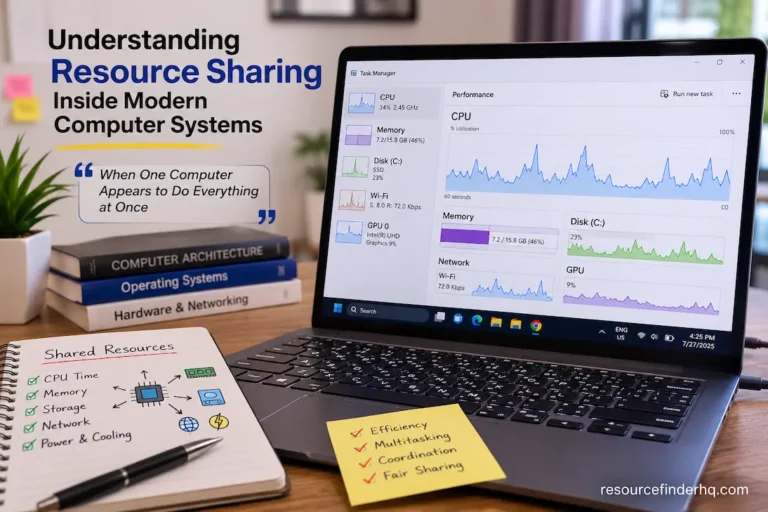
Modern operating systems provide access to performance information that previous generations of computer users could only estimate.
Instead of guessing which component is struggling, users can often observe how the system behaves while performing normal tasks.
For example, consistently high processor utilization during video encoding suggests that computational capacity is being fully used. Memory approaching maximum capacity during multitasking may indicate that additional RAM would provide measurable benefits. Similarly, sustained storage activity after memory has been exhausted often reveals that the operating system is relying heavily on virtual memory instead of physical RAM.
These observations transform upgrade planning from speculation into evidence-based decision making.
A practical evaluation might include questions such as:
- Which component reaches its limit first?
- Does performance improve after closing background applications?
- Does the slowdown occur continuously or only during specific tasks?
- Are temperatures increasing enough to reduce operating speeds?
- Is the workload temporary or repeated every day?
Answering these questions usually provides far more useful information than comparing specification sheets alone.
Not Every Performance Problem Requires New Hardware
Upgrading hardware is only one method of improving computer performance. In many situations, the existing hardware is capable of delivering better results once underlying issues are addressed.
A computer that has been used for several years often accumulates unnecessary startup applications, outdated drivers, fragmented storage (where applicable), temporary files, and software that continues running in the background long after installation.
Cooling systems can also lose efficiency over time. Dust buildup restricts airflow, causing processors and graphics hardware to operate at higher temperatures. Modern components protect themselves by automatically reducing operating speeds, making the computer appear less capable than it actually is.
Storage utilization provides another example. Solid-state drives generally maintain better performance when sufficient free space remains available. As drives approach full capacity, write performance and system responsiveness may gradually decline depending on the workload.
Before purchasing replacement hardware, it is worth evaluating whether maintenance alone can remove the existing limitation.
A Simple Way to Classify Performance Limits
Instead of viewing computer performance as one large problem, it helps to separate limitations into broad categories.
| Performance Limit | Typical Symptoms | Possible Solution |
|---|---|---|
| Computational | Long processing times | Evaluate processor requirements |
| Memory | Poor multitasking, application pauses | Assess RAM usage and capacity |
| Storage | Slow loading and file access | Review storage performance and available space |
| Graphics | Reduced visual performance | Examine GPU workload and settings |
| Thermal | Performance declines during sustained tasks | Improve cooling and airflow |
| Software | General sluggishness despite capable hardware | Optimize operating system and background applications |
Thinking in categories encourages systematic troubleshooting instead of immediately replacing components.
It also highlights an important principle:
The best upgrade is the one that removes the actual performance limit—not simply the most expensive component available.
Looking at Workloads Instead of Specifications
Once a performance limit has been identified, the next step is determining whether it affects the work you perform regularly or only under occasional circumstances. This distinction is often overlooked during upgrade planning.
For example, imagine a software developer whose computer briefly reaches full processor utilization while compiling a large project. If that compilation happens several times each day, reducing build times could have a meaningful impact on productivity. On the other hand, if the same workload occurs only once every few weeks, investing in a significantly more powerful processor may offer little practical return.
The same principle applies across many professions and everyday activities. A photographer importing thousands of RAW images every day will likely benefit more from storage and memory improvements than someone who edits family photos once a month. Likewise, a gamer playing modern AAA titles at high resolutions has very different hardware priorities than someone whose most demanding application is a web browser.
Before planning an upgrade, it helps to distinguish between recurring limitations and occasional limitations. Hardware should generally be selected to improve the tasks that occupy most of a computer’s working life rather than rare situations that occur infrequently.
Recognizing When a System Has Reached Its Practical Limits
Not every computer should continue receiving upgrades indefinitely. There comes a point where replacing individual components becomes less practical than replacing the platform itself.
Older systems often illustrate this challenge.
A processor upgrade may require a newer motherboard. A new motherboard may only support newer memory standards. Additional power requirements could make the existing power supply unsuitable, while modern storage interfaces might remain unavailable without changing the entire platform.
What initially appears to be a simple processor upgrade gradually expands into replacing several major components.
Some indicators suggest a system is approaching its practical upgrade limit:
- Multiple core components require replacement simultaneously.
- Current hardware standards are no longer supported by the motherboard.
- Expansion options have been fully utilized.
- Replacement components have become difficult or disproportionately expensive to obtain.
- The expected performance improvement does not justify the total upgrade cost.
Recognizing these situations early helps avoid investing heavily in hardware that offers only short-term improvements.
Upgrades Should Solve Problems, Not Create New Ones
An upgrade should improve the overall system—not introduce additional limitations elsewhere.
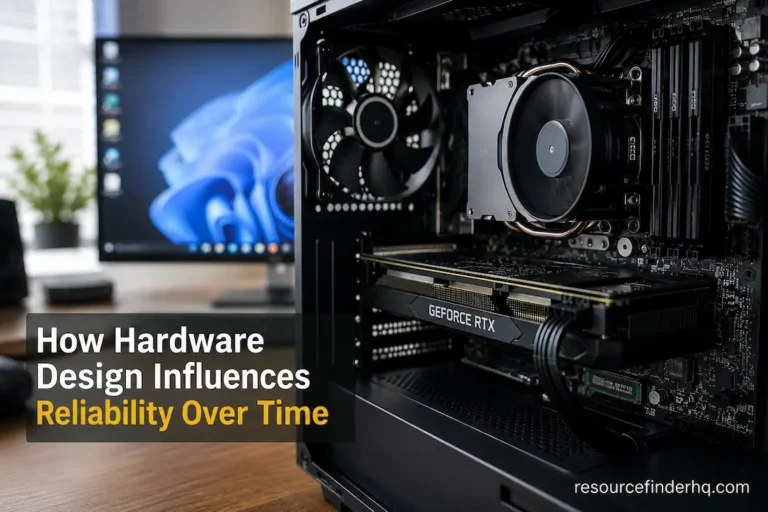
Consider installing a significantly more powerful graphics card into an existing desktop. Although graphical performance may improve, the upgrade could also increase power consumption, generate more heat, and occupy additional physical space inside the case. If the cooling system or power supply cannot accommodate these changes, the computer may become less stable despite having faster hardware.
Similarly, increasing memory capacity without verifying motherboard compatibility or processor support can result in operating speeds that differ from initial expectations.
This is why experienced builders evaluate upgrades as part of a complete system rather than isolated purchases.
Before selecting new hardware, consider questions such as:
- Will existing cooling handle the additional thermal output?
- Does the motherboard fully support the new component?
- Is the power supply appropriate for the upgraded configuration?
- Will another component immediately become the next performance limitation?
Answering these questions helps ensure upgrades improve overall balance instead of shifting problems elsewhere.
Prioritizing Upgrades When the Budget Is Limited
Most upgrades take place within financial constraints, making prioritization just as important as hardware selection.
Rather than replacing several components at once, many users achieve better results by addressing the most significant limitation first and reassessing system performance afterward.
The following framework can help establish priorities.
| If the Main Issue Is… | Consider Evaluating First |
|---|---|
| Long application launch times | Storage performance and available drive space |
| Poor responsiveness while multitasking | Memory capacity and background software |
| Slow rendering or media exports | Processor capability and workload optimization |
| Reduced gaming performance | GPU usage, CPU utilization, and graphics settings |
| Performance drops during extended workloads | Cooling efficiency and airflow |
This step-by-step approach reduces unnecessary spending while making it easier to measure the impact of each upgrade individually.
Looking Beyond Hardware Specifications
Although hardware plays a central role in computer performance, software configuration should not be ignored.
Outdated firmware, incompatible drivers, excessive background services, or poorly optimized applications can all reduce responsiveness even on relatively modern systems.
Likewise, certain workloads are limited by external factors that hardware upgrades cannot resolve. Cloud-based applications depend on internet connectivity, while network file transfers may be restricted by network infrastructure rather than local storage performance.
Evaluating the broader computing environment helps avoid attributing every slowdown to hardware alone.
Questions Worth Asking Before Buying Any Upgrade
Before making a purchasing decision, it can be helpful to pause and work through a short evaluation process.
Instead of beginning with product comparisons, ask yourself:
- Which task feels slower than it should?
- Does this issue occur every day or only occasionally?
- Have I confirmed which component reaches its limit first?
- Could maintenance or software optimization improve performance?
- Will this upgrade remain useful for several years?
- Does my existing system fully support the new hardware?
These questions shift the focus from buying newer components to solving clearly defined performance problems.
Conclusion
The best way to modernize a system is through observation, not assumptions. A slow computer is usually not caused by all components running at full capacity simultaneously. Often, specific workloads expose weaknesses in certain aspects of the system, while other hardware functions normally.
Identifying these limitations before purchasing new equipment improves investment efficiency, leads to more sustainable performance gains, and prevents disappointing upgrades. Moreover, it helps users gain a better understanding of the interaction between the processor, memory, storage, graphics card, cooling, and software under realistic workloads.
Upgrading is not just about buying new hardware; it is primarily about eliminating bottlenecks so that the computer can perform its key tasks efficiently.
Frequently Asked Questions
1. Are performance bottlenecks always caused by old hardware?
No. Bottlenecks can be caused by software configuration, insufficient cooling, background programs, storage capacity limitations, or workload factors.
2. How can I determine if my processor is a performance bottleneck?
Closely monitoring CPU usage during frequently performed tasks can provide useful information. If CPU usage remains consistently high during these workloads, it may indicate that the CPU is a bottleneck.
3. Why do upgrades not always yield the expected improvements?
The performance of various components is interdependent. Improving one aspect can reveal other, previously undetected limitations.
4. Should I upgrade multiple components at once?
Not necessarily. Doing so makes it easier to determine whether further improvements are truly necessary. First, upgrade the component that is currently the bottleneck.
5. Can regular maintenance improve performance without upgrading hardware?
Yes. Disabling unnecessary startup programs, updating drivers, improving airflow, removing dust from cooling components, and ensuring sufficient available storage space can all contribute to better responsiveness in many systems.
6. When is replacing the entire computer a better option?
If you are performing major upgrades, you would need to replace the CPU, motherboard, memory, and other related components. In that case, replacing the entire platform may offer greater long-term value.