What a Performance Bottleneck Really Means
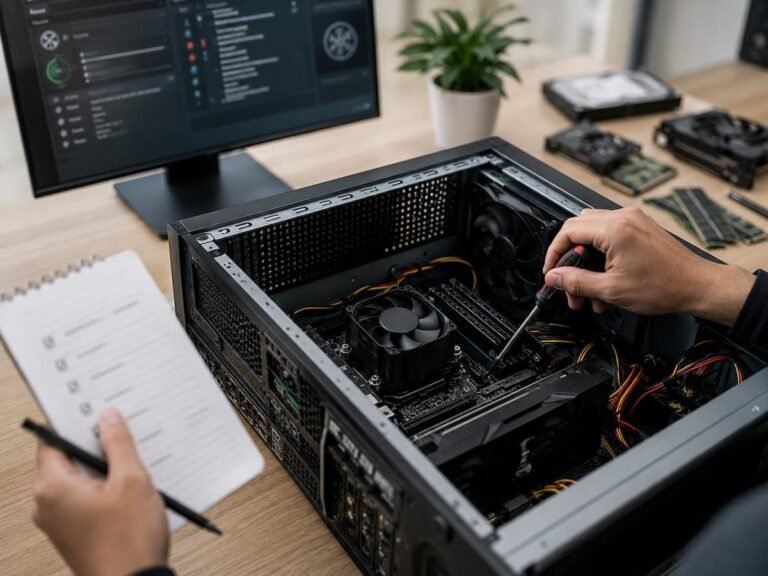
A performance bottleneck occurs when one part of a computer limits the overall speed of a task. The term does not necessarily mean that a component is faulty. A perfectly healthy computer can have a bottleneck simply because one component is reaching its practical limit for a particular workload. For example, a computer may have a powerful processor and plenty of RAM but still feel slow because the storage drive is struggling with heavy file activity. Another computer might have fast storage but run out of memory when dozens of applications and browser tabs are open.
The bottleneck can also change depending on what you are doing. A computer might be limited by graphics performance while playing a demanding game but become limited by CPU performance during video encoding. The same system may work perfectly well for web browsing and office applications. This variability is why you cannot always blame a single component for poor performance. The important question is: Which part of the system is limiting the specific task that feels slow?
Why System Behaviour Provides Useful Clues
Computers usually behave predictably when they are under performance pressure. Their behavior often changes in predictable ways depending on which resource is being used heavily.
If applications become slow only when many programs are open, memory pressure may be involved. If performance drops during complex calculations while the processor remains heavily loaded, the CPU may be the limiting factor. If the system pauses while opening files or launching applications, storage activity may deserve closer attention. These observations do not prove the cause, but they help you build a more accurate hypothesis.
Useful Questions to Ask
- When does the slowdown happen?
- Does it affect every application or only one?
- Does the problem appear immediately or after some time?
- Does closing applications improve performance?
- Does the problem occur only during demanding workloads?
- Which system resource becomes heavily used?
- Does restarting temporarily improve performance?
- Does the computer become hotter when performance drops?
The answers provide a starting point for further testing.
Start With the Symptoms You Can Observe
Before opening a monitoring tool, observe the computer during normal use. This first step is often overlooked, but it can provide important context. For instance, a computer that takes a long time to start may have a different problem from one that starts quickly but becomes sluggish after several hours. A laptop that slows down only when unplugged may be responding to power-management settings rather than having a hardware limitation.
Try to identify the exact task that causes the slowdown. Does the problem occur when opening applications, switching between windows, browsing the web, editing photos, playing games, transferring files, or joining video calls?
Also consider whether the slowdown is consistent. If the same task always produces the same problem, it may be easier to investigate than an issue that appears unpredictably. Describe the performance problem as a specific behavior rather than a general feeling. “The computer becomes unresponsive for five seconds when opening large files” is more useful than “The computer is slow.”
Recognising a CPU Bottleneck
The central processing unit, or CPU, handles a wide range of calculations and instructions. A CPU bottleneck can occur when the processor cannot complete a workload quickly enough to keep up with the task. One common sign is consistently high CPU usage during the activity that feels slow. If a demanding application regularly pushes CPU utilization close to its maximum, the processor may be limiting performance.
However, high CPU usage is not automatically a problem. Some tasks are expected to use the processor heavily. Video rendering, software compilation, data processing, and file compression can all produce high CPU utilization during normal operation.
Possible Signs of CPU Limitation
- Performance improves when you close CPU-intensive applications.
- The processor remains heavily loaded during the slow task.
- Applications respond slowly during complex calculations.
- In certain games, CPU performance limits frame rates.
- Background processes compete heavily for processor time.
Look at which process is consuming CPU resources. If one application is responsible, the issue may be software-related rather than a weak processor. Temperature also matters. A processor that becomes too hot may reduce its operating speed to control heat. In that situation, the problem may be cooling rather than insufficient CPU capability.
Recognising a Memory or RAM Bottleneck
RAM provides temporary working space for applications and the operating system. When there is not enough available memory for the tasks being performed, the system may rely more heavily on storage to manage data. This can create noticeable slowdowns, especially when switching between applications. You may notice that the computer becomes increasingly sluggish after opening many browser tabs or running several large programs at once.
Common Signs of Memory Pressure
- Performance worsens as you open more applications.
- Switching between applications becomes slow.
- The computer pauses frequently during multitasking.
- Closing applications produces an immediate improvement.
- Memory usage remains consistently high during normal work.
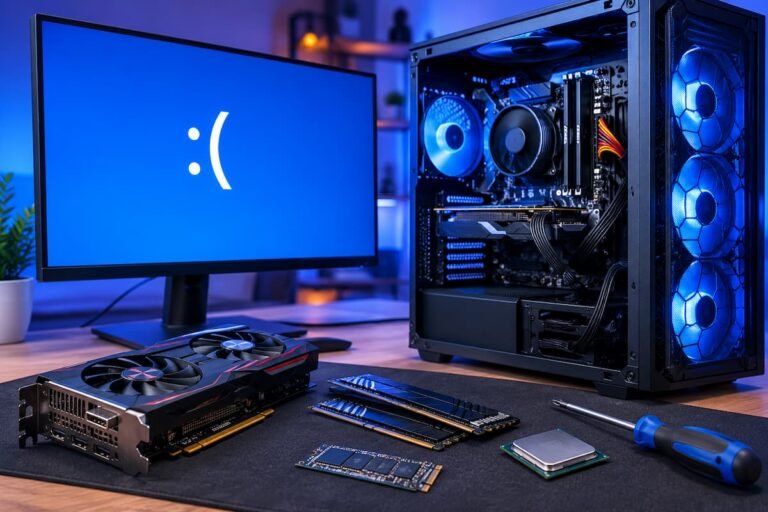
Before upgrading RAM, check actual memory usage. If the computer regularly runs out of available memory during your normal workload, adding RAM may help. When memory usage is moderate but the computer is still slow, another bottleneck is likely the cause. It is also important to distinguish between insufficient RAM and faulty RAM. Limited memory usually causes slowdowns, while defective memory can cause crashes, corrupted data, and unpredictable behavior.
Recognising a Storage Bottleneck
Storage performance affects tasks involving files, applications, system startup, and data transfers. A storage bottleneck can make a computer feel slow even when the CPU and RAM are performing normally. One common pattern is a system that pauses while opening applications or loading large files. You may also notice periods of high storage activity while the computer appears unresponsive.
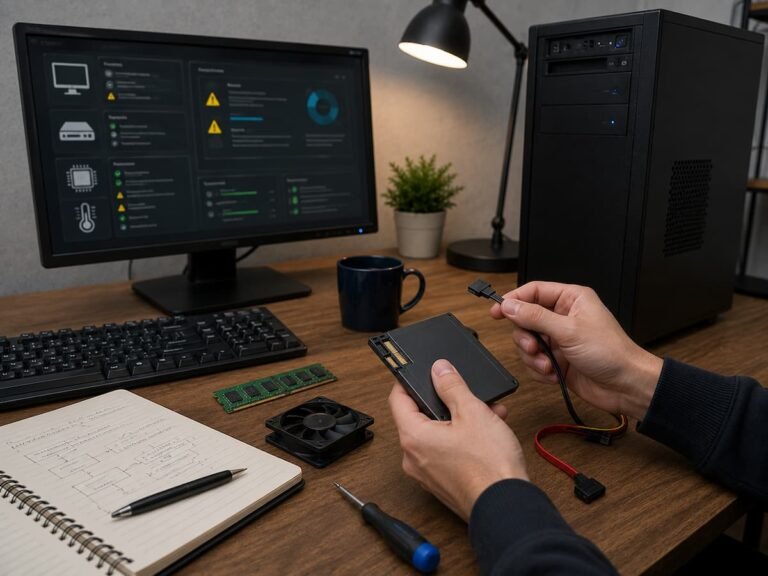
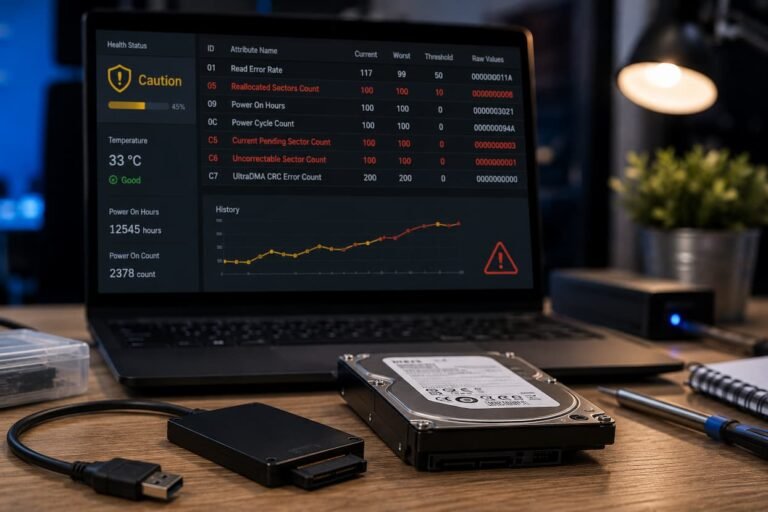
Storage problems can have several causes. The drive may simply be slower than modern alternatives, it may be nearly full, or background processes may be performing intensive file operations. A failing storage device can create additional symptoms, including corrupted files, application crashes, unusual noises from mechanical hard drives, or increasingly long delays when accessing data.
Check These Storage Factors
- Available free space
- Drive health
- Storage activity during slowdowns
- Background synchronisation processes
- Large downloads or updates
- File indexing activity
- Whether the system uses an SSD or mechanical hard drive
Do not assume that replacing a hard drive with an SSD will fix every performance issue. It can significantly improve storage-related tasks, but it will not solve a CPU bottleneck or a software problem.
Recognising a Graphics Bottleneck
Graphics processing units, or GPUs, handle visual workloads such as games, 3D applications, video effects, and some specialized computing tasks. A GPU bottleneck usually becomes noticeable during graphically demanding activities rather than basic computer use.
In games, one clue is that reducing graphical settings or screen resolution significantly improves performance. If lowering visual quality produces a noticeable increase in frame rates, graphics processing may have been limiting the experience. However, graphics performance can also be affected by CPU limitations, drivers, temperatures, and application settings.
Possible Signs of a GPU Limitation
- Low or unstable frame rates in demanding games.
- GPU usage remains high during the affected workload.
- Reducing graphics settings improves performance.
- 3D applications struggle while ordinary applications remain responsive.
- Graphics-intensive workloads cause temperatures to rise significantly.
Always consider the complete system. A powerful graphics card cannot compensate for every other limitation in a computer.
Recognising a Network Bottleneck
Not every slow computer is actually suffering from a computer performance problem. Sometimes the bottleneck is the network connection. Slow websites, buffering videos, delayed cloud synchronization, and sluggish remote services may all be caused by limited internet bandwidth, high latency, Wi-Fi interference, or problems with the network equipment.
One useful test is to compare different devices on the same network. If multiple devices experience the same slowdown, the problem may be related to the router, internet connection, or service provider. If only one computer is affected, investigate its network adapter, Wi-Fi signal, drivers, and configuration. A fast computer cannot make a slow internet connection faster. Always separate local system performance from network performance before changing hardware.
Recognising Software-Related Bottlenecks
Software can create performance problems even when the hardware is capable of handling the workload. Background processes, inefficient applications, browser extensions, security scans, synchronization services, and unwanted software can all consume resources.
A useful clue is whether the problem began after installing or updating something. If the computer was previously performing normally and suddenly became slow after a software change, investigate that change before upgrading hardware. Another clue is when only one application is slow. If a photo editor becomes slow while the rest of the system remains responsive, the problem may involve that application’s settings, plugins, files, or compatibility rather than the entire computer.
Common Software Bottleneck Sources
- Too many startup applications
- Background synchronisation
- Browser extensions
- Large system updates
- Security scans
- Outdated drivers
- Memory leaks
- Poorly optimised applications
Monitoring resource usage while the problem occurs can help identify which process deserves further investigation.
Using System Monitoring Tools
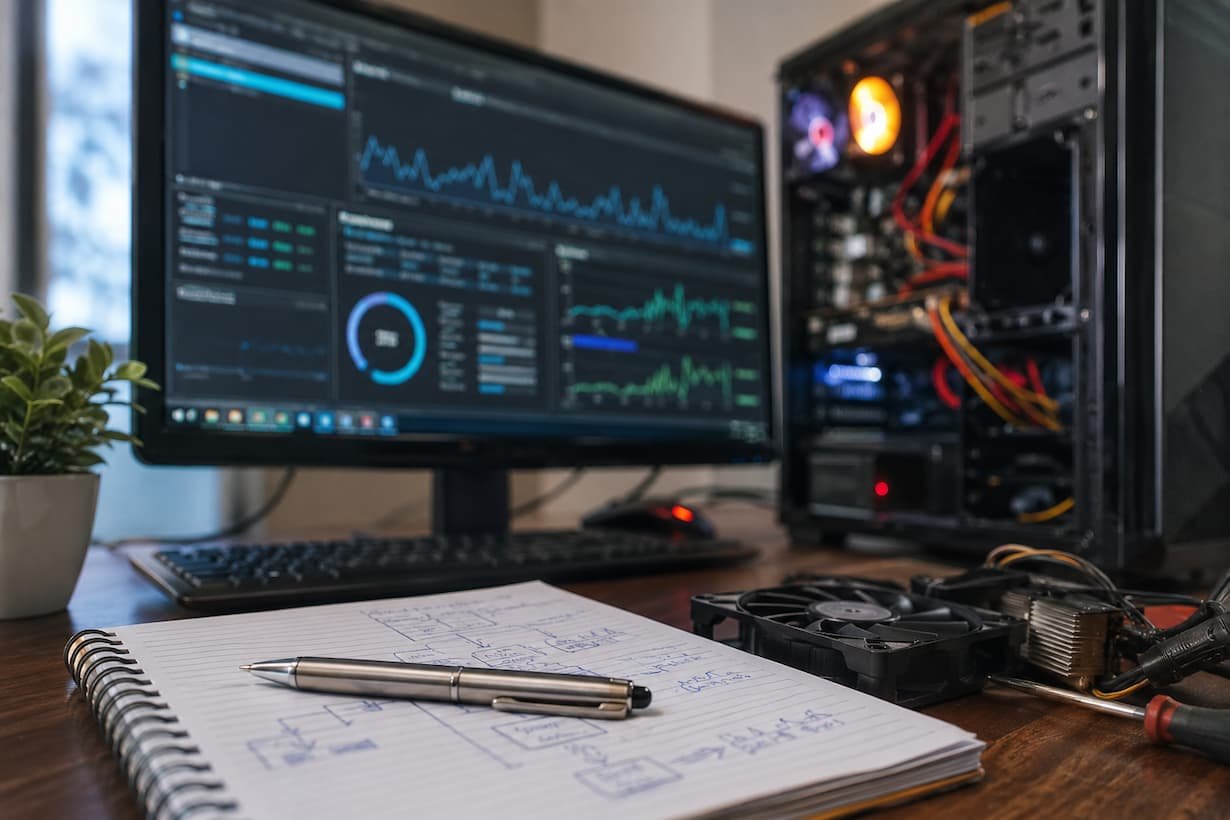
Once you have observed the symptoms, use monitoring tools to test your assumptions. Windows users can use Task Manager and other built-in performance tools. macOS includes Activity Monitor, while Linux distributions provide several system monitoring utilities. Look at CPU, memory, storage, and network activity while reproducing the problem.
| Resource | What to Watch | Possible Interpretation |
|---|---|---|
| CPU | Consistently high usage | CPU-intensive task or background process |
| Memory | Very high usage | Memory pressure or excessive multitasking |
| Storage | Heavy activity during pauses | File operations, paging, updates, or drive issues |
| GPU | High usage during graphics tasks | Possible graphics limitation |
| Network | Low throughput or high latency | Connection or network limitation |
Do not focus on a single number. Look for relationships between resource usage and the moment the slowdown occurs.
Learning From Performance Patterns
Patterns are often more informative than isolated measurements. A CPU reaching 100% for a few seconds may be normal. A processor remaining at maximum usage every time you perform a basic task is more significant.
Pattern: Slow Only During Multitasking
Such behaviour may suggest memory pressure or excessive background activity. Check RAM usage and identify which applications are consuming the most memory.
Pattern: Slow Only During Graphics-Heavy Tasks
This behavior may indicate a GPU limitation, graphics driver issue, or thermal problem. Check GPU usage and temperatures during the workload.
Pattern: Slow When Opening Files
Investigate storage activity, drive health, available space, and background file operations.
Pattern: Starts Fast but Slows Over Time
Look for memory leaks, background processes, overheating, or applications that gradually consume more resources.
Pattern: Slow After an Update
Check whether the update changed drivers, application behavior, startup processes, or system requirements.
The more consistently you can reproduce a pattern, the easier it is to test.
Testing One Bottleneck at a Time
Once you have a likely bottleneck, test it instead of immediately replacing hardware. The purpose of testing is to determine whether changing that resource actually improves the problem. For example, if you suspect RAM is limiting performance, close unnecessary applications and repeat the same workload. If the problem disappears, memory pressure becomes more likely. You can then check whether adding RAM would be a reasonable long-term solution.
If you suspect graphics performance, lower graphical settings and repeat the same task. If performance improves significantly, the GPU may be limiting the workload. Testing should be controlled. Keep the workload as similar as possible so that the results are meaningful. Do not upgrade a component simply because it appears busy. First confirm that reducing the workload or changing the component’s settings actually improves the problem.
Common Mistakes When Diagnosing Performance
One of the most common mistakes is assuming that the oldest component is automatically the bottleneck. Age can matter, but actual system behavior is more useful evidence.
Another mistake is focusing only on average resource usage. A computer might show moderate average CPU usage while experiencing short periods of heavy activity that cause noticeable pauses. Look at what happens during the exact moment of the problem. It is also easy to confuse hardware limitations with software issues. A background application consuming CPU resources can make a powerful computer appear weak.
Avoid These Common Errors
- Do not upgrade hardware without identifying the limiting resource.
- Do not assume 100% usage always means a component is faulty.
- Do not ignore temperatures when investigating performance.
- Do not confuse internet speed with computer processing speed.
- Do not make multiple changes simultaneously.
- Do not rely on a single benchmark to explain everyday performance.
- Do not overlook background applications and system services.
The goal is to understand the relationship between the workload and the system’s response.
A Practical Bottleneck Diagnosis Process
You can use a simple process whenever your computer feels slower than expected.
Step 1: Describe the Slowdown
Identify exactly what feels slow and when it happens.
Step 2: Reproduce the Problem
Repeat the same task so that you can observe the system under similar conditions.
Step 3: Monitor Resources
Check CPU, RAM, storage, GPU, and network activity while the problem is happening.
Step 4: Look for Patterns
Determine whether the problem occurs during multitasking, graphics workloads, file operations, internet use, or after extended operation.
Step 5: Identify the Likely Bottleneck
Choose the resource that best matches the evidence rather than simply selecting the oldest component.
Step 6: Test Your Theory
Reduce the suspected workload or change one relevant setting, and then repeat the test.
Step 7: Decide Whether an Upgrade Is Necessary
If testing confirms that a component consistently limits your normal workload, an upgrade may be worthwhile. If the evidence points to software, configuration, or cooling, address those issues first.
This process helps ensure that an upgrade solves a real limitation rather than simply changing hardware without a clear purpose.
Conclusion
It’s not so much about guessing which part is going to need to be upgraded; it’s more about how the system acts under real workloads to identify a performance bottleneck. The pattern of the slowdown can provide important information as to what is restricting performance. First, determine exactly when the problem occurs. Then reproduce it while monitoring system resources. Check CPU, RAM, storage, graphics, and network activities, but remember that high utilization doesn’t automatically signal a component is malfunctioning. The question is if that resource is indeed the cause of the performance issue.
Run a controlled test to check your theory. Close apps, lower workloads, change a configuration, or try a different device. If the evidence points to a certain component, then an update may be the best option. If the problem is software, background processes, overheating, or setup, then a hardware upgrade may get you very little. You need to understand system behavior before you can make the best performance decisions. Learning how to see patterns and test bottlenecks logically can help you make smarter upgrade decisions, avoid spending money you don’t need to, and keep your computer running efficiently for longer.
FAQs
1. What is the easiest technique to discover a computer bottleneck?
Observe CPU, memory, storage, GPU, and network activity and reproduce the performance problem. Find the resource that is most heavily used just at the time of slowdown. Then test your hypothesis by reducing that burden or adjusting one relevant setting. For example, if you are under memory strain, close programs you don’t need. If you suspect you are GPU limited, consider reducing your graphics settings. Monitoring alone never proves the reason. Always follow up measurements with controlled testing.
2. How can I know if I need extra RAM?
Watch how much memory you use doing the stuff you regularly do. If RAM is always at its highest capacity and the computer lags when switching between applications, memory might be limiting your performance. When closing applications, you might also experience an immediate improvement. However, increased memory utilization does not necessarily mean you need an upgrade. Check for memory pressure on the operating system and for too many background programs that are unnecessarily using resources.
3. Is your computer running slow because of a slow SSD or hard drive?
Yes, storage is used in booting the operating system, opening applications, loading files, and handling temporary data. Hence, a sluggish or unhealthy drive can damage the overall user experience. But not all storage-related slowdowns are a sign of a failing drive. Heavy background file activity, low free space, updates, and synchronization might potentially lead to temporary performance problems. Please check the health and activity of the drive to determine if it needs replacing.
4. Why does my pc become slow after operating for a few hours?
A slowdown might be gradual. It can be caused by memory leaks, increased background activity, overheating, or apps that use more resources over time. Check memory use and cpu usage with the system running normally and after the slowdown starts. Monitoring temperature is also helpful, especially on laptops. If performance instantly returns after a restart, don’t treat the restart as the fix. Investigate what processes or resources are building up consumption.
5. Could Internet problems be mistaken for computer performance concerns?
Yes. Slow websites, video buffering, cloud applications, and delayed internet services may indicate network problems rather than a slow computer. Check whether other devices on the same network are experiencing similar problems. If more than one device is affected, check the router, Wi-Fi conditions, or internet service. If only one computer is impacted, verify its network adapter, drivers, and connection quality.
References
- Microsoft Support — Official Windows documentation for Task Manager, performance monitoring, startup applications, and system troubleshooting.
- Microsoft Learn — Official technical documentation covering Windows performance monitoring and diagnostic tools.
- Apple Support — Official documentation for Activity Monitor, Mac performance monitoring, and system diagnostics.
- Intel Support — Official processor resources covering performance, temperatures, and processor-related troubleshooting.
- AMD Support — Official processor and graphics resources covering performance and system troubleshooting.
- U.S. National Institute of Standards and Technology (NIST) — Technical resources related to computer systems, performance, and information technology.