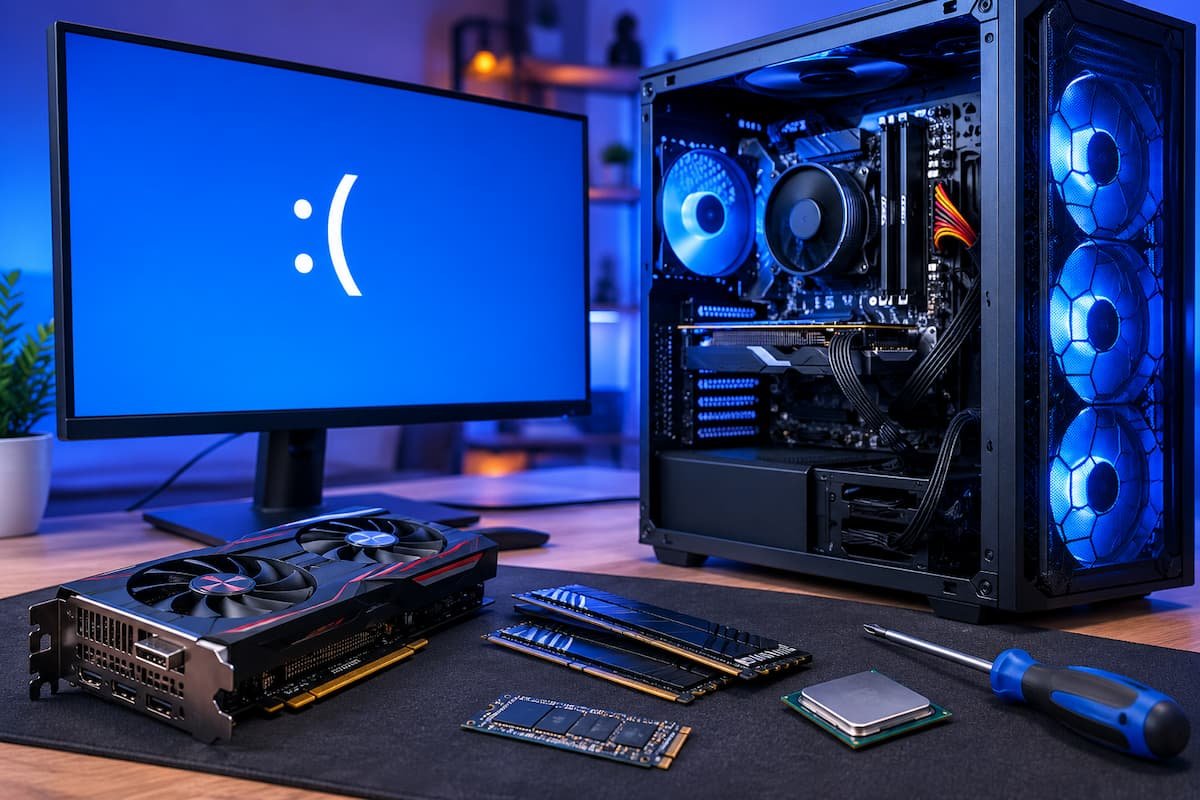
This can be irritating because the new component may operate wonderfully. The PC may boot into Windows and recognize the devices. That doesn’t guarantee upgrade stability. A hardware upgrade can reveal newly discovered memory compatibility, power delivery, firmware, driver, cooling, or connection issues. Luckily, upgrade blue screens are often diagnosable. The idea is to avoid simultaneous changes. Working through hardware and software in a rational order usually narrows the problem to one component or configuration.
Consider What Changed
Upgrades are typically the best clue. Investigation should begin if your computer crashed shortly after installing a new component after months of stability. Replacing a graphics card may cause driver conflicts, demand more power connectors, or reveal an inadequate power supply. Adding a second pair of memory modules can cause instability even if the RAM sticks work OK individually. A new processor may require a BIOS update, whereas a motherboard change can affect practically every operating system driver.
Recall the exact order. After installing the component, BIOS update, or driver, did the blue screen appear? Did you physically remove another element during the upgrade? Reconnected storage drives or moved cables? These details matter because the new hardware may not be the problem. Loose cables or partially disconnected components can mimic software failure symptoms. If the problem started right after the upgrade, don’t reinstall Windows. A clean installation may mask the problem, but it does not repair RAM, BIOS settings, overheating, or power issues.
Read the Blue Screen Error Before Restarting
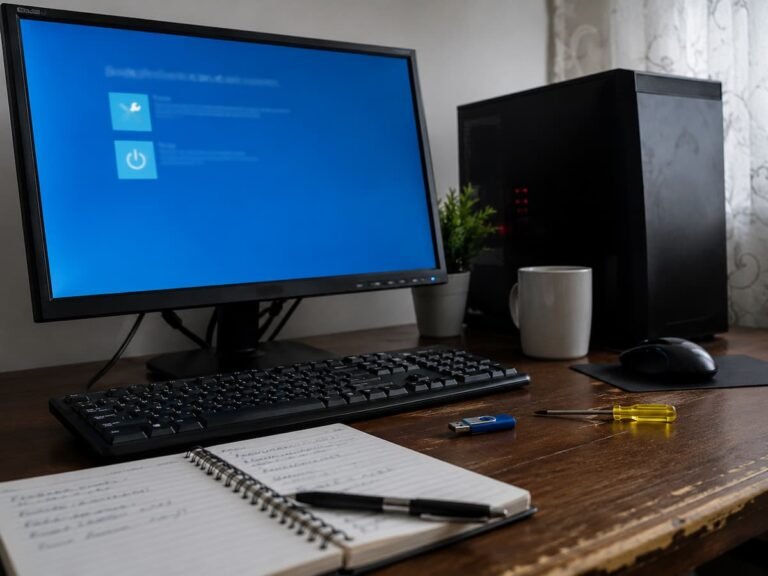
Sometimes Windows blue screens aren’t that mysterious. The error screen may show a stop code for a good start. Memory management, IRQL_NOT_LESS_OR_EQUAL, WHEA_UNCORRECTABLE_ERROR, and PAGE_FAULT_IN_NONPAGED_AREA are examples. These codes can indicate memory, hardware, driver, or low-level system issues, but not always the malfunctioning component. If the computer restarts too rapidly, take a phone photo of the screen. Instead of remembering the stop code, write it down. Record the file name if Windows displays it with the error, but don’t assume that’s the cause. Driver failure caused by hardware issues is driver fault.
You can also assess Windows’ dependability after restarting. Find Reliability History in Start and click View reliability history. This can demonstrate when Windows crashed and if the difficulties started with your hardware upgrade. Although less beginner-friendly, Windows Event Viewer can provide technical information. Look for crucial events around the crash. A sudden power loss entry may be less useful than a pre-failure hardware issue.
Check the Physical Installation First
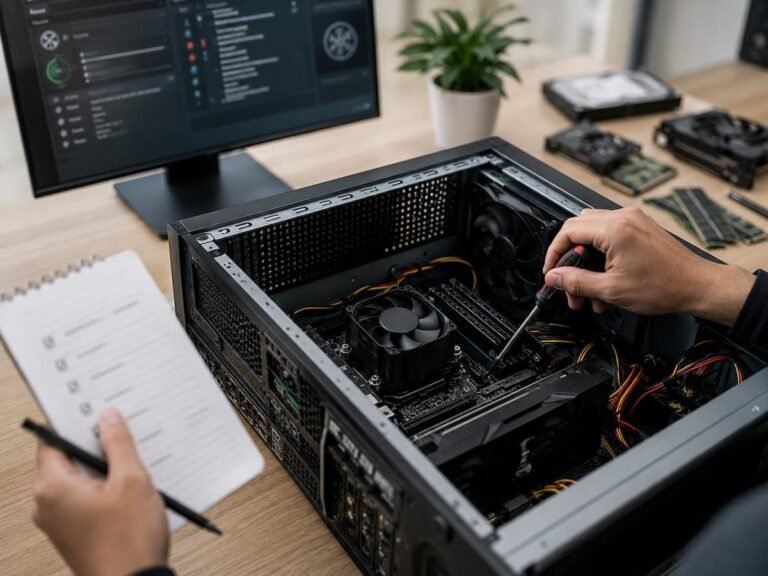
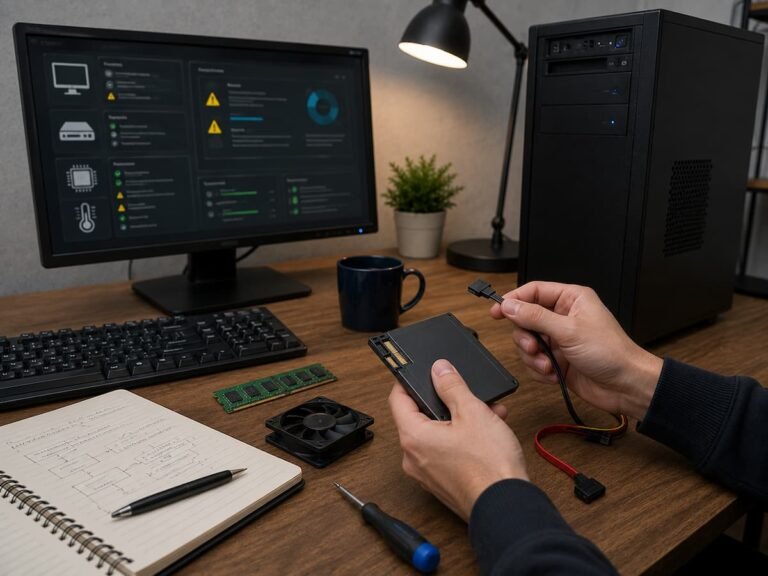
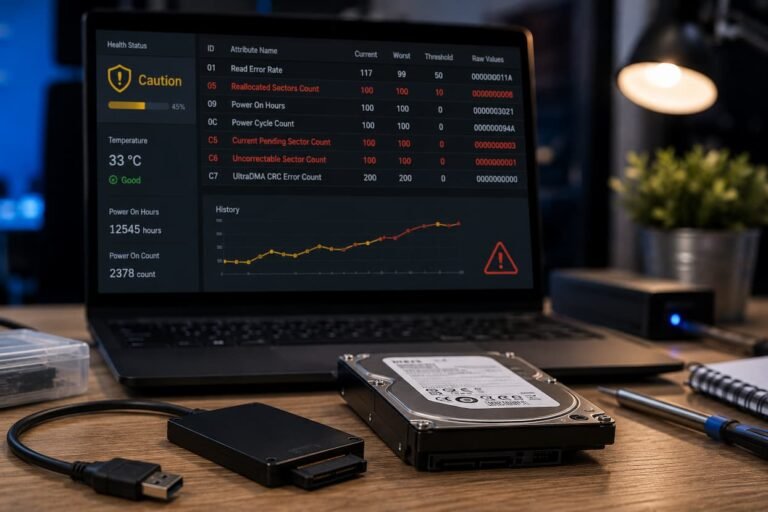
Ensure that new memory modules are properly installed and that the mounting clips are secured. Verify that the graphics card connector for power is properly connected and seated evenly in the PCIe slot. If you have installed a new motherboard or processor, check the power connectors and the cooling system installation. Storage upgrades are crucial. Loose M.2 SSDs and SATA cables can cause system instability and hard drive failures. If you moved cables during the installation, check all cables, not just those of the new components. Do not turn on the power. Power supply components can store harmful charges. If the power supply is defective, please check the external connections and consider having them tested or replaced by a professional.
The First Test Involves The Memory
After an upgrade, especially after adding extra memory modules, memory instability is a common problem. The computer may boot with the new memory but crash under load. The fact that Windows displays the correct memory does not necessarily mean that the configuration is stable. A common mistake is combining memory modules. Two memory modules with the same speed and capacity may use different memory chips or timings. Even memory modules from the same manufacturer and product line may not work well together as a complete set.
Restore the memory configuration to the simplest state. Remove both new memory modules and verify if the system is stable. If the crashing stops, test the new memory modules individually and then test the entire configuration with conservative memory settings. Windows has a built-in, simple memory diagnostic tool to detect memory problems. Search for “Windows Memory Diagnostics” and restart the computer to test. More extensive tests can be performed using bootable memory testing software, but beginners should keep in mind that the process takes time.
Temporarily disable the XMP or EXPO memory profile so that the memory can operate at nominal speed. This does not indicate a memory failure. It simply eliminates the influence of overclocking or performance optimization settings during troubleshooting. If the blue screen disappears after the profile is disabled, the memory module is likely stable or compatible.
Check BIOS and Firmware After a CPU or RAM Upgrade
Be careful when updating your BIOS. It is crucial to follow the manufacturer’s recommendations, as power outages during firmware updates can cause serious problems. Unless the manufacturer explicitly states that new hardware requires a firmware update, you must stabilize your computer before performing the update.
Check if performance settings have been changed during the upgrade process. Overclocking the CPU, memory profiles, undervolting, and manually adjusting the voltage can all reduce stability. Retest your computer with optimized or default BIOS settings to troubleshoot problems. It is advisable to change only one BIOS setting at a time. Do not disable memory profiles while simultaneously adjusting CPU voltage and fan settings. Otherwise, you will not be able to determine which change resolved the problem.
Graphics Card Upgrades Can Cause Driver and Power Problems
Replacing your graphics card is obviously a hardware upgrade, but it can also cause blue screens in various ways. Graphics card drivers may conflict with older drivers, the graphics card may supply insufficient power, or the power supply may become overloaded when the GPU suddenly requires more power. Check the drivers first. Avoid downloading drivers from unknown third-party websites; instead, download the correct driver from the manufacturer’s website. If your previous graphics card had a different GPU manufacturer, a clean driver installation may help.
Compare the power requirements of your new graphics card with those of your power supply. Take the capacity and connections of the power supply into account. If your Windows desktop system freezes when you start a game, the graphics card likely has a problem that only occurs under extreme load. Connect the necessary PCIe power connectors. Many modern graphics cards need you to connect the connectors fully and evenly. It is crucial to follow the manufacturer’s guidelines for cable routing and connection.
A more powerful graphics card does not necessarily require a new power supply. The computer components, as well as the quality and capacity of the power supply, determine the answer. However, if the power supply is old, of poor quality, or barely meets the system requirements, it is advisable to replace it.
Look at Drivers When the Hardware Appears Healthy
Use the component manufacturer’s help page to obtain the most important device drivers. The motherboard manufacturer’s support page may contain drivers for the chipset, network, audio, and storage. Display drivers are provided by the graphics card manufacturer. Windows Update automatically installs drivers, which is convenient for many users. After a major upgrade, check whether your chipset and graphics card drivers are the latest versions and are compatible. If the blue screen appears after a driver update rather than a hardware upgrade, rolling back the drivers may be better than reinstalling all drivers. Troubleshooting should focus on changes that occurred before and after the crash.
Safe Mode Separates Hardware and Software
Windows starts in Safe Mode, but only a limited number of drivers and services are enabled. This helps resolve issues where the computer freezes during startup but functions normally with minimal settings. If Safe Mode works but Windows freezes regularly, the problem may lie with third-party drivers or startup programs. This does not guarantee that the hardware itself is trouble-free, but it does provide a starting point for further investigation.
If startup fails, use the Windows Recovery Options to access Safe Mode. In Safe Mode, you can remove newly installed drivers, uninstall programs introduced during updates, or use System Restore (if restore points are available). Removing drivers requires extreme caution. Removing essential drivers without understanding how they are managed can lead to other problems. Use the removal procedure indicated by the manufacturer or a trusted, specific program to remove graphics card drivers, and only download software from trusted sources. If your computer freezes in Safe Mode or during operations not performed by Windows drivers, hardware stability may be compromised. Testing individual components is usually more effective than reinstalling the software.
Check Load Temperature and Power Consumption
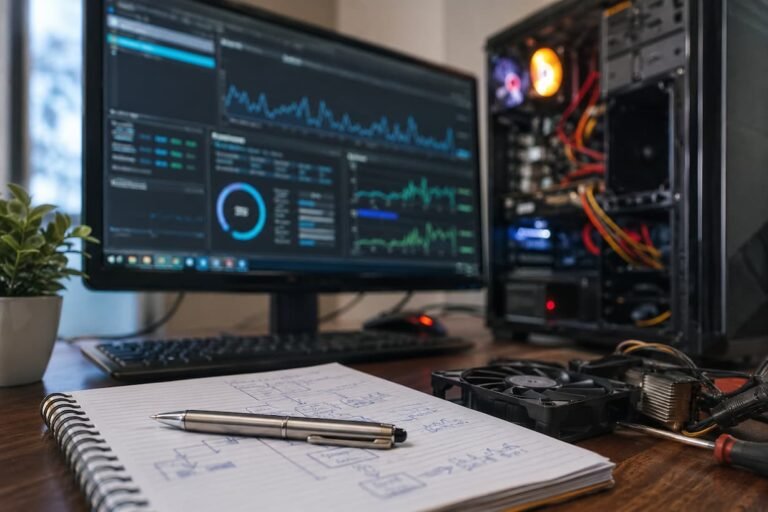
New components can affect a computer’s cooling system. Faster processors and larger graphics cards increase heat generation and airflow within the case. If the cooling system is disrupted during installation, temperatures can rise and cause system instability. Use reliable hardware monitoring software to check CPU and GPU temperatures. Instead of just looking at your computer’s idle temperature, pay attention to what happened before the crash.
A computer may run smoothly while browsing the internet but crash after ten minutes of gaming. This may be related to the load. Overheating, unstable memory settings, graphics card driver issues, or an insufficient power supply can all cause this. The fan must be working properly and the CPU cooler must be installed correctly. If you replaced your CPU cooler during an upgrade, make sure you have removed the protective film from the contact points. Incorrect installation of the cooler can cause a rapid temperature rise. Do not rely on temperature statistics from online forums to determine if your computer is working properly. Safe operating limits for processors and graphics cards differ. Check for anomalies such as temperature spikes, throttling, or crashes under high load according to the manufacturer’s specifications.
Test the New Component by Reversing the Upgrade
When possible, one of the strongest troubleshooting methods is to temporarily return the computer to its previous configuration. If you upgraded from 16 GB of RAM to 32 GB, reinstall the original memory and test the system. If you installed a new graphics card, reinstall the previous card if it is still available. This is essentially a controlled experiment. You are not trying to prove that the new component is defective. You are checking whether the system’s behaviour changes when the component is removed.
If the blue screens disappear after returning to the previous hardware, you have narrowed the investigation considerably. The next step might be checking compatibility, updating firmware, changing configuration settings, testing the component individually, or contacting the manufacturer. If the crashes continue even after removing the new hardware, look at components that were disturbed during installation. RAM may have been moved, cables may have been disconnected, or a motherboard connection may have been affected. When testing hardware, change one variable at a time. A methodical process may feel slower at first, but it is much faster than randomly replacing components and hoping the problem disappears.
Common Mistakes That Make Troubleshooting Harder
The power supply is also often overlooked. A computer that seems powerful enough on paper may be unstable due to aging or a defect. Frequent crashes under high load require careful power management. Finally, avoid downloading BIOS or driver packages from unauthorized websites. Installing unauthorized software can turn troubleshooting into a security risk. Use the manufacturer’s official support page whenever possible.
Practical Troubleshooting Steps
If you do not know where to start, proceed logically rather than blindly trying out different solutions. First, note the blue screen stop code and determine which settings have been changed. Turn off the computer and check the setup. Test the system with the simplest hardware configuration, especially after a memory upgrade.
Next, check BIOS compatibility and reset the performance settings. If a graphics card upgrade causes the problem, check the drivers and power connections. If the crash only occurs during high-load tasks, check the temperature and the power supply. The table below provides a quick overview of common symptoms and key troubleshooting steps. It can help you determine where to start, but it cannot diagnose the defective component.
| What you notice | What to investigate first |
| Blue screens began immediately after adding RAM | Memory seating, compatibility, memory profile, individual modules |
| PC crashes when gaming after a GPU upgrade | Graphics driver, GPU power connectors, temperatures, power supply |
| PC became unstable after installing a new CPU | BIOS support, CPU cooling, BIOS defaults, motherboard compatibility |
| Windows crashes after replacing the motherboard | Chipset drivers, Windows activation, storage configuration, BIOS settings |
| Crashes continue after removing the new component | Loose connections, disturbed hardware, existing component failure |
| System is stable in Safe Mode but not normal Windows | Third-party drivers, startup software, recent Windows changes |
When It Is Time to Stop Troubleshooting Yourself
Avoid unnecessary risks while your computer is still under warranty. Opening components or performing unauthorized modifications can invalidate the manufacturer’s warranty and regional warranty. Keep receipts, model numbers, and error messages for future assistance. If your computer is working flawlessly, back up important files before sending it in for repair. Troubleshooting may require reinstalling Windows or replacing storage devices. Personal data should not depend on the operation of your computer.
How to Prevent Blue Screens after Upgrades
Avoiding unnecessary troubleshooting is the best approach. Before an upgrade, check the compatibility of the motherboard, processor model, memory specifications, physical dimensions, power requirements, and interfaces. This is crucial to avoid combining components from different generations. Before making major changes, document your BIOS, Windows, drivers, and hardware details. You do not need complicated inventory systems. A simple text file containing information such as the motherboard, CPU, memory, graphics card, storage drive, and power supply can simplify future troubleshooting.
Back up important data before performing major hardware or firmware updates. Hardware upgrades themselves do not delete your files, but troubleshooting can cause problems. With a recent backup, you can diagnose your system without having to worry about losing important files. The most important thing is to change only one major setting at a time, if possible. Install the hardware, boot the computer, run stability checks, and then make the next change. If problems occur, you will know where to start.
FAQs
1. Can Windows cause a blue screen when it recognizes a new hardware component?
Yes. Hardware detection only checks if Windows recognizes the component. The component may not be able to handle the load or is incompatible with the system. Memory can be recognized correctly but may still fail rigorous tests; a graphics card can work fine in a desktop environment but crash while playing games.
2. Should I reinstall Windows if I get a blue screen after an upgrade?
Most people should not reinstall Windows anyway. Reinstalling Windows can fix problems with the installation of the operating system or drivers, but it does not solve problems such as damaged memory modules, overheating, an unstable BIOS configuration, or insufficient power supply. Please check the hardware and any recent changes.
3. My computer only shows a blue screen when playing games. Why?
Games load the CPU and GPU more than everyday office tasks. Such tests can reveal issues with graphics card drivers, overheating, memory stability, and the power supply that are not easily detected during light use. First, check the power connection and the GPU temperature.
4. Can using two sets of memory cause a blue screen?
Yes. Two sets of memory with the same capacity and speed may not work well together. This could mean using slower memory or adjusting settings more carefully. Test both sets of memory separately to see if combining them is the cause.
5. What if a BIOS update causes a blue screen?
Check if the update has affected the memory, the CPU, or the boot settings by resetting the BIOS. If the problem occurs immediately after a firmware update and persists with the default settings, consult your motherboard manufacturer’s support documentation before performing another update.