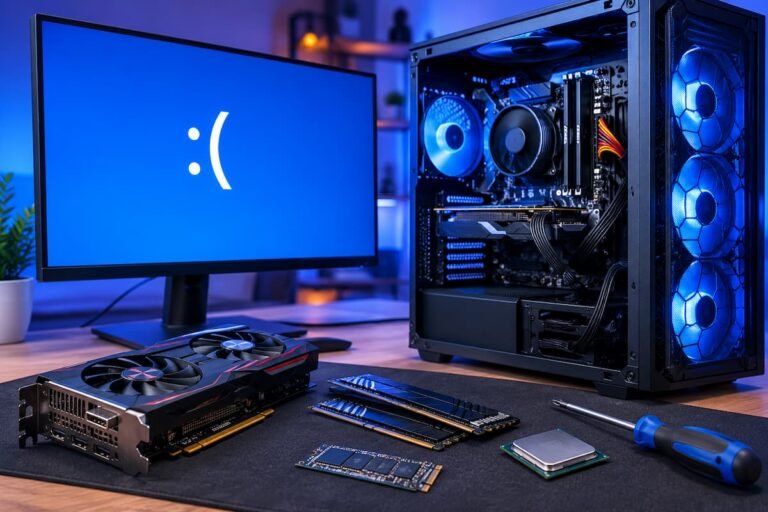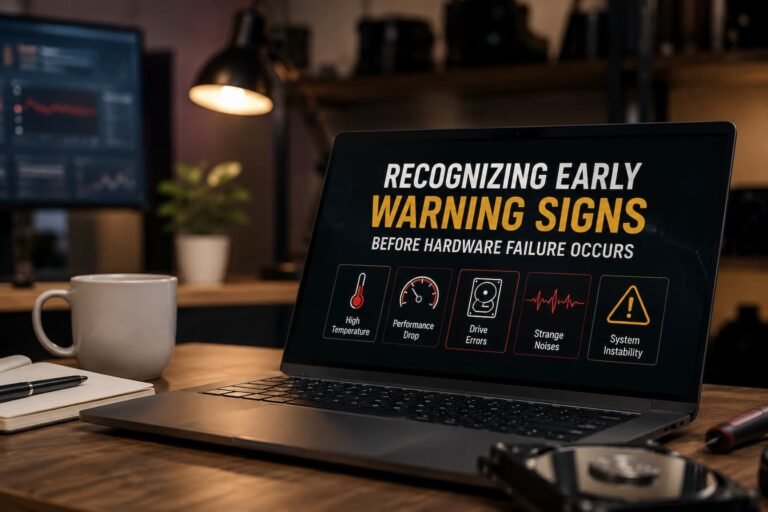
Quickly finding new parts is not the actual goal of troubleshooting. The key is to gather enough information to identify the root cause of the problem. For instance, a loose cable can look like a defective graphics card; a corrupted driver can look like a hardware problem; and a faulty power supply can cause symptoms that appear to originate from other components.
Strengthening your troubleshooting skills helps you spend money more wisely and solve problems with more confidence. To start with, you have no bad habits, and one of the easiest to ignore is to avoid changing basic observations, and the willingness to try only one solution at a time can help you avoid unnecessary purchases.
Start with Specific Symptoms or Signals
The first habit you need to develop is to clearly describe the problem. Saying “My computer is broken” is not helpful. A better starting point is “My computer restarts when I play demanding games.” The problem must occur at specific times, and the computer must be running certain programs at those times. Does it happen during startup, while reading, when a specific application is opened, or only when many tasks are being performed simultaneously? Does the system freeze completely, restart automatically, display error messages, or simply slow down?
This information helps to narrow down the possible causes. For example, a system that only freezes during prolonged gaming, while another system cannot even boot Windows stably, may require different checks. Write down these symptoms in simple terms before you buy anything. This step can prevent you from making hasty decisions.
Ask What Changed Recently
Many technical problems resurface when something changes. Replacing a graphics card, adding memory, updating drivers, updating Windows, moving the computer, or connecting new devices can all cause problems.
Consider when you should check. If your computer has been working stably for several months and problems occur immediately after a hardware upgrade, you should first check the upgrade itself. However, this does not necessarily mean that the new component is defective. It could also involve connection issues during installation, a change in the power supply, or a compatibility issue. The same caution is required with software updates. For example, if problems arise after downloading a new driver, it might be wiser to revert the driver to an earlier version rather than purchasing new hardware. One of the simplest and most useful diagnostic techniques you can learn is mapping events over time.
Check the Simple Things Before the Expensive Things
Before considering an expensive replacement, check the basics. Make sure power cables are firmly connected. Confirm that the monitor is connected to the correct display output. Check whether the computer’s fans are spinning and whether vents are blocked by dust. If you recently installed RAM or a graphics card, verify that the component is properly seated.
These checks may seem too obvious to matter, but they often save time. A partially connected cable can create a problem that looks like a failed component. A blocked cooling vent can cause crashes that disappear once airflow is restored. The same principle applies to software. Check available storage space, look for unusual background activity, and review recent driver changes. Do not assume that every performance problem requires new hardware.
Change One Variable at a Time
One of the most useful diagnostic habits is also one of the easiest to ignore: do not change everything at once. If a computer is unstable, it can be tempting to update the BIOS, reinstall Windows, replace the RAM, change the graphics driver, and adjust performance settings all in one session. The problem is that you won’t know which change actually solved the issue. If the computer becomes stable afterward, you may never know which change mattered. Should the problem persist, several new variables will require investigation.
Instead, make one reasonable change and test the system. If you suspect a recently installed RAM kit, test the computer with the original memory if it is still available. If you suspect a driver, change it and observe the result before making any unrelated changes. This approach may feel slower, but it creates useful evidence. Good diagnosis often involves ruling out other possibilities.
Use Built-In Diagnostic Tools First
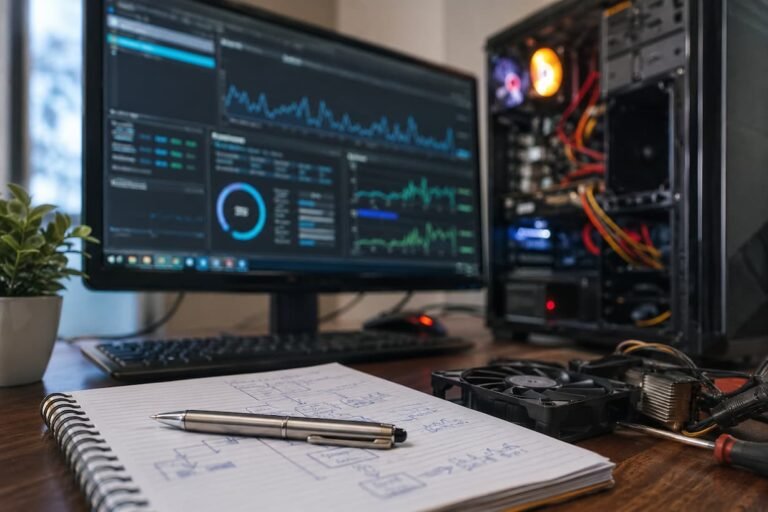
You do not always need expensive specialist software to investigate a computer problem. Windows includes several tools that can provide useful information. Task Manager can show whether the CPU, memory, or storage drive is under unusual load. Device Manager can reveal devices with driver or hardware warnings. Reliability Monitor can help you identify when crashes and application failures began. Windows Memory Diagnostic can be used to check for some types of RAM problems.
These tools will not diagnose every hardware fault, but they can help you build a clearer picture. They are particularly useful when combined with your observations. If the computer freezes whenever disk usage reaches a high level, for example, storage may deserve closer attention. If the system crashes after a particular driver update, that change becomes relevant. Use diagnostic software as a source of evidence rather than treating every warning as proof of failure. A warning can point you toward an investigation, but it does not identify the final cause.
Test the Suspected Component in Isolation
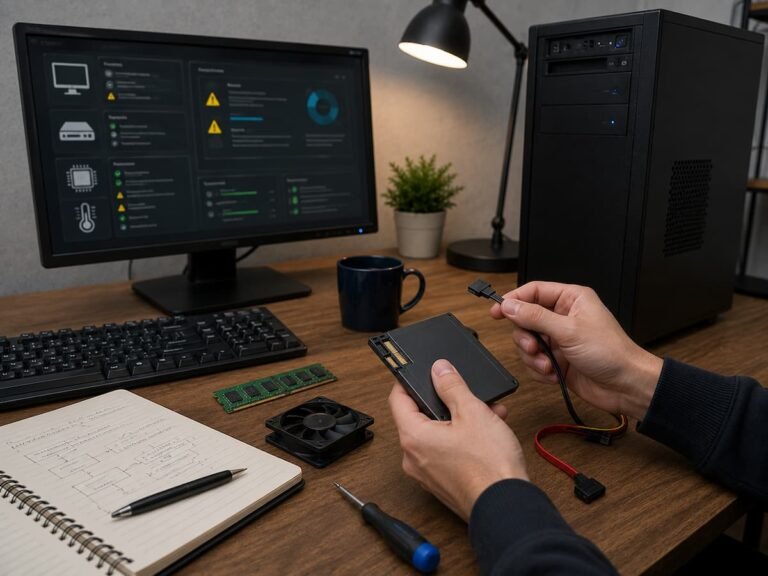
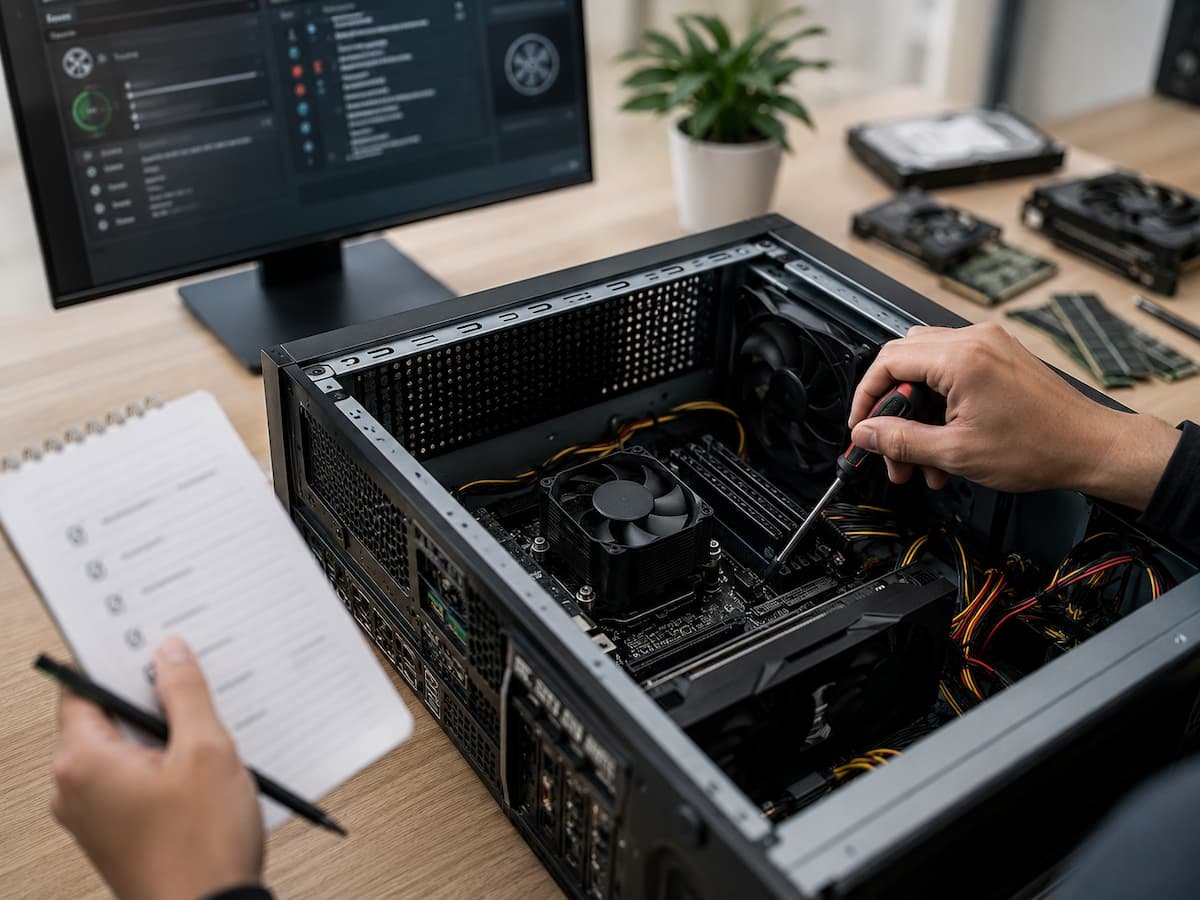
When possible, simplify the system. If you suspect a RAM problem, test individual memory modules or return temporarily to the previous configuration. If you suspect a graphics card, try using another compatible graphics solution to see if the computer behaves differently. This method is powerful because it changes one major variable while keeping the rest of the system as consistent as possible. You are effectively asking a simple question: does the problem remain when this particular component is removed from the equation?
Be careful with this approach. Only use compatible components, follow proper installation procedures, and disconnect power before working inside a desktop computer. If you are uncomfortable handling hardware, professional assistance is a safer option. You should also avoid assuming that a successful test completely clears a component. Intermittent faults can be difficult to reproduce. The goal is to gather evidence, not to create absolute certainty from one short test.
Learn to Separate Symptoms From Causes
This is one of the most important concepts in hardware troubleshooting. The component that appears to be causing the problem may only be the part where the symptom becomes visible. Imagine a computer that suddenly displays a black screen while gaming. The graphics card is an obvious suspect, but the real cause could be an unstable driver, overheating, insufficient power, a faulty display cable, or even a problem with the monitor.
Similarly, a blue screen mentioning memory does not automatically prove that the RAM is defective. A driver or another hardware component can sometimes trigger an error that appears to point to memory. Before replacing a part, ask yourself: What evidence specifically points to this component? If the answer is just “because that is where the problem appears,” you probably need to investigate further.
Keep a Simple Troubleshooting Record
Writing down your diagnostic steps may sound unnecessary for a single problem, but it becomes extremely useful when troubleshooting takes several days. Record what happened, what you changed, and what happened afterward.
- Date and time: Record when the problem occurred.
- Exact symptom: Note whether the computer froze, restarted, crashed, or displayed an error.
- Recent changes: Write down new hardware, software, drivers, or updates.
- Test performed: Record what you changed or tested.
- Result: Note whether the problem improved, disappeared, or remained unchanged.
This simple record prevents you from repeating unsuccessful tests. It also gives a technician valuable information if you eventually need professional help.
Use Replacement Parts as a Test, Not a Guess
Sometimes the only practical way to confirm a hardware fault is to test the computer with a known-good replacement component. If you have access to a compatible power supply, RAM module, or graphics card, this can be an effective diagnostic method. The important distinction is between testing a component and buying one blindly. Borrowing or temporarily using a known-good part can provide evidence before you spend money. If replacing the power supply resolves the problem, for example, you have stronger evidence that the original unit was involved.
When purchasing a replacement, ensure that it is compatible with the rest of your system. Do not buy a component simply because it is newer or pricier. A more powerful part will not necessarily solve a problem caused by software, cooling, or an unrelated component.
Know When the Evidence Is Strong Enough
There comes a point when continued troubleshooting is less useful than replacing the suspected component. The goal is not to achieve absolute certainty in every situation. The goal is to reach a reasonable level of confidence based on multiple clues.
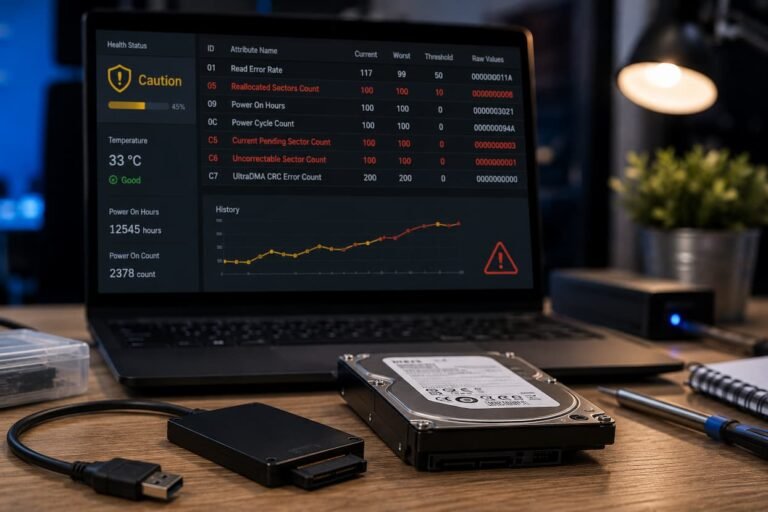
For example, if a storage drive repeatedly produces read errors, becomes increasingly difficult to access, and reports health warnings through a reliable diagnostic tool, replacement becomes a sensible decision. If a power supply causes repeated shutdowns under load and the system becomes stable with a known-good compatible unit, the evidence is much stronger. When several independent observations point in the same direction, you can make a replacement decision with greater confidence. This is very different from replacing an expensive component simply because it is the most visible suspect.
Know When to Stop and Ask for Help
Good diagnostic habits also include knowing your limits. If you notice burning smells, visible electrical damage, repeated power failures, or signs of a serious hardware fault, stop using the computer and seek professional assistance.
It is also sensible to get help when troubleshooting becomes increasingly complicated. A professional technician may have spare components and specialised testing equipment that can identify a problem faster than purchasing several replacement parts yourself. If the computer contains important data, make a backup before extensive troubleshooting whenever possible. Protecting your files should come before proving exactly which component has failed.
Conclusion
It is best to check thoroughly before spending money. Accurate checks can sometimes save you from purchasing expensive graphics cards, motherboards, or storage devices. More importantly, a good troubleshooting approach gives you confidence and ensures that you replace components for legitimate reasons.
FAQs
1. Do I need to replace the defective part?
Not always. The part mentioned in the error message may not be the actual cause of the problem, but merely the location where the error occurs. Before deciding whether replacement is necessary, verify the drivers, connections, temperature, power supply, and all other hardware connected to it.
2. What should I verify before buying new computer parts?
Check the specific symptoms, recent changes, temperature, driver status, and available diagnostic information. Try out the part you are concerned about before buying expensive parts, or use a working alternative if possible.
3. Is reinstalling Windows a good way to solve problems?
Reinstalling Windows can help resolve major software or operating system issues, but it should not always be your first choice. Reinstalling Windows cannot solve problems such as faulty power supplies, memory issues, overheating, or defective storage devices.
4. Why is it so important to change only one setting at a time?
This helps you find the changes that are causing the problem. If you change multiple parts or settings at once, you might solve the problem without understanding the underlying cause, or you might unintentionally introduce new problems.
5. When is it better to replace a part rather than trying to repair it?
When multiple indications point to the same part, replacing it is clearly wiser, especially if a properly functioning replacement part also confirms the diagnosis. If the problem involves electrical damage or a potentially dangerous malfunction, you should seek professional help instead of attempting to test the device yourself.