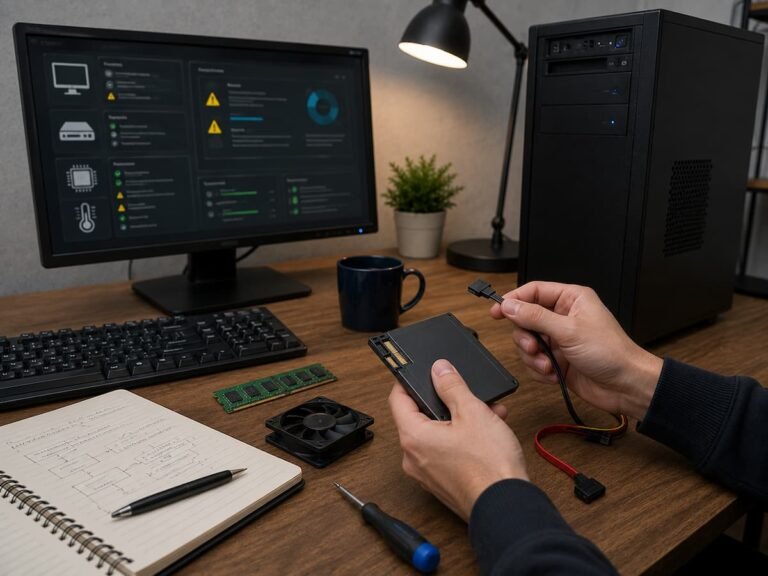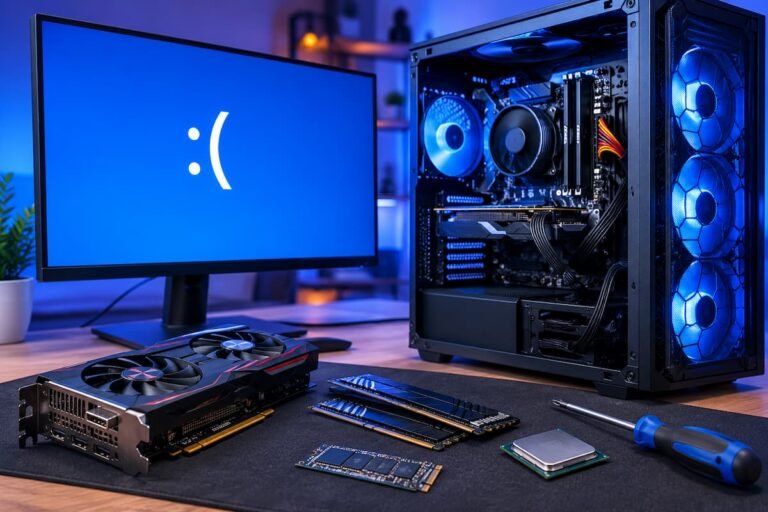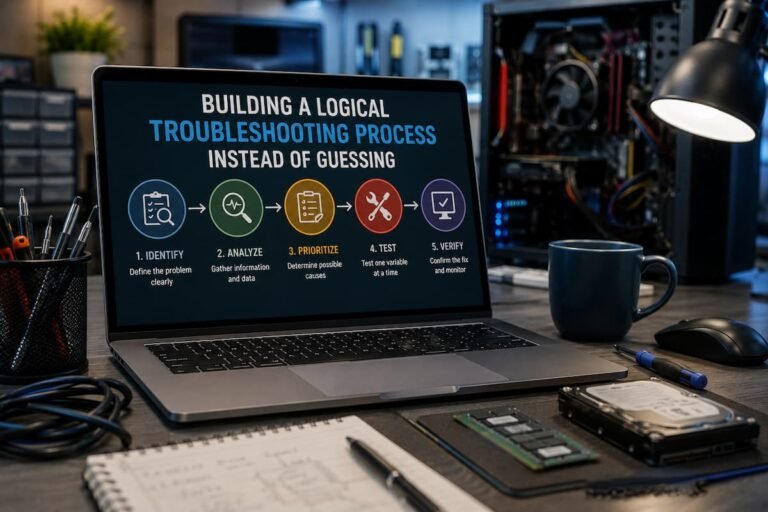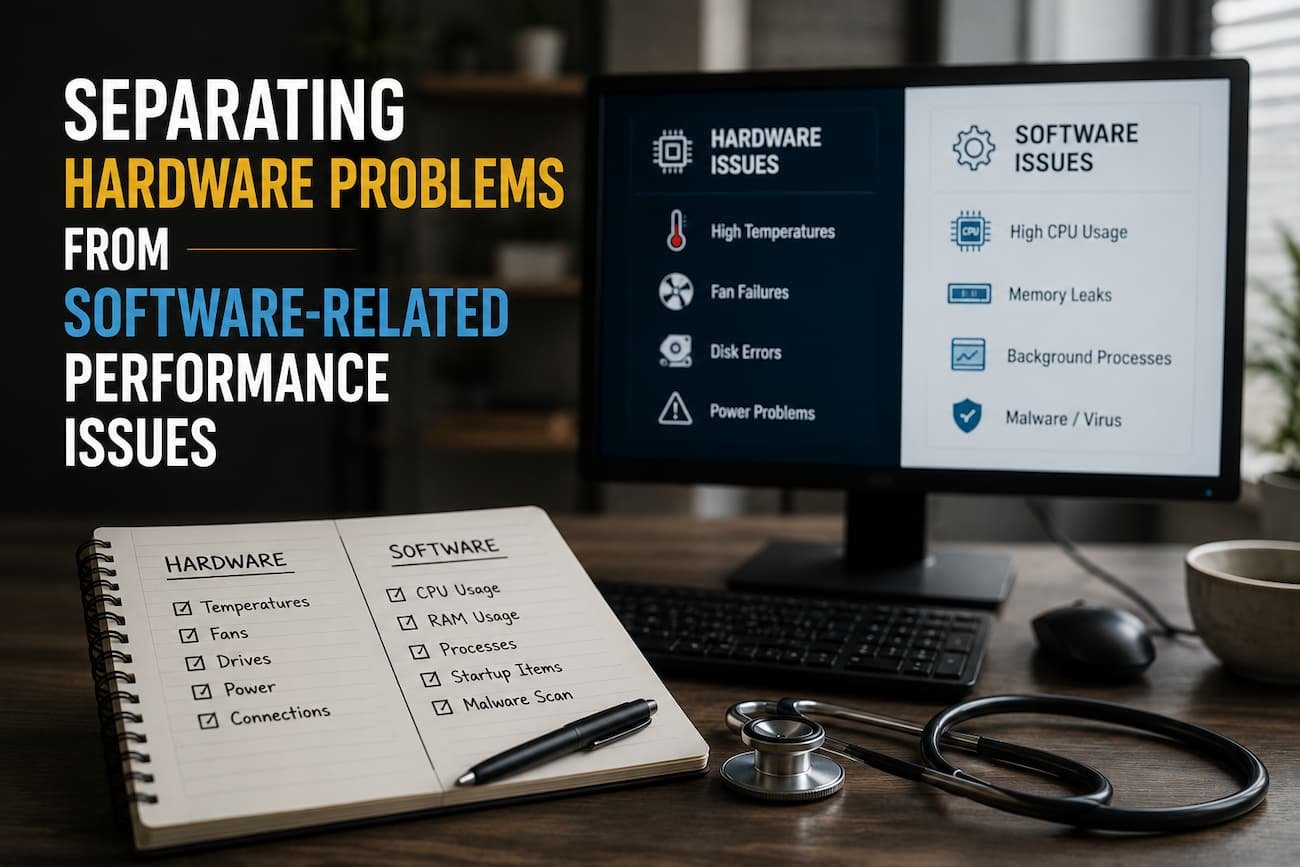
The truth is more complicated. Hardware, OS settings, software, drivers, background activities, storage health, cooling, and other factors affect computer performance. A poorly behaving application may trigger a hardware failure. Software debugging may not fix memory overheating or storage device degradation.
Learning to distinguish hardware from software performance issues saves time and money. You can utilize a logical procedure to find the problem instead of randomly replacing components or reinstalling the OS. This article covers the most typical warning signs, practical tests, and troubleshooting strategies to assist novices in diagnosing computer issues.
Why Hardware-Software Differences Matter
Knowing if a problem is hardware or software affects your strategy. Removing an unwanted app, updating a driver, altering a setting, restoring system files, or reinstalling software can fix software issues. Cleaning, replacing, repairing, or upgrading hardware may fix issues. Imagine a machine that slows down after beginning normally for several minutes. The processor may be new. Instead, a background app may be hogging resources. An antivirus check, cloud synchronization, software update, or browser extension may be to blame.
Consider another computer that freezes, makes strange noises, or crashes even with a clean operating system during intensive operations. Those symptoms may indicate hardware issues. The distinction isn’t always right. Since hardware and software interact frequently, one can cause symptoms that resemble the other. Incorrect drivers can create system crashes that resemble hardware instability, while failing storage devices can corrupt software files. Therefore, the purpose is not to guess the cause instantly. Evidence should be gathered to eliminate causes.
Interpreting Symptoms
The first step is to characterize the situation. “My PC is slow” is too vague to help troubleshoot. Try to determine when the issue arises and whether it impacts the whole system or just one application. A computer that takes minutes to start may have startup software issues, too many background apps, or slow storage. One application slowing down a computer may be the problem, not the system.
Timing matters too. Heat may cause computer performance to decline after a long time. Software-related causes are more likely if the problem starts quickly after installing a driver or update. Note the symptoms and pre-symptoms. This simple practice can reveal trends that memory troubleshooting misses.
| Symptom | Possible Software Cause | Possible Hardware Cause |
|---|---|---|
| Slow startup | Too many startup applications | Slow or failing storage |
| Random crashes | Driver or application conflict | Memory, power, or motherboard problem |
| System becomes slow over time | Background processes or software buildup | Overheating or storage degradation |
| Application freezes | Bug or incompatible software | Insufficient RAM or unstable hardware |
| Unusual noises | Rarely software-related | Possible mechanical drive or cooling fan issue |
| Blue screens | Driver or operating system issue | Memory or other hardware instability |
The table is only a starting point. Symptoms can overlap, so each possibility needs to be tested rather than assumed.
Signs That Software May Be the Problem
Software is a likely suspect when a computer’s problems began after installing a new application, driver, update, or system modification. If everything worked correctly before a particular change, investigate that change first. Another common sign is that the problem affects only one application. If a browser becomes unresponsive while other programs continue working normally, the issue may involve the browser, an extension, corrupted settings, or a specific website rather than the computer’s hardware.
Performance that improves after restarting can also point toward software or background process problems, although it does not completely rule out hardware issues. Excessive resource usage is another clue. If one application consistently consumes most of the CPU, memory, or storage activity, that program deserves investigation. Software problems can also appear after updates. A new driver may introduce compatibility issues, or an application update may increase resource requirements. This does not mean updates should be avoided, but it does mean that timing is useful evidence when troubleshooting.
Signs That Hardware May Be the Problem
Hardware problems often produce symptoms that remain even after software changes. If the computer continues crashing after a clean operating system installation, physical components become more suspicious. Unexpected shutdowns, persistent overheating, unusual mechanical noises, visible damage, burning smells, and repeated memory errors are also reasons to investigate hardware.
Another warning sign is a problem that occurs across different operating systems or environments. If a computer crashes during a hardware diagnostic tool, a clean installation, or normal use, software becomes a less convincing explanation. Hardware faults can also become more frequent over time. A failing storage drive might initially cause occasional delays before producing more serious errors. Memory instability might appear only during demanding workloads. If you notice burning smells, visible electrical damage, or signs of overheating, stop using the computer and investigate the cause safely. Do not continue operating hardware that may present a physical safety risk.
Using Resource Monitoring Tools
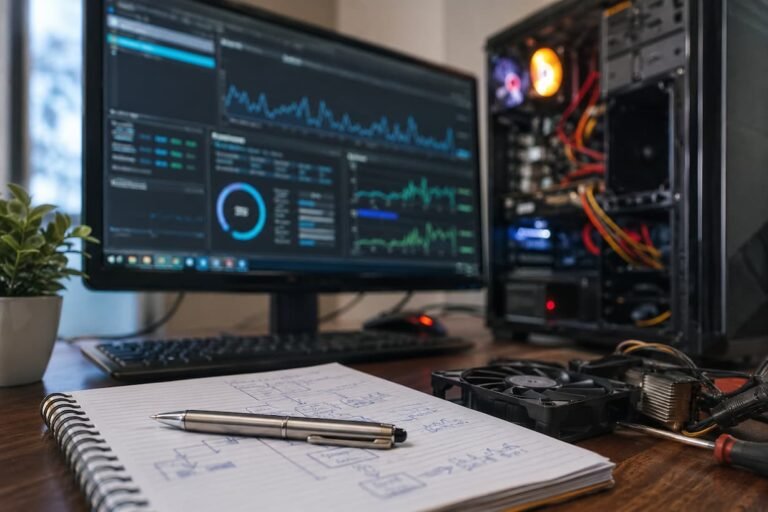
One of the easiest ways to investigate performance problems is to monitor system resources while the problem is happening. Windows users can use Task Manager, while macOS and Linux provide their own monitoring utilities. Look at CPU usage, memory consumption, storage activity, and network activity. The important question is not simply whether a resource is being used, but which process is responsible.
For example, if the computer feels slow and one application is consuming nearly all available CPU resources, that application may be responsible. If memory is almost completely occupied and the system is constantly moving data between RAM and storage, insufficient memory or excessive multitasking may be involved. High storage activity can also explain sluggish behaviour. A background update, indexing process, or synchronisation service may temporarily consume significant storage resources. Monitoring tools do not automatically identify the root cause, but they help turn a vague complaint into measurable evidence.
Checking Startup Programs and Background Processes
Too many programs starting automatically can make a computer feel slower than it really is. Some applications launch when the operating system starts and continue running in the background even when you are not actively using them. Review your startup applications and identify programs you recognise. If a program is unnecessary, consider disabling its automatic startup rather than uninstalling it immediately.
Be careful when disabling background processes. Some are essential to the operating system or hardware, while others support security, drivers, or important applications. A useful approach is to make one change at a time. Disable a non-essential startup program and observe whether performance improves. This creates a clearer connection between the change and the result. If startup performance improves significantly after reducing unnecessary applications, the problem was more likely software-related than a fundamental hardware limitation.
Investigating Storage-Related Performance Problems
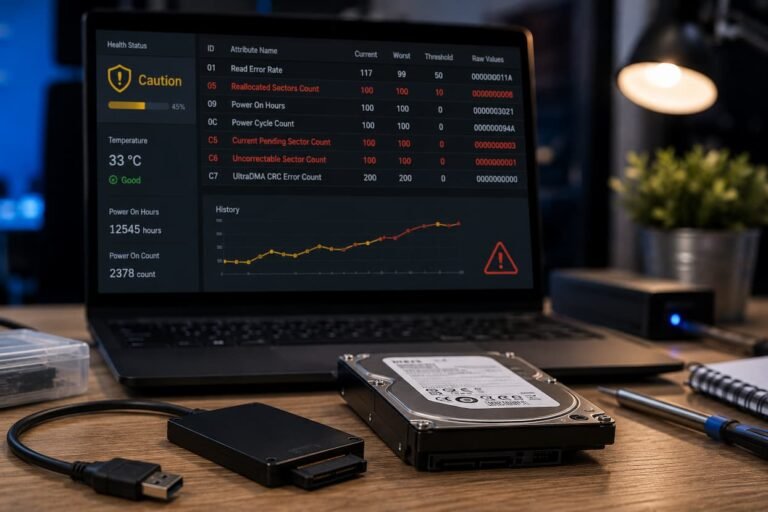
Storage can sit between the hardware and software categories because problems with a physical drive can appear as operating system or application failures. A healthy SSD or hard drive should generally provide consistent access to data. If a drive begins developing errors, the computer may experience slowdowns, application crashes, corrupted files, or difficulty starting the operating system.
Mechanical hard drives can also produce unusual clicking or grinding noises when they are experiencing physical problems. SSDs do not have moving parts, but they can still fail or develop controller and memory-related faults. If you suspect storage problems, back up important data before performing extensive troubleshooting. A failing drive can become less reliable during repeated testing. Also check whether the storage drive is nearly full. A nearly full system drive can contribute to poor performance and may cause applications or the operating system to behave unexpectedly.
Understanding RAM-Related Slowdowns
RAM affects how many applications and tasks a computer can handle comfortably at the same time. When available memory becomes limited, the operating system may rely more heavily on storage to manage data that does not fit comfortably in RAM. This can make the computer feel slow, particularly when switching between many applications or browser tabs.
However, insufficient RAM is not the same as faulty RAM. A computer with too little memory may run slowly but remain stable. Defective memory can cause crashes, corrupted data, application errors, or unpredictable behaviour. If you suspect a memory problem, use a reputable memory diagnostic tool and follow its instructions. If errors appear consistently, investigate the RAM modules and motherboard configuration. Before buying more RAM, monitor actual memory usage. Adding memory can help when the system regularly runs out of available RAM, but it will not fix problems caused by a failing storage drive, overheating, or defective software.
Identifying Processor and CPU Usage Problems
High CPU usage does not automatically mean that the processor is too weak. Modern software can temporarily consume significant processing resources for legitimate reasons. For example, video encoding, software compilation, large file compression, and some updates can use most available CPU capacity. This may be normal if performance returns to normal when the task finishes.
The problem is more suspicious when CPU usage remains unusually high during basic tasks. A background application, browser tab, unwanted software, or malfunctioning service may be responsible. Check which process is using the processor rather than assuming the CPU itself is inadequate. On older computers, however, the processor may genuinely be the limiting factor. If resource monitoring shows that the CPU is consistently at or near full usage during normal workloads, upgrading hardware may eventually be appropriate.
Checking Heat and Thermal Throttling
Heat can create symptoms that look like software problems. A computer may work normally when first started but become slower after several minutes of demanding activity. Modern processors and graphics hardware can reduce their operating performance when temperatures become too high. This process, often called thermal throttling, is designed to protect the hardware.
Dust buildup, blocked ventilation, failed fans, poor airflow, or an inadequate cooling solution can all contribute to high temperatures. If performance consistently declines as the system heats up, check temperatures using appropriate monitoring software. Also inspect the computer for dust and verify that cooling fans are operating correctly. Do not assume that replacing the processor will solve a thermal problem. In many cases, cleaning the system and improving airflow may be more appropriate.
Drivers and Operating System Problems
Drivers allow the operating system to communicate with hardware such as graphics cards, network adapters, storage controllers, and audio devices. A driver problem can therefore create symptoms that appear to be hardware failures. For example, a faulty graphics driver might cause display crashes, application instability, or system freezes. A network driver problem might create intermittent connectivity that looks like a failing network card.
If the problem began after a driver update, check whether reverting to a known stable version is possible. If the hardware has never worked correctly, look for a current driver from the hardware manufacturer’s official support resources. Operating system corruption can also affect performance. If system files are damaged, applications may behave unpredictably or certain services may fail. Before performing major repairs, back up important files. Software troubleshooting can involve resets or reinstallations that may affect stored data.
Using Safe Mode and Clean Testing
Safe Mode or equivalent diagnostic startup environments can help separate software-related problems from hardware issues. These environments load a more limited set of drivers and services. If a problem disappears in Safe Mode, software, drivers, or startup services become more likely suspects. If the same problem continues, hardware becomes more suspicious, although this is not absolute proof.
A clean boot can provide a similar testing approach by starting the operating system with non-essential services and startup applications disabled. The key is to use these methods as diagnostic tools rather than permanent solutions. If disabling a service fixes the problem, identify which service caused the issue and decide whether it should be updated, repaired, or removed. Do not randomly disable critical system services without understanding their purpose. If you are unsure, research the exact service name using reliable documentation before changing it.
Testing Hardware Before Replacing It
Before replacing a hardware component, test it when possible. This is especially important when the replacement is expensive. Memory can be tested with dedicated diagnostic tools. Storage drives often provide health information through manufacturer utilities or operating system tools. Processor and graphics hardware can be monitored under controlled workloads to identify temperature or stability issues.
For desktop computers, reseating components can sometimes resolve connection problems, although this should be done carefully with the system powered down and disconnected from power. Testing should be systematic. If you change several components at once, you may not know which one solved the problem. It is also useful to reproduce the problem under controlled conditions. If the computer crashes only during intensive graphics workloads, focus on graphics hardware, drivers, power delivery, and cooling rather than immediately replacing the storage drive.
A Step-by-Step Troubleshooting Workflow
A structured process makes troubleshooting much easier. Start by documenting the symptoms and identifying when the problem occurs. Ask whether the issue affects the entire computer or only one application. Next, check for recent changes. Consider newly installed applications, drivers, updates, peripherals, or hardware. Then monitor system resources while the problem occurs. Look for unusual CPU, memory, storage, or network usage.
After that, test software variables. Close unnecessary applications, disable non-essential startup programs, update or reinstall affected software, and consider Safe Mode or a clean boot. If the problem remains, investigate hardware. Check temperatures, storage health, memory stability, power delivery, and physical connections. Finally, test one variable at a time. If you replace a component, observe whether the symptoms disappear. If the problem continues unchanged, return to your list of possible causes rather than assuming the replacement was successful.
Simple Troubleshooting Order
- Describe the exact symptoms.
- Identify when the problem started.
- Check for recent software or hardware changes.
- Monitor CPU, RAM, storage, and network activity.
- Test applications and startup programs.
- Check drivers and operating system health.
- Check temperatures and hardware health.
- Run appropriate hardware diagnostics.
- Change one variable at a time.
- Back up important data before major repairs.
This approach is slower than guessing, but it is much more likely to lead to the correct answer.
Common Troubleshooting Mistakes to Avoid
One of the biggest mistakes is immediately buying new hardware. A slow computer may simply have unnecessary startup programs or a background process consuming resources. Another mistake is reinstalling the operating system as the first solution. A clean installation can fix certain software problems, but it may not help if the real cause is failing hardware, overheating, or an inadequate power supply.
People also frequently change several things at once. Installing new drivers, replacing RAM, updating the operating system, and changing system settings simultaneously makes it difficult to determine what actually solved the issue. Ignoring backups is another serious mistake. Troubleshooting storage problems without protecting important files can turn a performance problem into a data-loss problem. Finally, avoid assuming that age alone proves hardware failure. Older hardware may be slower, but a sudden change in behavior is often more informative than the computer’s age.
Conclusion
The elimination process can help distinguish between hardware and software issues. Although symptoms rarely provide a complete answer, they can help find the cause. First, accurately describe the problem and how it manifests. If necessary, check recent changes, resource usage, programs, drivers, and the diagnostic environment. If the problem persists with different software configurations, check the hardware, temperature, storage condition, memory, power supply, and physical connections.
The most important principle is to avoid making multiple changes at the same time. The best way to resolve issues is by providing relevant information at every step. This approach prevents unnecessary purchases and simplifies identifying the cause of the problem. A slow or frozen computer does not necessarily require faster hardware or an operating system reinstallation. Learning to distinguish between software symptoms and hardware warning signs helps in making better decisions regarding repairs, upgrades, and maintenance. You can solve problems with evidence, not guesswork.
FAQs
1. How can I determine if my computer’s slow performance is due to outdated hardware?
Observe how the system performs slow tasks. If regular tasks consistently consume an excessive amount of processor power, there may be a CPU problem. If the system frequently uses memory, it may not have enough memory. If storage activity is frequent and the hard drive is slow or in poor condition, the storage device may be defective. Check if your computer’s hardware meets the software requirements. The current workload is more relevant than the age of your computer, as even older computers can still perform effectively on some light tasks.
2. Can software problems damage hardware?
Common software problems rarely damage hardware. Software can lead to hardware overload, overheating, or instability issues. Malware can also cause abnormal system activity. If your computer overheats or shuts down unexpectedly, check both the hardware and the software. Do not assume that reinstalling the operating system will resolve overheating, power supply issues, or component problems.
3. Why does restarting your computer temporarily solve a problem?
Restarting clears the temporary system state, closes applications, frees up memory, and terminates background processes. This can temporarily resolve software issues, such as memory leaks and frozen processes. If the problem persists, restarting offers only temporary relief. Investigate persistent issues to identify applications, drivers, services, hardware components, or overheating.
4. Can faulty drivers have similar consequences to faulty hardware?
Yes. Faulty drivers can cause crashes, freezes, graphics issues, and connectivity problems by disrupting communication between the operating system and the hardware. If problems occur immediately after an update, the driver should be checked. Hardware errors can also cause frequent crashes. Testing with updated or stable drivers can help distinguish between the two.
5. Should I upgrade my RAM if my computer is slow?
Not necessarily. If your computer regularly experiences memory issues while running normal applications, increasing the RAM can help. However, insufficient storage space, excessive background activity, virus infections, overheating, and software issues can all affect performance. First, check memory usage during normal operations. If memory is constantly nearly full and storage usage is high, upgrading the RAM can improve performance.