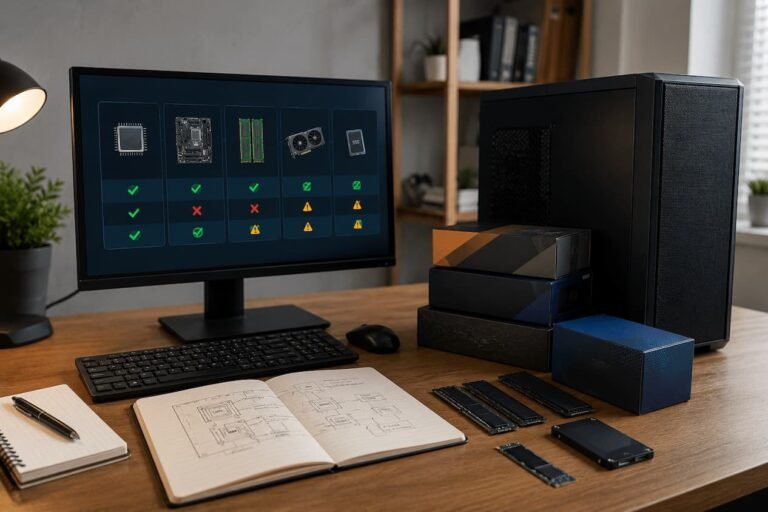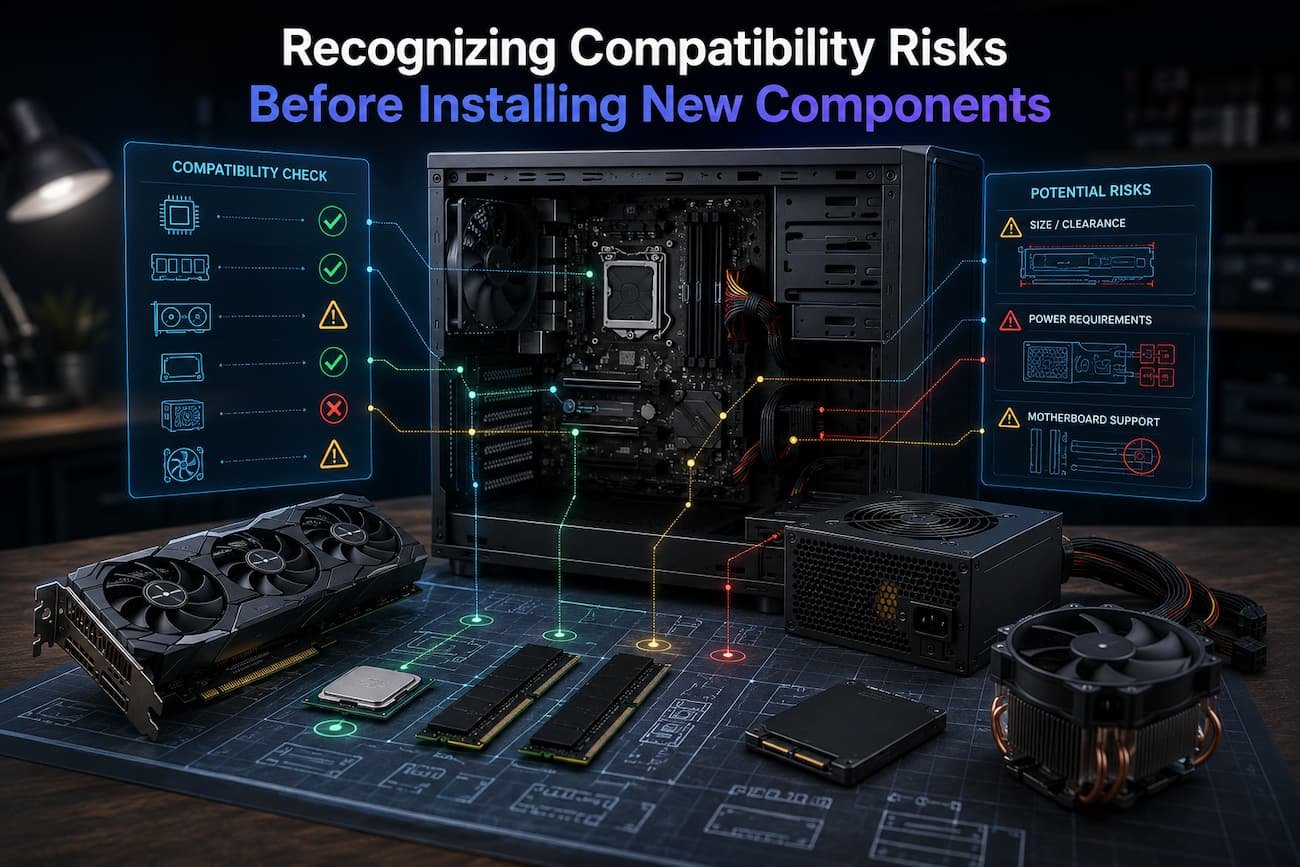
Compatibility matters here. A component can be powerful, highly rated, and suitable for your workload, but it may not fit the motherboard, require a different connector, exceed the power supply’s capabilities, or demand cooling the system cannot offer. Some compatibility issues are visible before installation, while others surface after machine assembly.
Be aware of these dangers before buying or installing gear to save money, time, and irritation. It can help prevent expensive component returns or replacements. This book covers the most prevalent compatibility issues, how to check them, and how to create a useful pre-installation checklist before upgrading a computer.
Hardware compatibility—what is it?
A new component is hardware compatible if it can physically connect to your computer, interact with the existing system, receive power, and operate within the restrictions of the other hardware and software. Compatibility goes beyond connecting two components. Firmware may not support a new CPU that fits the motherboard’s socket. A graphics card may fit the expansion slot but be too long for the casing. A memory module may be the right type but exceed the motherboard’s capacity.
Storage is another example. Both drives can be M.2 with different interfaces. Some use SATA, others PCI Express and NVMe. Physical shape does not guarantee motherboard support for both. considering compatibility as a chain helps. The new component must fit the physical system, communicate through supported standards, receive enough power, operate within thermal limitations, and be acknowledged by firmware and OS. Computer components may not be compatible with their physical sizes. Before installing, verify physical, electrical, technical, and software requirements.
Identify Your Hardware
Determine what’s in your PC before upgrading. This is a crucial step because system compatibility depends on the system, not its age or brand. Record the desktop motherboard, processor, RAM type and configuration, storage devices, graphics card, power supply, case model, and cooling hardware. Knowing which expansion slots and storage connectors are occupied may also help.
Identify the laptop model and setup if possible. Internal hardware and upgrade options may differ between laptops with similar names. Operating system tools can identify components, while manufacturer documentation confirms specs. Motherboard support pages are useful for desktops. Do not trust product names like “gaming desktop” or “business laptop.” Those descriptions lack compatibility information. Actual model numbers are more useful.
Check Motherboard Compatibility
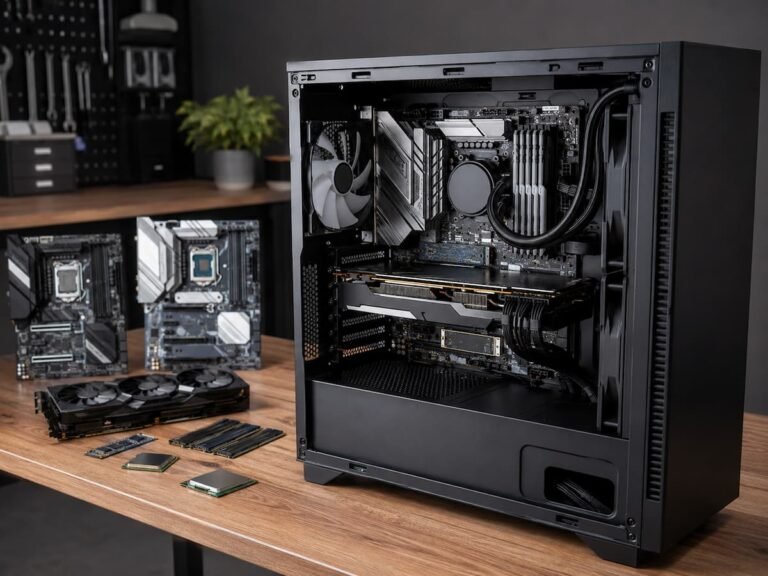
Desktop motherboards are the main compatibility point. This specifies supported CPUs, memory technologies, storage interfaces, and extension devices. Check the motherboard instructions or specs before installing a new part. Verify CPU generations, RAM kinds, maximum memory capacity, expansion slots, storage connections, and firmware needs.
Resource sharing is often forgotten. Installing a device in a slot on some motherboards may prevent another storage connection. The motherboard handbook may clarify these restrictions. Slot availability counts. A computer may support an expansion card yet have no free slot because other components are using the connections. The motherboard specification should be examined for compatibility, not a single feature on a retailer’s product site.
Firmware and Processor Socket Risks
Upgrades to processors require careful planning. CPUs must match the motherboard’s socket and chipset, but this is not always required. Firmware updates support many processors on motherboards. A newer BIOS or UEFI version may be needed for an older motherboard to recognize a later-generation processor.
This can cause issues when upgrading an older machine. If the CPU is too old to support the firmware update, installing the new CPU may prevent you from starting the computer until the firmware is updated. Please consult the motherboard manufacturer’s CPU support list. Find the CPU model and firmware version. Also consider cooling and power. A more powerful processor may need more cooling than the original CPU.
Memory Compatibility Risks
RAM upgrades seem straightforward, but memory compatibility is complicated. The motherboard or laptop must support DDR4 or DDR5 memory modules. Standard desktop memory slots cannot accommodate different generations. Even though the memory looks the same, the keying and electrical characteristics are different.
Also check memory speed and maximum capacity. Under its formal specifications, a motherboard may support a memory type but only certain capacities or speeds. Sometimes mixing memory modules works, although it can cause instability or slow the system. The memory may work differently depending on capacity, timing, or specifications. Consult system or motherboard documentation and choose RAM that meets specifications for the safest upgrade.
Interface and Storage Compatibility Issues
Storage upgrades are popular because they offer many benefits, but compatibility is sometimes misunderstood. M.2 drives and 2.5-inch SATA SSDs have separate physical connections. Even M.2 drives differ in compatibility. Depending on the system, M.2 slots can handle SATA or PCIe-based NVMe storage.
Also important is storage connection count. A desktop with numerous M.2 slots may let you install a disk without removing it. Laptops with one storage slot may need to replace the drive. Ensure that the drive’s storage interface, form factor, slot, and manufacturer-specified capacity are correct before buying. Remember that upgrades include data migration. If you’re replacing your primary drive, back up crucial files and prepare to reinstall or transfer the OS.
GPU Compatibility Risks
Graphics cards are popular desktop upgrades, although they pose compatibility issues. Start with the expansion slot. Modern desktop graphics cards use PCI Express; however, the motherboard needs a slot. For the expected workload, the card may need enough bandwidth.
Examine physical dimensions. Large high-performance graphics cards may require many expansion slots. Card length, thickness, and height must be considered for the case. Power needs matter too. A new graphics card may need more power connectors and a stronger power supply. Power supplies must fulfill manufacturer specifications and have the necessary connectors. Finally, consider the system. A strong graphics card may not function well if an older processor slows program performance.
Required Power and Connectors
Before an update fails, the power supply is commonly disregarded. Every computer component raises the need to understand power consumption. Check the power supply’s wattage, connections, format, and condition. A power supply several years old may need extra attention before you combine it with a more demanding component.
Power supplies should be judged by more than watts. Also important are quality, efficiency, protection, and connector availability. Despite having appropriate watts, a system may not have the right graphics card connectors. Using the right cables is crucial. Modular power supplies use manufacturer-specific cable designs; therefore, cables from one supply may not be compatible with another. Do not mix modular power supply cables from different brands or models unless the manufacturer says so. The connectors may look alike but have distinct wiring.
Problems with Size and Clearance
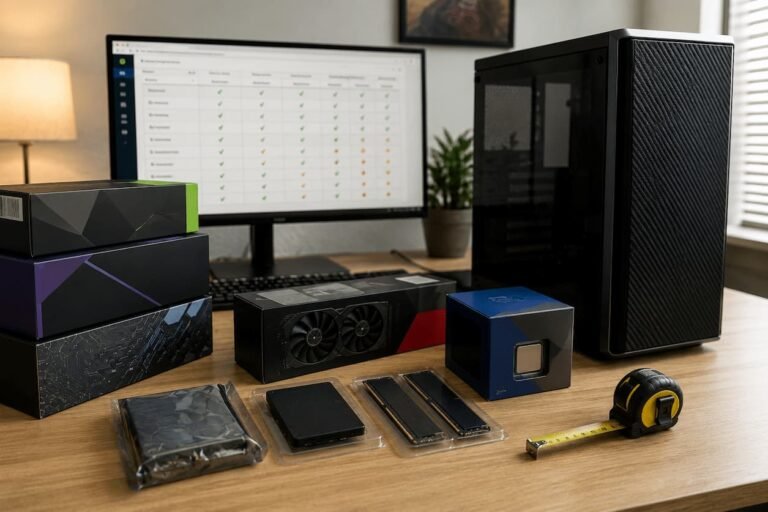
A computer component may fit technically but not physically. Graphics cards, CPU coolers, power supplies, and huge storage devices often do this. Measure the space or check the manufacturer’s case specs before buying a component. Check graphics card length and thickness limits. Maximum CPU cooler height and motherboard clearance should be checked.
Also consider memory clearance. Big CPU coolers can block memory slots, making tall memory modules impossible to install. Power supply power ratings and form factors should be checked. Electrically appropriate power supplies may be too big for the case. Never assume a “standard size” component fits every computer. Between tiny PCs and full-sized towers, case designs vary greatly.
Thermal Compatibility and Cooling
Some new hardware generates more heat. The computer may slow down or become unstable if the cooling system cannot remove that heat. Checking cooler compatibility is common while upgrading processors. The cooler must support the processor socket and meet its thermal needs. Case airflow matters. A powerful graphics card in a small chassis with poor airflow might cause thermal issues.
Review the airflow path before installing a new component. Make sure intake and exhaust fans operate and dust isn’t blocking ventilation. Cooling doesn’t necessarily require pricey gear. Improved ventilation, safe system cleaning, and fan placement can sometimes make a difference.
Support for Drivers, Firmware, and OS
Hardware compatibility continues after installation. It must be supported by the OS and firmware. Drivers may be needed for graphics cards, network adapters, sound cards, and more. Some devices work with basic OS drivers but lack advanced functionality until the manufacturer’s driver is loaded.
Firmware also affects compatibility. Motherboard BIOS or UEFI updates may support newer processors or enhance hardware compatibility. But firmware updates should be done carefully. The manufacturer’s instructions and stable power are essential for firmware updates; thus, interrupting them can create major issues. Before installing a new component, be sure your operating system is supported and the manufacturer has updated drivers.
Why Laptop Upgrades Need Extra Care
More limited laptop upgrades than desktops. Memory may be soldered directly to the motherboard in modern laptops, making storage the only change. Space, connector type, and manufacturer design limit storage upgrades. A few laptops have uncommon drive types or only one internal storage slot. Replacement batteries might also cause compatibility issues. A replacement battery must match model and electrical specs.
Check official service documentation before opening a laptop. Some manufacturers’ maintenance manuals list replaceable parts. Buying a laptop with soldered RAM and limited storage requires careful configuration. A little higher baseline specification may be better than a hardware-incompatible upgrade.
A Practical Compatibility Checklist
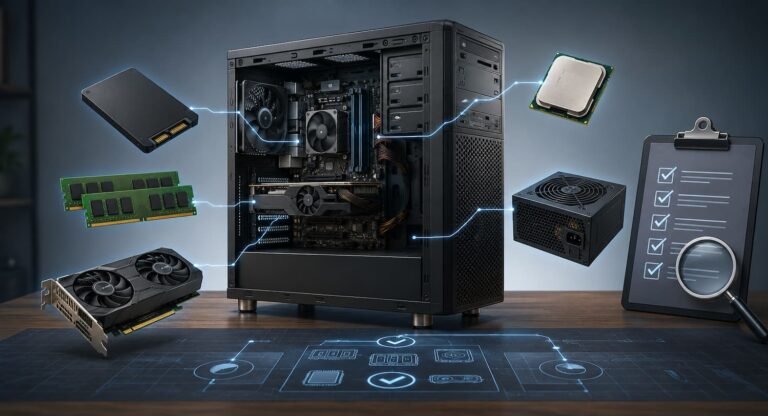
Before purchasing or installing a new component, work through the following checks. The exact questions will depend on the type of hardware you are adding, but the process provides a useful general framework.
| Compatibility Area | What to Check |
|---|---|
| Model identification | Confirm the exact computer and motherboard model |
| Physical connection | Check sockets, slots, interfaces and connectors |
| Firmware | Confirm BIOS or UEFI support and required versions |
| Power | Check wattage, connectors and power requirements |
| Physical space | Measure length, height, width and clearance |
| Cooling | Confirm adequate cooling and airflow |
| Software | Check operating system and driver support |
| Expansion limits | Check whether adding one component disables another |
| Data safety | Back up important files before making major changes |
Completing these checks before ordering hardware is much easier than discovering a problem after delivery. If you cannot confirm an important compatibility requirement, please pause the purchase and find more information first.
Common Compatibility Mistakes to Avoid
One of the biggest blunders is buying a component by name. Older systems may not support newer processors, SSDs, or graphics cards. Checking one specification is another mistake. A graphics card may fit the motherboard but not the casing or require more power than the power supply can provide. Buyers sometimes conflate outward similarities with technical compatibility. Connectors may not work the same.
Avoidable mistakes include ignoring manufacturing documentation. Although product lists reduce technical information, official manuals frequently provide critical limits and acceptable combinations. Finally, hasty installation can cause issues. Before removing outdated components, photograph cable connections, work cautiously, and don’t force components into slots. Stop and investigate if a part doesn’t fit naturally before adding pressure.
Conclusion
Prevention is cheaper and easier than repair for compatibility issues. Examine your hardware and compare it to the upgrade requirements before installing a new computer component. Consider more than fit. Check sockets, interfaces, motherboard, firmware, power, size, cooling, drivers, and OS compatibility. Consider hidden constraints like shared motherboard resources or connectors that appear alike but support distinct technologies.
The best method is to consult original manufacturer documentation. While product listings and internet conversations might provide context, the motherboard manual, laptop repair guide, or component specification should be your main source for compatibility. A few extra minutes of study before buying can save hours of problems. A successful update requires more than just a working new component. The new hardware works well with the system and gives the desired improvement.
FAQs
1. Do I require BIOS updates before installing a CPU?
Not always. Some CPUs require a newer BIOS or UEFI, while others are supported by the motherboard’s firmware. Find out if your motherboard needs a CPU update by checking its support list. Read the manufacturer’s instructions carefully and check if your CPU can boot the system during the upgrade or if the motherboard supports another update technique.
2. Why does my new RAM not work after installation?
Multiple issues can cause this. Memory may be incompatible with the motherboard, fitted incorrectly, or placed in unsuitable slots. The system may need particular configurations or not support the module’s capacity or speed. Check the motherboard handbook, carefully reseat the modules, and test the system per the manufacturer’s troubleshooting recommendations. Do not assume that all RAM modules of the same type operate in all computers.
3. Can my power supply support a new graphics card?
See the graphics card manufacturer’s power supply and connectivity recommendations. Compare those needs to your power supply. Take into account the processor and other power-hungry components. Especially if the power source has been running for years, assess its age and quality. An improvised cable arrangement may be unsafe if the new graphics card requires connectors your power supply does not have.
4. Should I check compatibility before buying or installing?
Check compatibility before purchase. Doing so saves money and the hassle of returning mismatched devices. After buying the component, double-check the installation instructions before installing. Rereading product specifications helps verify you have the right cables, drivers, tools, and firmware.
5. Is upgrading laptop parts easier than desktop parts?
Due to their easy component access and replacement, desktop computers offer more upgrade options. Many laptops contain soldered RAM or proprietary internals that prohibit updates. Some laptops support memory or storage replacement; however, models vary. Instead of believing all laptops have the same options, research the model if future updates are crucial.
References
- Intel—Official processor specifications, compatibility information, and support documentation.
- AMD — Official processor and graphics product specifications and support resources.
- Microsoft — Official Windows hardware and driver support documentation.
- PCI-SIG — Official PCI Express specifications and technical information.
- USB Implementers Forum (USB-IF) — Official USB specifications and compatibility information.
- JEDEC — Industry standards and technical information for memory technologies.
- Intel — Official documentation for PCI Express and Thunderbolt technologies.