Regular Data Loss or Missing Files
One of the most alarming signs is that files that formerly worked suddenly become inaccessible or disappear completely. However, such behavior does not always mean that the storage drive is defective. Software malfunctions, malware, accidental deletion, and file system issues can also cause similar symptoms. If multiple folders or other unrelated files repeatedly become corrupted, do not ignore the signs.
If you notice documents, images, or other data becoming corrupted inexplicably, back up your drive before using it heavily. Be extra careful if the damage is accompanied by other symptoms, such as unusual noises, file transfer delays, or a series of Windows problems. Often, multiple symptoms occurring simultaneously are less concerning than a single problem.
Noticeable Delays When Opening or Saving Files
If your storage device starts responding slowly, the delay could be a sign of a problem. For example, you might click on a folder and have to wait a few seconds for it to load, or programs might freeze briefly while loading files. Storage delays can have many seemingly innocent causes. For instance, the drive might be nearly full, Windows might be running maintenance tasks in the background, or other applications might be using the drive heavily. Furthermore, mechanical hard drives are generally slower than modern solid-state drives (SSDs).
An important indicator is a significant change in the device’s behavior. If you use the same computer for repairs and experience increasingly frequent delays related to storage, investigate further instead of simply assuming that the delays are due to an old computer.
Watch for These Storage Warning Patterns
Several symptoms can appear together when a storage device is becoming unreliable. The following points are useful clues to watch for:
- Files suddenly become unreadable: Repeated corruption affecting unrelated files should be investigated, especially if the files were previously healthy.
- Folders take unusually long to open: Consistent delays when accessing files may indicate storage or file-system problems.
- Windows reports disk errors: Repeated messages about repairing or checking a drive deserve attention rather than being dismissed.
- Applications frequently freeze while loading: If programs repeatedly become unresponsive when opening or saving data, storage may be involved.
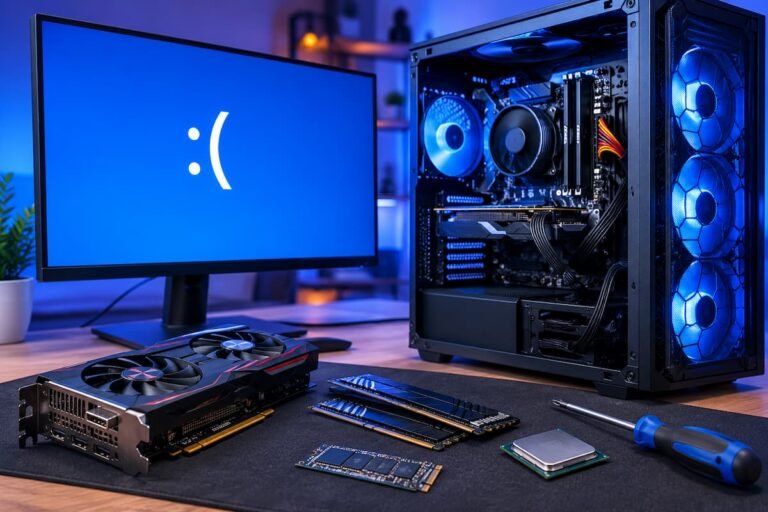
- The computer struggles to boot: Increasingly long startup times, failed boots, or repeated repair screens can sometimes point to problems with the system drive.
- Files disappear or folders behave strangely: Unexpected changes to stored data should be investigated immediately.
- Unusual clicking from a mechanical storage drive: Repeated clicking, grinding, or other unfamiliar sounds can be a serious warning sign.
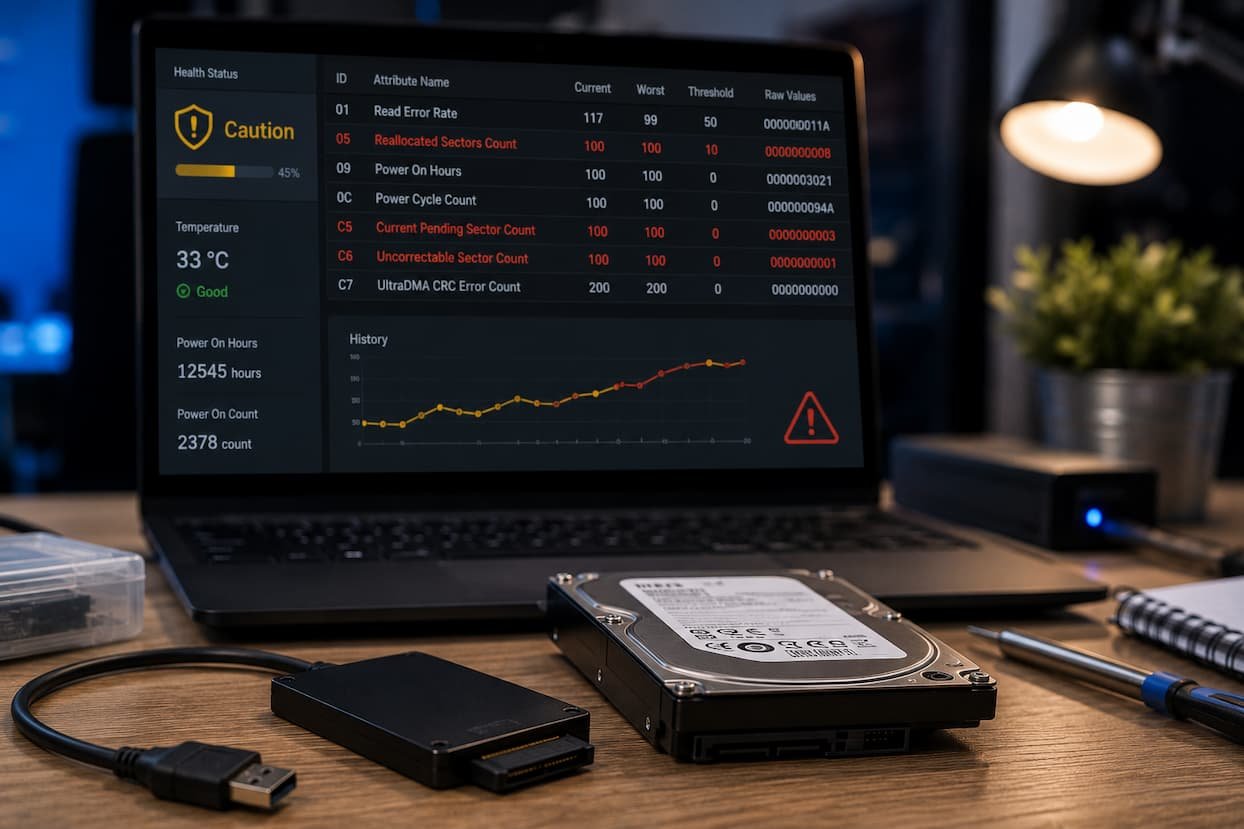
- Drive health warnings appear: Monitoring software may report problems with the drive’s health or available endurance. Treat these warnings seriously and consult the manufacturer’s documentation.
- Disk usage remains unusually high: Constant 100% disk activity can have many causes, but if it appears alongside slow access and freezing, storage should be examined.
- Problems become progressively more frequent: A worsening pattern is more concerning than one isolated error.
Mechanical Hard Drives Have Different Warning Signs
SSDs Can Fail Without Making Noise
SSDs do not have spinning disks or moving read/write heads like traditional HDDs. A defective SSD usually does not produce the same audible warnings as a traditional HDD. You may also experience system freezes, read/write issues, corrupted files, unexpected crashes, or the drive not being recognized. Solid-state drives (SSDs) can fail unexpectedly in some cases, making regular backups crucial.
Many SSD manufacturers offer tools that display information about the drive status, firmware, and other diagnostic data. These methods can be helpful, but status indicators do not guarantee that the drive is always in optimal condition. Even if a drive appears healthy, unexpected failures can occur.
Startup Problems can Indicate Storage Issues
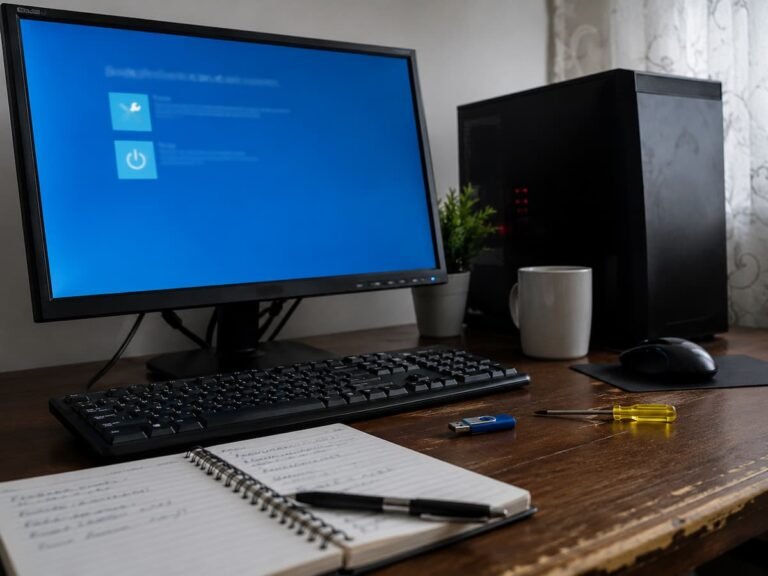
Storage problems: If your computer starts up too slowly, frequently enters automatic recovery mode, or sometimes fails to recognize the operating system, you should check for storage issues. Pay extra attention if the problem is new and occurs more frequently over time.
However, startup problems usually do not mean that the hard drive itself is about to fail. Incorrect boot settings, loose connections, incorrect BIOS settings, or an unstable operating system can cause similar symptoms. If the hard drive is still readable, back up all your important data before attempting any repairs. Once your files are safe, you can begin troubleshooting to see if the problem lies with the hard drive, the operating system, or your computer’s boot configuration.
Do Not Confuse Storage Problems With General Slowness
It is easy to attribute all performance issues to the storage drive. A slow computer can be caused by insufficient memory, too many programs running at startup, overheating, malware infection, outdated software, or insufficient CPU performance to run current applications. It depends on the specific situation. If the computer runs slowly even without open files, the problem is likely not with storage.
If the computer works normally until you try to access a drive, copy data, or launch an application on that drive, then a storage issue is more likely. In Windows, you can use Task Manager to check disk activity. If the disk is frequently busy, first check which process is using the disk before assuming a hardware failure. This simple check can prevent you from replacing a perfectly working hard drive, when the actual culprit might be software running in the background.
What to Do When You See Multiple Warning Signs
If several storage-related symptoms appear together, treat the situation as a potential data-protection issue rather than simply a performance problem.
- Back up important files first. Prioritise documents, photos, work files, and anything that cannot easily be replaced.
- Avoid unnecessary stress on the drive. Do not repeatedly run demanding operations simply to reproduce the failure.
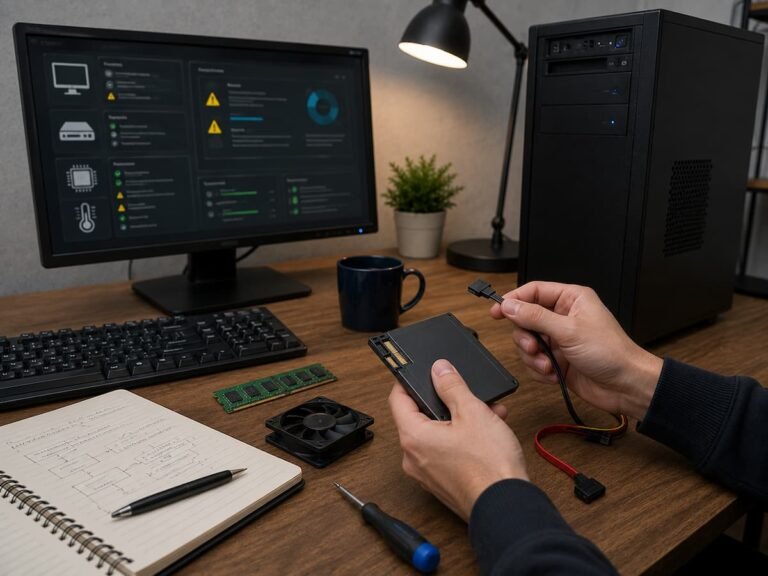
- Examine the drive’s health information. Use a trusted diagnostic tool or the storage manufacturer’s software where available.
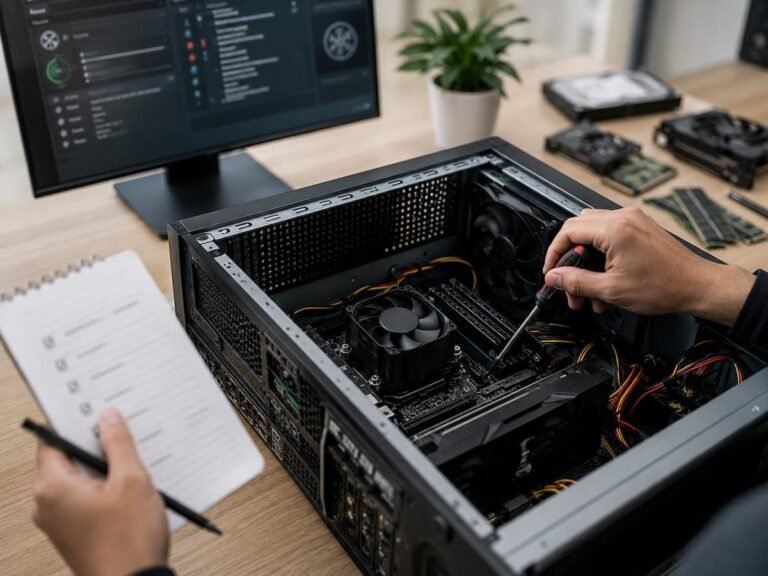
- Check connections. For desktop computers, inspect SATA and power cables. For removable drives, test the cable and port.
- Look for patterns. Record when errors happen and whether they affect specific files, folders, or applications.
- Consider replacing the drive. If the evidence points to hardware failure, replacement is generally safer than waiting for a complete failure.
A backup should come before extensive troubleshooting. Repair attempts can sometimes make a damaged storage device less accessible, so protecting your data is the priority.
Conclusion
In general, it is easier to recognize patterns than to focus on a single symptom when identifying reliability issues with storage devices. A single delay in opening a file may seem insignificant. However, recurring file corruption, slow performance, unusual noises, startup issues, and persistent disk problems all indicate a problem that requires attention.
It is advisable to pay attention to changes. If your computer starts behaving abnormally, back up important files first before investigating the cause. Storage devices can fail suddenly, but recognizing early warning signs gives you the opportunity to replace defective hardware before minor issues escalate into irreparable data loss.