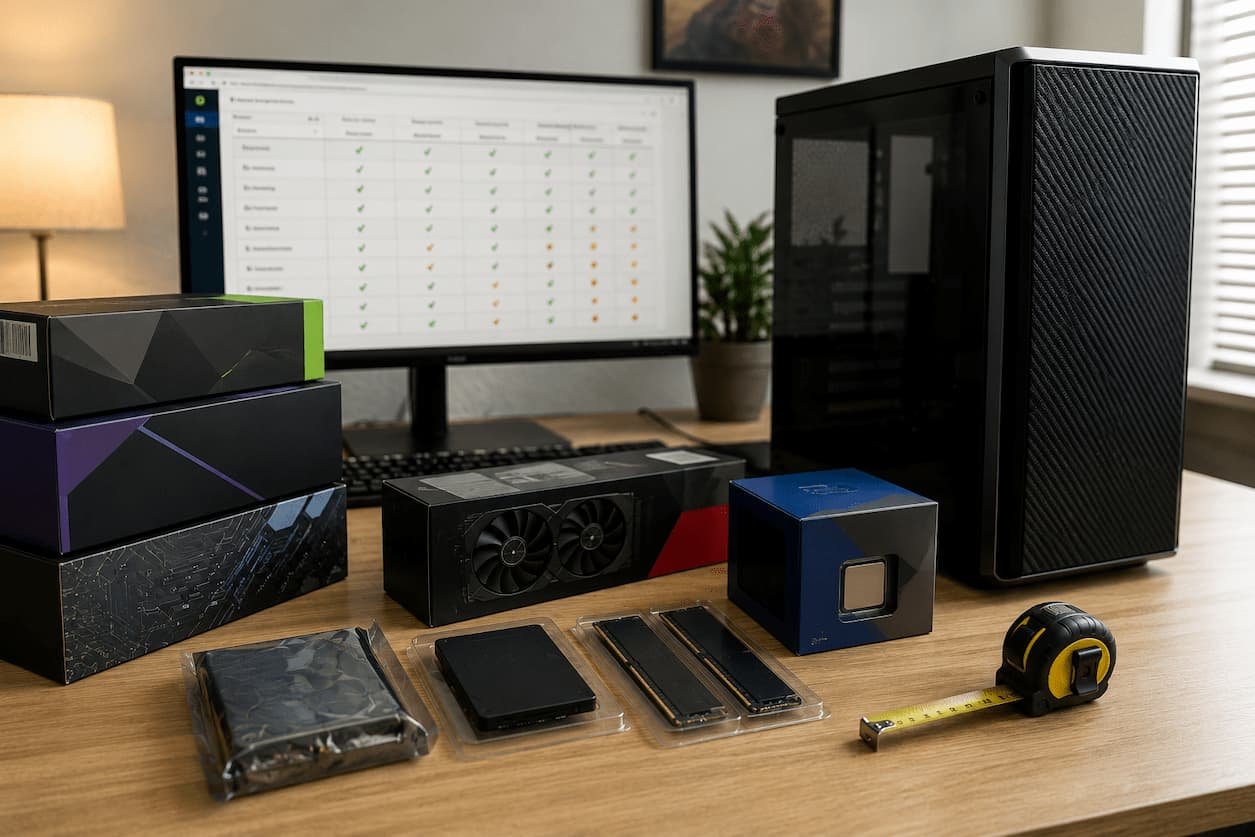
Physical Fit Does Not Guarantee Compatibility
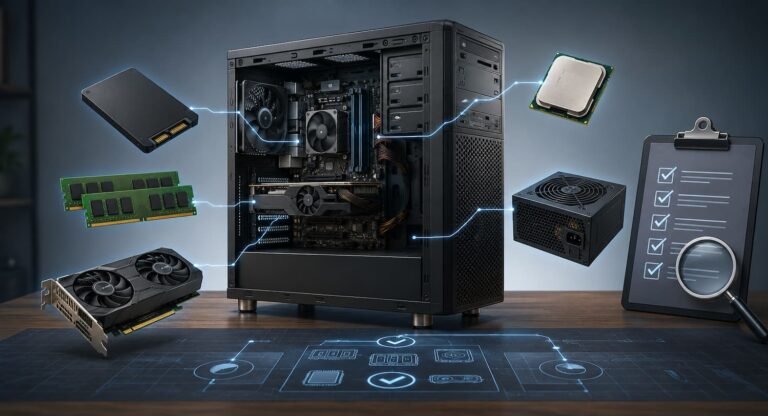
The assumption that components with the correct dimensions always work is a common misconception when it comes to hardware upgrades. In reality, the correct dimensions are only the first step. The motherboard requires a compatible processor. The memory modules must use the correct technology. The graphics card requires a power supply and expansion slots. Storage devices require compatible connectors and interfaces.
Connectors may look similar, but important differences can be significant. A component might fit into a socket but not work properly, lack firmware support, or fail to function correctly. Therefore, it is much better to check the manufacturer’s compatibility information than to judge a component based solely on its appearance. Always know which hardware model you have before purchasing anything. Information such as “I have an Intel motherboard” or “I have a gaming PC” is insufficient. The compatibility of new components often depends on the type of motherboard, laptop, or desktop.
Processor Compatibility (Beyond the Socket)
The processor socket is an obvious compatibility check, but there are many more factors to consider. Two CPUs with different compatibility requirements can share the same socket. The motherboard chipset, firmware version, power supply method, and manufacturer support can all affect CPU performance. Firmware is easily overlooked. A motherboard might support a newer processor but require a BIOS or UEFI update to recognize it. If the motherboard cannot boot with the new processor before the update, the situation will cause serious problems.
Always check the list of supported CPUs and the minimum firmware version requirements from the motherboard manufacturer before purchasing a CPU upgrade product. If a firmware update is needed, check whether the motherboard supports firmware upgrades without replacing the processor. If the upgrade is not supported, you may need to use an older, compatible CPU or seek professional help. Pay close attention to the processor’s power requirements. Even if the motherboard supports a specific CPU, it may not provide optimal power supply or cooling for all models in that series. Compatibility issues should be considered system-wide problems, not just socket compatibility issues.
Memory Configuration and Standards can Cause Problems
Memory upgrades may seem simple, but compatibility is complex. Different generations of memory are often incompatible, and motherboards choose the standard. Even memory modules that look identical can be electrically incompatible. Speed and capacity are crucial. A motherboard may support a specific memory capacity, but the number of modules can limit that capacity. Some systems can only run memory at nominal speed under specific configurations, while others automatically reduce it.
Combining memory modules increases the uncertainty. Even if the specifications are the same, two modules may not have been tested together. The system may work fine, but not all combinations will run at the recommended settings. The safest approach is to check your motherboard’s memory support and use a memory module with matching capacity and specifications. Before the upgrade, check if your laptop’s memory is replaceable. In some newer laptops, the memory is soldered to the motherboard, making memory upgrades impossible.
Graphics Cards Require More than Just Slots
Modern graphics cards use expansion slots by default, but not all graphics cards are compatible with all desktops. Physical dimensions are also important. Graphics cards vary greatly in length, thickness, and height. Large graphics cards can occupy many expansion slots, rendering other slots unusable. They can also be too long, causing them to fall outside the case or block space for storage devices at the front. Compact PCs have very limited expansion options.
Another hidden limitation is the power supply. The graphics card may require a system power supply and a separate power connector. The power supply must match the dimensions of the case and have sufficient connections. Consult the case manufacturer’s specifications before purchasing to compare graphics card dimensions. Also verify the power connectors and the capacity of the power supply. Furthermore, consider the internal cooling of the case. In a poorly ventilated case, even a suitable graphics card can overheat.
Storage Compatibility is Not just About Capacity
When purchasing a solid-state drive (SSD) or hard drive (HDD), capacity is usually the most important consideration. However, compatibility requires more attention. Your computer may only support specific storage formats and connection protocols. For example, not all M.2 SSDs are compatible with M.2 slots. The interfaces of M.2 devices vary, so always consult your motherboard manual before purchasing an M.2 drive. Slot availability is also important. Your computer might be able to accommodate an additional hard drive but may only have one interface, which may already be occupied.
There may be limitations regarding channel sharing. On some motherboards, installing a device in the M.2 slot can cause other ports to malfunction. This can affect system operation, but not hardware compatibility. Always consult your motherboard manual before purchasing to understand the storage type, slot location, and shared resources. This is especially important when you want to install multiple high-speed hard drives.
Power and Cooling can be Hidden Bottlenecks
Theoretically, new components may be compatible with your system, but in practice, such compatibility is not always the case. Cooling and power supply are common factors that influence performance. Faster processors and graphics cards consume more power and generate more heat. Your power supply may not be powerful enough or may not have enough ports. Your case may have poor ventilation, and your cooler may not be compatible with the new component.
It is therefore risky to judge performance improvements based solely on the component itself. A powerful graphics card may require a more powerful power supply. A powerful CPU may require a more powerful cooler. A small case may not offer enough space for both. Before purchasing, consider the power consumption of the component, the capacity of the power supply, the ports, the available space in the case, compatibility with the cooler, and airflow. A little research beforehand can prevent an expensive chain reaction where you have to replace three components after just one upgrade.
Operating System and Drivers are Crucial
Hardware compatibility remains important even after a component has been introduced. The operating system and drivers must support the component. Even without driver support or essential functions, the device may not work. This is especially important when upgrading older computer hardware. Manufacturers may require specific versions of drivers and operating system updates. Older platforms may not support current firmware or security measures.
Always check the manufacturer’s driver and operating system support before purchasing. This is particularly important for specific hardware such as professional graphics cards, capture cards, wireless network cards, and storage controllers. Also, verify if the manufacturer will update the firmware. Technically compatible components may no longer be supported in the future, limiting their use.
Verify the Model Number Before Ordering
Identifying the model number is a simple way to avoid compatibility issues. Product series often have multiple versions with different specifications. Two laptops with a similar name may have different memory. Even graphics cards with the same GPU can differ in size and performance. Do not rely solely on the seller’s description. The manufacturer’s specifications and manuals are a more reliable way to resolve compatibility issues. Motherboard manuals may contain information regarding expansion slots, storage, processor, and memory limitations for desktop computers, information that may not be included in the product description.
Consider the return policy before purchasing unknown hardware. Researching compatibility is important, but clear return options can effectively prevent losses resulting from unclear specifications or issues with component behavior.
Conclusion
Hardware compatibility is not as simple as matching interfaces or checking case dimensions. Firmware support, memory configuration, power supply, cooling, storage interfaces, physical size, and operating system support are often limiting factors.
The best way to avoid costly mistakes is to identify your hardware and check new components against official documentation. Consider the entire system, not just the parts you want. Graphics cards depend on the case and power supply. CPUs depend on the motherboard and firmware. Memory upgrades depend on platform standards and configurations.
Instead of gambling, you can turn hardware purchases into a compatibility check. By doing a few minutes of research before buying anything, you can be sure that your new equipment will be installed, used, and last a long time.
FAQs
1. Will compatible components perform poorly?
Yes. Outdated interfaces, insufficient power supply, temperature limits, or other bottlenecks in the system can limit component functionality. Compatibility means that hardware can work together, but it does not guarantee performance.
2. Why read the motherboard manual before performing an upgrade?
User manuals usually contain information not found in the product specifications, such as CPU, memory limits, storage interfaces, shared slots, and expansion limits. It is one of the best ways to determine system compatibility.
3. Is upgrading to newer components usually beneficial?
Not necessarily. Newer components may require a new platform, power supply, cooling, or communication interface. Sometimes, replacing multiple components simultaneously can even increase upgrade costs.
4. What are the most common hidden compatibility errors?
A common mistake is assuming that physical dimensions equate to compatibility. Components might fit the interface or case, but there could be issues with the firmware, power supply, drivers, memory, or the system.