That’s part of the reason why debugging a computer can be so frustrating for beginners. A blue screen does not necessarily signify bad RAM. A slow computer doesn’t always need extra memory. The screen is black, yet the graphics card isn’t broken. Even for a machine that won’t boot, the spectrum of plausible explanations is remarkably broad. With that distinction in mind, your whole approach to repairs is different. You stop asking “What part should I replace?” and start asking “What evidence can I use to identify the cause?” That minor shift in mindset can minimize wasteful purchases and make troubleshooting much more successful.
One Symptom May Appear at Different Levels
Computer problems can be developed at various layers of a system. The physical hardware may be defective, but the problem could lie in the firmware, drivers, the operating system, programs, or even external peripherals such as cables and monitors. Imagine a computer that all of a sudden freezes. An SSD that is failing can cause the operating system to hang as it waits for data. If the RAM is defective, then it could contaminate the information being worked on. If your CPU overheats, it can become unstable. A driver gone rogue could crash the system. A background application could eat up resources until the computer stopped responding.
From the user’s perspective it seems pretty much the same: the screen stops responding. But the answers for the underlying reasons are quite different. This is why skilled troubleshooting looks for patterns and evidence instead of jumping to associate one symptom with one component.
More RAM Doesn’t Automatically Mean a Slow Computer
Poor performance is one of the computing problems that causes the most assumptions. When a computer slows down, the first thing they tell you to do is add more RAM. Sometimes that’s the correct answer, but memory is just one of the possible bottlenecks. The storage disk may be almost full, or it may have trouble responding, which can make a computer seem slow. Windows feels sluggish with a perfectly good processor because the mechanical hard drive is old. If you have a lot of applications running in the background, they utilize CPU cycles. If it gets too hot, it can slow itself down to prevent overheating.
Malware, bad software, unneeded startup apps, and driver problems can also hinder performance. A poor Internet connection can even be mistaken for a slow PC when the problem is really network-related. Before you buy RAM, check Task Manager and watch the CPU, memory, disk, and network consumption during the slowdown. But the resource that always gets to a high level may give a more relevant clue than the mere impression that the machine is “old.”
A Blue Screen Doesn’t Necessarily Mean Bad Hardware
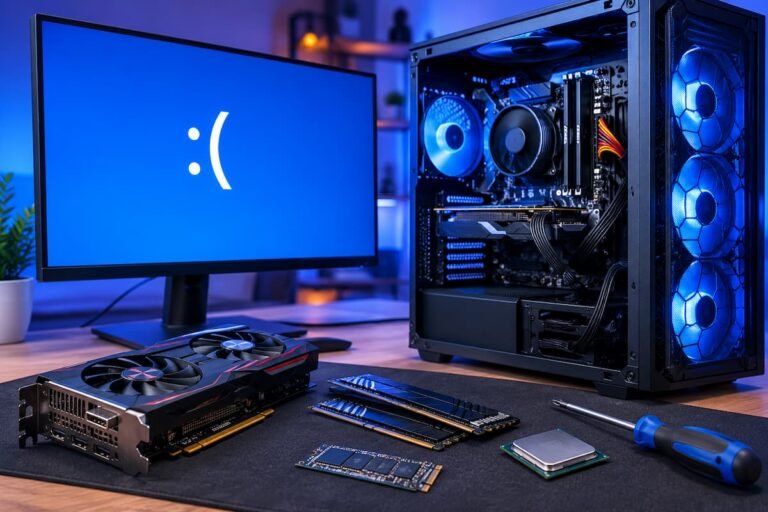
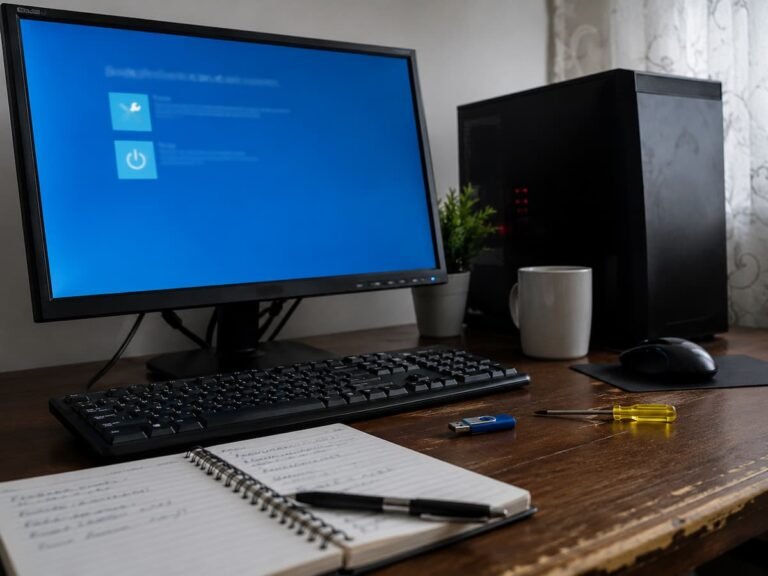
Blue screen issues are generally tied to hardware failure as they occur at a low level in the operating system. However, there are several reasons why Windows can show a blue screen, including malfunctioning drivers, corrupted system files, mismatched software, unstable memory settings, and defective hardware. The stop code can provide important information, but take it as a clue, not a conclusive diagnosis. The instability may be from another component, but the driver is incompatible with the system and causes a crash.
If blue screens occurred after installing new RAM, examine Memory configuration. If they began after a graphics driver update, look into the driver. If they only occur while the computer is under significant stress, explore temperature and power-related factors. Sometimes the timing and circumstances around the incident tell you more than the blue screen itself.
A Black Screen Could Indicate Many Problems
An empty screen is another symptom that can easily lead to a misdiagnosis. A broken graphics card is undoubtedly one possibility, but it is not the only one. The monitor itself could be bad. The cable for the display may be damaged or improperly connected. The computer may be sending the video signal to the wrong output. Graphics driver failed. The graphics card might not have enough power or might not be properly installed in its slot.
Sometimes the computer seems to be doing nothing but is actually working normally. You may hear Windows start-up sounds or see keyboard movement, but nothing appears on the screen. This is a good clue because it narrows the area of focus to the display path and not the full machine. Start with basic checks. Make sure the monitor is powered on and the right input is selected. Reseat the display cable, and if you have a spare cable or display, try them as well. Only after these possibilities have been ruled out should you get worried about expensive interior components.
Various Reasons for Unexpected Shutdowns
If your computer shuts down unexpectedly, it may be a power supply problem. But there are other things that might cause the same outcome. One possibility is overheating. A damaged motherboard, unstable processor settings, or a significant hardware failure can also trigger unexpected shutdowns. Depends on circumstances. If your computer only turns off after a few minutes of gaming but works fine when just browsing the internet, you might want to check the heat or power delivery. If it randomly shuts down even while idle, it may be a separate cause.
Another major indicator is the recent updates. More powerful graphics cards may raise the system power needs. If shutdowns started right after that, ensure that you have the right power source and that all the needed power connections are plugged in correctly. Don’t assume that a bigger power supply will automatically solve the problem. A defective or cheap unit might create instability even if the quoted capacity is enough.
Storage Problems Can Appear as Memory Problems
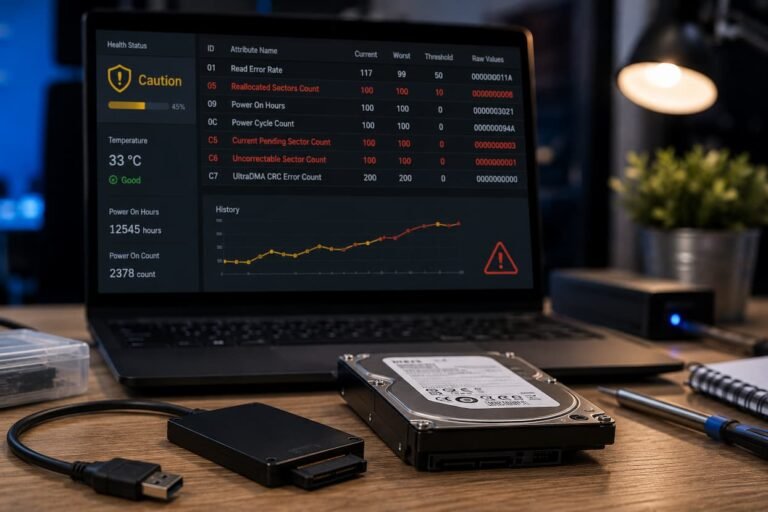
Programs crash, files get corrupted, Windows locks up, etc. The memory is commonly blamed. Very identical symptoms can be produced by storage difficulties. When a storage disk has difficulty reading data, the operating system is waiting for it, and the programs may appear frozen. If the file system is corrupt, Windows will throw problems when trying to access some files. Corrupted data, boot issues, and application crashes can also be caused by a failing drive.
A key clue is whether the problem arises when you access files or start apps. If the computer hangs on a certain drive, check the storage. That’s also why strange noises from mechanical hard disks should be regarded carefully. When a drive clicks or grinds, access is delayed, and files are corrupt, that’s a greater warning pattern than any one of those symptoms taken alone.
Overheating Can Simulate a Hardware Failure
Heat concerns are particularly tricky since they might influence numerous components at the same time. Higher temperatures might lead to performance degradation, program crashes, freezes, or shutdowns of the processor. Overheating graphics cards can cause graphical glitches and crashes under heavy workloads. The computer may appear to be in great health when first turned on but only becomes unstable after running for some time. That pattern matters. If you experience regular problems after long periods of operation or under heavy workloads, check the temperatures before you replace parts.
Check that the fans are working appropriately, the air vents are not clogged, and there is no dust buildup inside the system. If a cooler has been recently installed or removed, make sure it is mounted properly. While many temperature issues can be fixed without getting new (and costly) hardware, overheating problems should not be overlooked.
Drivers can Cause What Seem to be Hardware Problems
Drivers lay between Windows and much of the hardware. The symptoms of a driver malfunction can mimic a physical hardware breakdown. Graphics driver issues can lead to black displays, application crashes, or system reboots. A network driver problem could cause Wi-Fi to seem unreliable. Storage controller driver problems might cause errors that appear to be directly related to the drive.
Help here is when the problem occurs. If everything was working OK until a driver was updated, investigate that update before replacing hardware. You can also roll back the specific driver or install a stable version from the official support page of the manufacturer. Just because a newer version is available, drivers should not be updated. If the system is stable, needless updates could generate new compatibility difficulties.
Use the Circumstances Surrounding the Failure as Evidence
The best method to tell the difference between comparable symptoms is to look at the circumstances in which they occur. If your computer crashes when you are just sitting idle, it is a different story than if it just fails when you are gaming. Ask yourself some simple questions. Does the problem take a few minutes to occur, or is it immediate? Is it with one application or with everything? Did it start with a hardware upgrade? Will the computer act differently under Safe Mode? Can the issue be replicated in a consistent way?
These observations narrow the options. If the problem does not occur in safe mode, third-party drivers or startup software are more likely to be the cause. Even in a limited setup, if it happens, it may be worth paying more attention to hardware or lower-level system problems. 3. Reproducibility is of exceptional value. A fault that occurs every time some task is performed is easier to study than a random failure that occurs once in a couple of weeks.
Create an Elimination Process
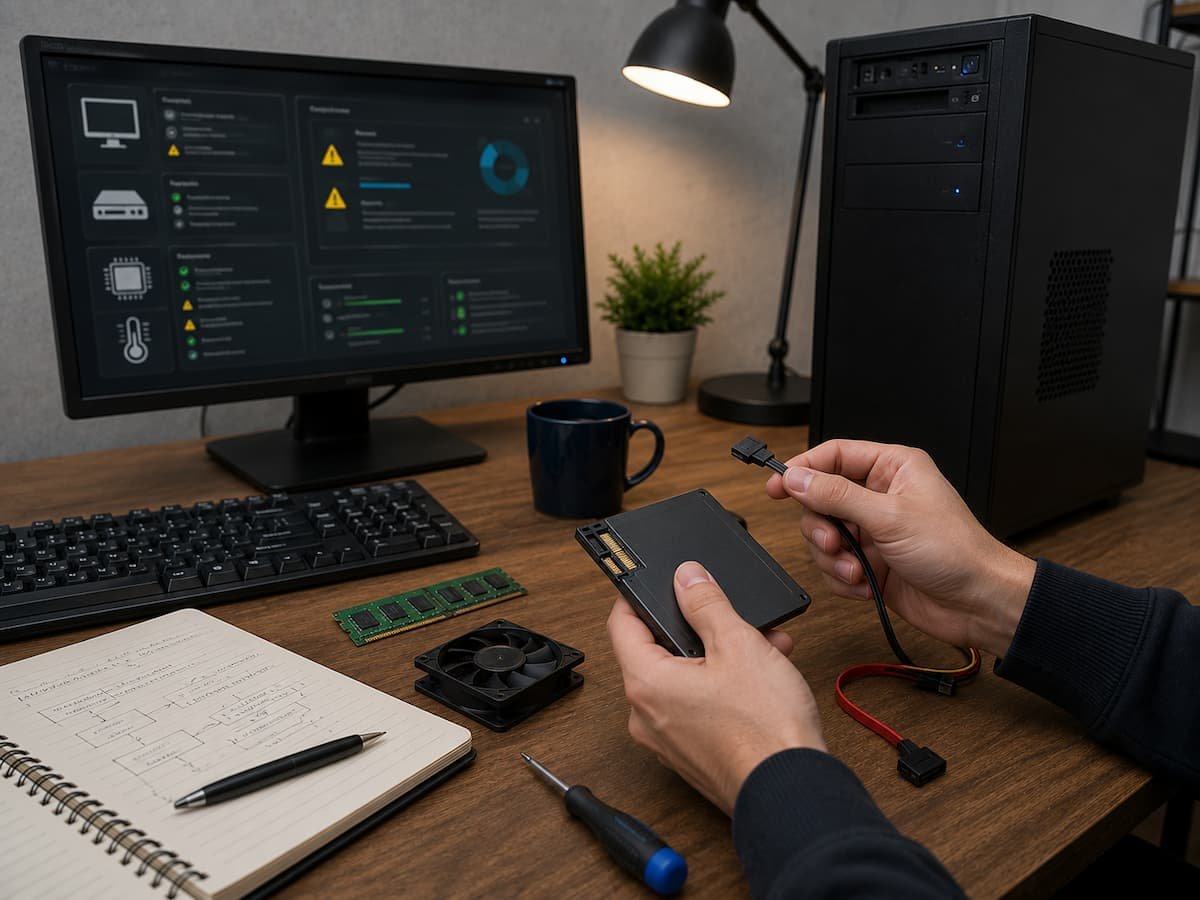
Good diagnosis is often a process of elimination, item by item. The simplest explanations first, then the most expensive or convoluted ones. Check all wires and connections Review recent modifications to software and hardware Monitor the temperature. Check system resource utilization. Test memory when you should. Verify the storage health. Check error messages. Try a known-good component if you can.
Don’t modify many things at once. Now, if you update the BIOS, swap out the RAM, reinstall Windows, and change the graphics driver all at the same time, you may never know which one cured the problem. A systematic process can take time but makes greater evidence. The objective is not to make the symptom disappear. It’s important to know why the condition arose so that you don’t repeat the situation.
When Evidence Disagrees
Troubleshooting sometimes offers conflicting clues. The computer could be having a storage issue and still report a memory-related error. The power supply is also several years old, and the graphics card could crash under strain. In these cases, do not pick a part just because it appears to be the most evident. Look for the most compelling evidence. Try the most obvious choices first.
If you have known-good compatible hardware available, controlled substitution can be quite helpful. If you have a spare one lying around, you can try to use that one as well. If you suspect the RAM, try using a different RAM stick. If you suspect the graphics card, try using a different graphics card. If the problem is not apparent after simple testing, professional diagnosis can be cheaper than replacing several parts. A specialist with the proper testing equipment could be able to find the real problem without you having to buy multiple parts that you didn’t need to.
Conclusion
The biggest mistake in computer troubleshooting is the assumption that one symptom has one apparent cause. Computers are connected systems, and a malfunction in one area can cause symptoms somewhere else. A flaky power supply can manifest as a graphical problem. The bad hardware can be the driver. Storage difficulties can produce freezes that look like memory failures.
The answer is to slow down and research the pattern. Look at when the problem arises, what changed before the problem started, and if you can duplicate the situation. Test simple explanations first, altering one variable at a time. The first thing in troubleshooting is to distinguish symptoms from the causes. And when you learn to do that, troubleshooting becomes a whole lot less frightening. You might not always be able to immediately identify the problem, but you will be much less likely to spend money replacing a perfectly good component just because it was the most evident suspect.
FAQs
1. How can I identify if a problem is hardware or software?
Consider when and how the failure occurred. If errors persist across operating systems or environments, they may be more indicative of hardware. program causes may be more likely if problems began following a driver or program upgrade. Symptoms alone are not as good proof as testing and controlled elimination.
2. Do I have to repair hardware if a diagnostic tool finds an error?
Not right away. A diagnostic finding has to be understood in context. Confirm the error, rerun if appropriate, and examine whether another component or program problem might be responsible. There is substantially better evidence of reliable diagnostic evidence when there are comparable symptoms.
3. Why is it better to troubleshoot one component at a time?
It helps you grasp cause and consequence. If you replace many parts at once, you may solve the problem without understanding why. Testing one thing at a time is better proof and makes troubleshooting easier down the line.
4. When should I seek expert computer repair?
If you suspect electrical issues, have frequent inexplicable failures, or have valuable data or components that are hard to test safely, it’s worth getting professional expertise. It can also be cheaper than buying multiple pricey parts based on guesswork.