Unexpected Freezing and Repeated Crashes
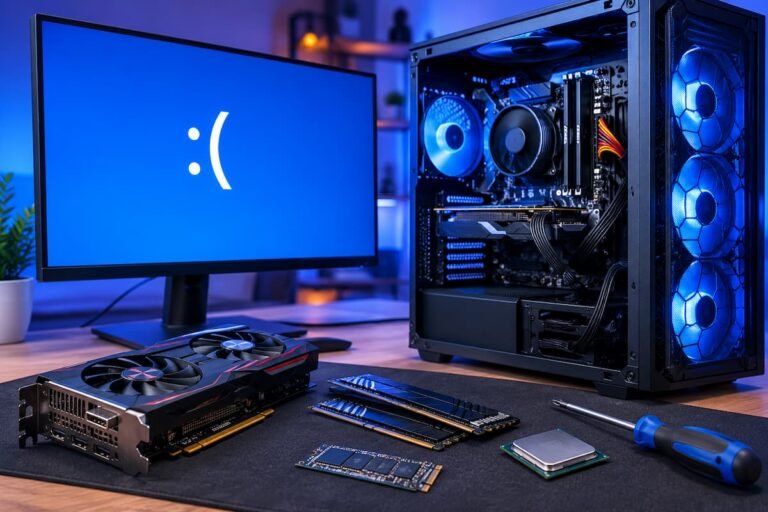
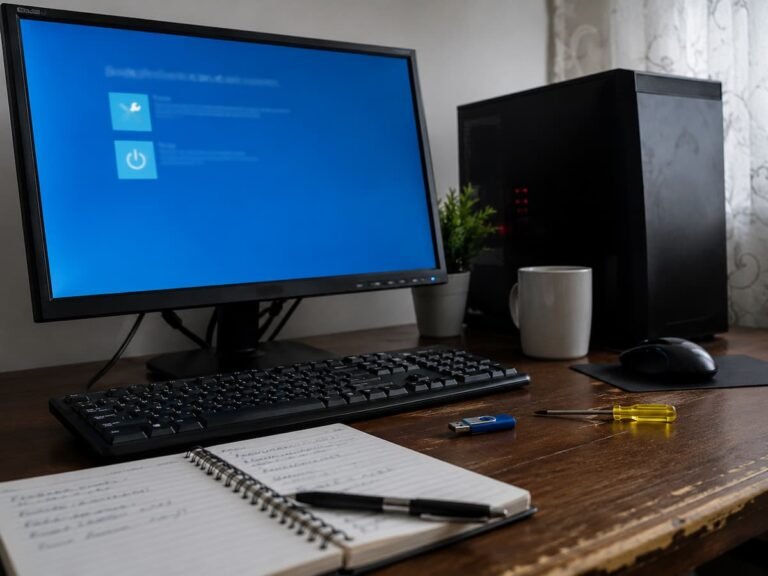
Occasional software crashes happen, but repeated freezing is worth investigating. If the computer regularly becomes unresponsive, displays blue screens, restarts unexpectedly, or crashes during tasks that previously worked flawlessly, something may be wrong beneath the surface.
The cause is not always hardware. A damaged Windows installation, buggy driver, or poorly written application can produce similar symptoms. However, recurring crashes can also point to failing RAM, overheating, storage problems, or an unstable power supply. The timing of the crashes provides useful clues. If the computer freezes mainly during gaming or video editing, heat and power delivery deserve attention. If it crashes while opening files or starting Windows, storage or memory problems may be involved. Record when the failures occur. A sudden increase in crashes is more meaningful than one isolated incident. If the problem is becoming progressively more frequent, back up important data before attempting extensive troubleshooting.
Unusual Noises From the Computer
Noise is one of the easiest hardware warning signs to notice, especially on desktop computers and older laptops. Fans naturally speed up when the processor or graphics card becomes busy, so a louder computer under heavy workloads is not automatically a problem. The concern is when a familiar sound changes or a new noise appears.
A grinding, rattling, or clicking fan may mean its bearing is wearing out or something is interfering with the blades. A mechanical hard drive can also produce unusual clicking or repeated seeking sounds when it is struggling to read data. That is a particularly important warning because mechanical storage devices can fail with little notice once serious symptoms begin. Do not ignore a new noise simply because the computer still works. If you suspect a mechanical drive is failing, back up your files immediately and avoid putting unnecessary stress on the drive until your data is secure.
Increasing Heat and Fan Activity
Computers generate heat, but a noticeable change in temperature or fan behavior can indicate a developing problem. If a laptop that was previously quiet now runs its fans constantly during simple tasks, something may have changed. Dust buildup can restrict airflow and cause temperatures to rise. A cooling fan may also be slowing down, or the thermal interface between a processor and its cooler may have deteriorated. In some cases, a background application is consuming unusual amounts of CPU resources and creating extra heat.
Pay attention to whether the system becomes hot during ordinary activities such as browsing or writing documents. Check whether vents are blocked and whether fans are operating normally. A computer that repeatedly overheats may reduce its performance to protect itself, but excessive heat over time can contribute to instability and shorten the useful life of certain components.
Slower Storage and File Errors
A computer becoming slower does not automatically mean that its storage drive is failing. Windows can slow down because of limited free space, background processes, software problems, or an aging operating system. However, unexplained changes in storage behavior deserve attention when they occur alongside other symptoms. Watch for files that suddenly become difficult to open, repeated operating system errors, corrupted documents, or unusually long delays when accessing folders. On mechanical hard drives, unusual clicking or grinding combined with slow file access is particularly concerning.
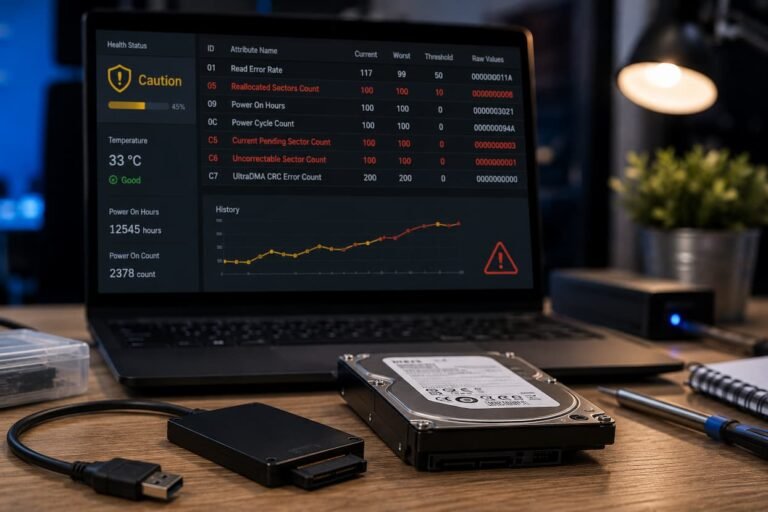
Solid-state drives lack moving parts, so they are silent. Their health can still deteriorate, however. Monitoring tools provided by the drive manufacturer may report information about drive health and remaining endurance. These indicators should be treated as useful clues rather than guarantees that a drive will continue working for a specific period. The most important response to suspicious storage behavior is simple: make a backup. A backup is much more valuable than trying to predict exactly when a drive will fail.
Random Shutdowns and Power Problems
A computer that suddenly turns off without warning may have a power-related problem, although overheating and motherboard faults can produce similar symptoms. Random shutdowns are especially concerning when they happen during demanding activities such as gaming, rendering, or other workloads that place heavy demands on the system.
Desktop users should consider the condition and capacity of the power supply, particularly after installing a more powerful graphics card or processor. Loose power connections can also cause instability. Laptop users should pay attention to battery behaviour, charging interruptions, and whether the system shuts down unexpectedly when running without the charger. Do not open a power supply unit to investigate it yourself. Internal components can retain dangerous electrical charges even when the computer is unplugged. If the power supply is suspected, professional testing or replacement with a suitable known-good unit is safer.
Memory Problems That Become More Frequent
Unstable or failing RAM can produce symptoms that seem unrelated. Applications may crash randomly, Windows may display blue-screen errors, compressed files may fail to extract correctly, or the computer may restart without an obvious reason. Memory problems can be difficult to diagnose because they may appear only under certain conditions. A computer might work normally for hours before failing when several applications are open. New RAM installed during an upgrade can also introduce instability if the modules are incompatible or configured too aggressively.
If you notice repeated crashes after changing the memory configuration, test the system with the original RAM if possible. Windows also includes a built-in memory diagnostic tool that can identify some memory problems. For persistent issues, more thorough testing may be appropriate. Do not assume that one successful memory test proves the RAM is perfect. Intermittent problems can be difficult to reproduce, which is why repeated symptoms should still be taken seriously.
Display Problems and Graphics Instability
Flickering screens, unexpected black displays, visual artifacts, and graphics driver crashes can indicate several different problems. The graphics driver itself may be unstable, but hardware is also a possibility. Look for patterns. If graphical glitches appear only in one application, software is more likely to be involved. If strange patterns appear across the desktop, during startup, and in multiple applications, the graphics card, display cable, monitor, or power supply may deserve closer inspection.
Before assuming the graphics card is failing, check simple causes. Reseat cables, try another display cable if available, update the appropriate driver, and check whether the problem occurs on another monitor. These steps can help distinguish a failing component from a connection or software issue.
What to Do When You Notice Warning Signs
The most important response to a possible hardware warning is not panic. It is preparation. If the computer is still functioning, back up important documents, photos, and other irreplaceable files before investigating further. Next, write down what has changed. Note when the problem started, what the computer was doing when it happened, and whether the symptoms are becoming more frequent. This information can make professional diagnosis much easier.
Avoid replacing multiple components at once unless there is a clear reason to do so. Testing one variable at a time makes it easier to identify the actual cause. Also avoid downloading random repair utilities or unofficial firmware from questionable websites. Troubleshooting should not introduce a new security problem. If the computer contains valuable data and the storage drive appears unreliable, prioritise data recovery and backup over experimentation. If the system shows signs of electrical damage, burning smells, visible damage, or repeated power failures, stop using it and seek professional assistance.
Conclusion
These symptoms do not necessarily prove that a specific component is defective. Software, drivers, dust, poor connections, or configuration issues can also cause the same phenomenon. The importance of recognizing these warning signs lies in the ability to detect problems while the computer is still functioning normally. The best approach is simple: pay attention when your computer starts behaving abnormally. Back up important data, note the symptoms, check for obvious causes, and, if necessary, call in professional help. A few minutes of preparation is far more valuable than trying to recover important files after a component has failed.
FAQs
1. Is a slow computer a sign of hardware failure?
Possibly, but slow performance alone is not sufficient to determine if a component is defective. First, check available storage space, background programs, temperature, and system usage. If your computer slows down ayou see file errors, hear unusual noises, or experience freezes,uld carefully check the hardware.
2. How often should I back up my computer?
The correct backup frequency depends on how often and how important the data changes. Files that are difficult or impossible to replace should be backed up regularly, and particularly important data should be stored in multiple locations.
3. Does overheating always mean your computer is broken?
Not necessarily. High temperatures can be caused by clogged vents, dust, a heavy load, or software consuming too many system resources. If the overheating persists and is accompanied by freezes, shutdowns, or a significant decrease in performance, the problem is more serious.
4. Can hardware fail without warning?
Yes. Some electronic components can fail suddenly, especially after an electrical failure or another unexpected event. Therefore, reliable backups are crucial, even if your computer appears to be working normally.