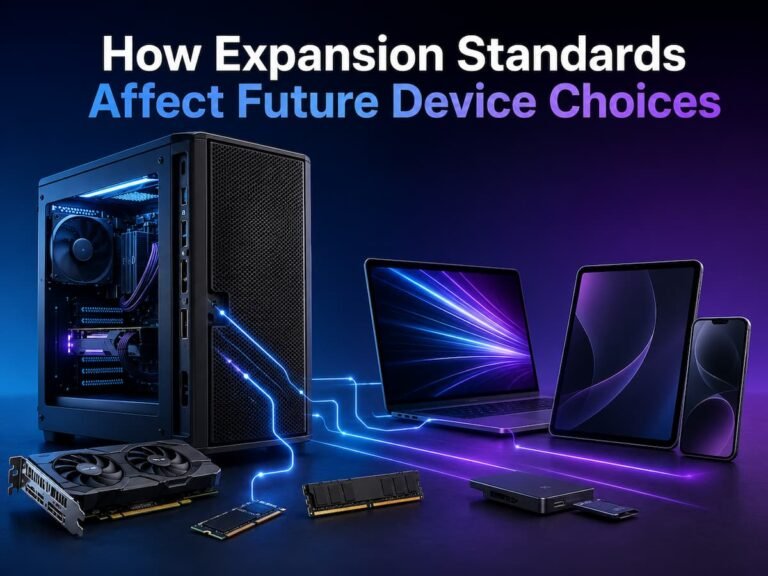
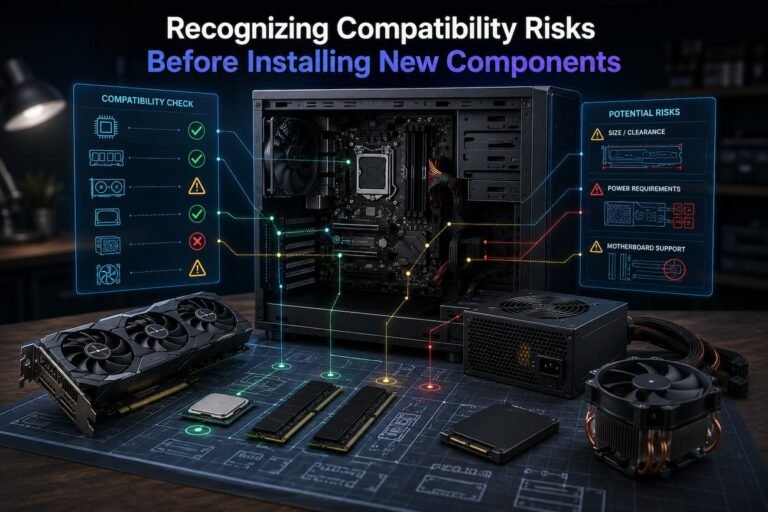
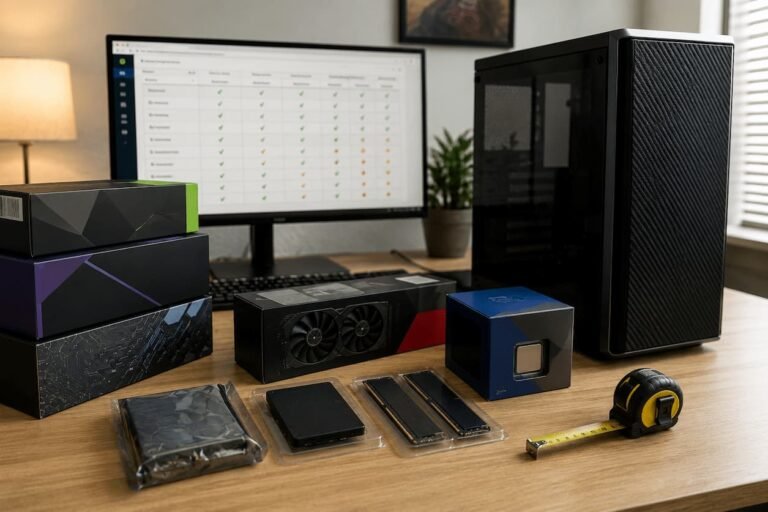
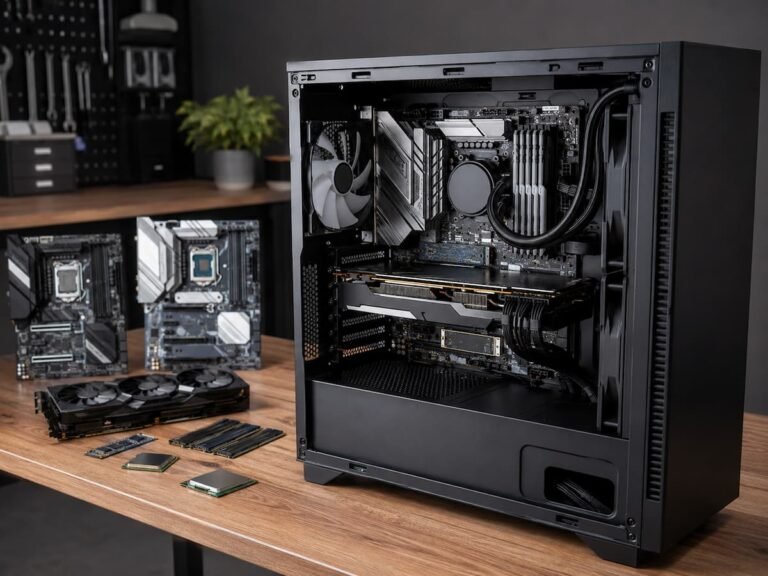
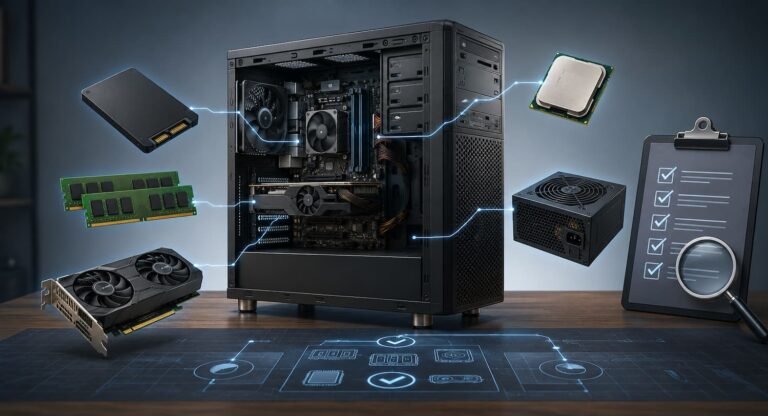
We cannot focus solely on specific specifications. Motherboards and CPUs must also be evaluated. The availability of memory slots affects memory capacity. Graphics card upgrades depend on the power supply and the case. Expanding storage requires interfaces and space. The feasibility of performance improvements depends on the cooling. By combining these components, you can build a computer that is easier to upgrade, rather than one that needs to be replaced when your needs change.
Start With the Upgrades You Are Most Likely to Need
Do not choose a specific component immediately. The most important thing is to determine your future expansion needs. Different users have different priorities. Users who frequently browse the internet and process documents may need extra storage space, but do not necessarily need to upgrade their graphics card. Photographers may need faster storage devices and more memory. Gamers may need to upgrade their graphics card. Developers may need more memory and storage space to run virtual machines and development environments.
Estimate your usage for the next three to five years. You do not need to predict every technological advancement, but do assess the expected limiting factors. If you frequently create large files, storage capacity is crucial. If you have already used most of your memory, it is wise to reserve extra memory space. If you play demanding games, it may be useful to choose a case and power supply that support future graphics cards. This prevents the common mistake of paying for expansion options you will never use. Workstations might require four memory slots, while office computers might not. Your future needs determine the appropriate level of expansion.
Choose the Motherboard as the Expansion Foundation
Because the motherboard connects almost all components, long-term compatibility is crucial. It determines the processor platform, memory, storage, expansion slots, and other connectivity options. Choose the cheapest motherboard compatible with your processor, although this may limit your future development possibilities. Consider the memory and slots first. If the platform is suitable, a motherboard with four memory slots is more flexible than one with two. You can initially install two memory modules and add more later without having to replace the memory. Also, check the manufacturer’s compatibility and maximum capacity.
Storage connections also deserve attention. As storage needs increase, motherboards with multiple M.2 slots and SATA interfaces offer more possibilities. A motherboard with only one storage slot might be suitable for a compact system, but it offers less room for expansion. Expansion slots are another factor to consider. For future upgrades, desktops may require PCI Express interfaces to connect graphics cards, network cards, capture cards, and other devices. The number and layout of the slots are important because large components can be placed side by side. You don’t necessarily have to choose the largest motherboard just because it has more slots. The best choice is a motherboard with the features you need and sufficient expansion options.
Choose a Processor Platform with Smart Upgrade Options
Most people compare the processor first, but the motherboard is even more important when considering an upgrade. The processor platform determines future compatibility with CPUs. A good upgrade plan allows you to replace your processor without reinstalling the system. However, even if two CPUs come from the same product line, compatibility is not guaranteed. Socket compatibility, chipset support, firmware version, power requirements, and manufacturer specifications all influence the likelihood of an upgrade.
Before buying a motherboard and CPU, check the manufacturer’s list of compatible processors. If a future CPU upgrade is crucial, delve into the evolution of the platform and whether the motherboard supports the CPU you are considering.
There are practical limitations to CPU upgrades. Future high-end processors may require motherboards with better cooling or power supply. By purchasing a motherboard with sufficient power and cooling capabilities, you have more upgrade options than if you buy a basic motherboard that only supports your current processor. Avoid excessively high theoretical upgrade costs. If you do little work and plan to replace your computer in a few years, a long-term CPU upgrade plan might not be worth the effort.
Keep Memory Expansion Options in Mind
Memory upgrades have become commonplace due to the ever-increasing memory requirements of programs and operating systems. By choosing the right memory configuration now, you can simplify future upgrades. Check the memory and slots of your desktop computer. Choose a motherboard with four memory slots and two suitable memory modules. You can add two more memory modules later to expand the capacity. If you fill all four slots from the start, you may need to replace the memory modules to expand the capacity.
Not all slots need to be empty. The memory configuration affects memory performance, and some applications require more memory immediately. Your intended use and the memory configuration of your platform determine the best choice. Laptops require extra attention. Some models have replaceable memory, while others use soldered memory. Always check this before buying a laptop for long-term use. If your computer has insufficient soldered memory, even a simple upgrade can mean having to replace the entire computer. Do not simply assume that you can add more memory; check the maximum supported memory capacity. Memory limits for motherboards and laptop platforms vary by model.
Expand the Storage Space to Prevent Problems
The need for storage space increases gradually. A few large video files, years of photos, program installations, game libraries, and backup files can quickly fill up the space. Take your future storage needs into account when choosing components. Motherboards with multiple M.2 slots allow you to add SSDs without removing your existing SSDs. You can also choose to connect more suitable storage devices via SATA interfaces. Some storage configurations require physical drive bays, so the choice of case is crucial.
If your platform supports it, it is very useful to separate the operating system and frequently used applications from the high-capacity storage. The primary SSD can store the operating system and frequently used applications, while a second SSD can be used to expand storage capacity for handling heavy tasks. Although this step is optional, it simplifies storage expansion. External storage should also be considered. Fast USB connections allow you to expand without opening your computer case. External storage may not be a replacement for an internal hard drive if you require optimal performance or do not want extra devices on your desk. Check the number and type of storage interfaces before purchasing. If you know where to install your next hard drive, you can plan future expansions much more easily.
Choose a Case for Your Future Hardware
Computer cases are often considered aesthetically pleasing, but they can impact future upgrades. Small cases look great and save desk space, but they can limit the possibilities for future expansions of graphics cards, cooling systems, power supplies, and storage. Always check the maximum length and thickness of your graphics card before an upgrade. Modern graphics cards fit into various expansion slots and are available in different sizes. A card that fits in your current case may not be suitable for future hardware upgrades.
Support for cooling is also crucial. Check if your case is compatible with the type and size of your CPU cooler. Consider the placement of the fans and how component performance affects airflow. A larger case is not always better. A well-designed, compact system might be more ideal than a large, bulky case. The key is to balance the actual size of the case with the expansion possibilities. If future flexibility is important to you, a standard case is convenient. It makes replacing parts easier and expands the possibilities for component upgrades.
Don’t Underestimate your Power Supply
The power supply is one of the most overlooked components when building a computer, but it can get in the way of future expansions. Your system might have enough power for the initial configuration, but the space or ports may not be sufficient for a more powerful graphics card. Before buying a power supply tailored to your current components, consider future upgrade plans. If you are building a simple office PC and do not need a powerful graphics card, a large, heavy power supply is unnecessary. If you plan to install a more powerful GPU later, leaving enough room for future upgrades can prevent you from having to replace key components again.
**Quality and performance are of the utmost importance. For a computer, choosing a high-quality power supply from a reputable brand is more beneficial for its lifespan than choosing a cheap, low-wattage power supply. Also, check the dimensions and connections of the power supply. Future graphics cards may require connections that your current power supply does not have. The system may require a new power supply before you can upgrade the graphics card. We do not want to predict which graphics card you will be using in five years. This is to prevent you from building a system that requires a new power supply even with minor upgrades.
Prepare for Potential Future Cooling Needs
Component upgrades change cooling requirements. Powerful processors can generate more heat than processors that only require basic cooling. The same applies to graphics cards and other heat-generating components in the case. When choosing a case, prioritize airflow over appearance. A case with a well-designed intake and exhaust system makes future upgrades easier. Dust filters and easy-to-install fan mounts also facilitate long-term maintenance.
When choosing a CPU cooler, consider the possibility of future processor upgrades, but avoid oversizing. A cooler that is too expensive or too elaborate may not improve system performance. It is crucial to choose a cooling system that meets your specific needs and is compatible with future platform upgrades. Good cooling performance protects your investment. Effective temperature control improves system stability and reduces overheating under high load. A robust cooling system also enables future computer expansions.
Think About Connectivity in Advance
Expandability goes beyond just the case. External connectivity affects the ease with which devices can be added. Factors such as USB ports, high-speed connections, display output, and network and wireless standards all influence a computer’s usability as accessories evolve. If you regularly connect external hard drives, cameras, audio equipment, and other devices, having enough ports helps reduce the need for adapters and hubs. As the number of peripherals increases, a computer with insufficient ports can become unwieldy.
Also consider network connectivity. If your computer is used for large file transfers or as a home server, a good wired network connection may be more important than minor configuration upgrades. Similarly, if you use Wi-Fi regularly and plan to use the device for extended periods, wireless support is crucial. Not all new connectivity standards need to be adopted immediately upon release. First, consider the connection methods you will be using, and then ensure that your computer is compatible with all your accessories without the need for extra adapters.
Current Budget Against Future Possibilities
Future developments always require investment. Nowadays, every cent spent on improving flexibility can be used to improve performance. The trick is to determine which upgrades you should plan in advance and which are uncertain. If your memory needs are constantly increasing, a motherboard with four memory slots might be worth the extra cost. However, it is not worth paying too much for features you will never use. If you plan to upgrade your graphics card, a larger case might be worth considering; but if your computer is only for simple office work, that is probably not necessary.
It is wise to spend more on hard-to-replace components. Motherboards, cases, and power supplies all influence other parts of the system, so choose carefully. If your budget is limited, easily replaceable components might be overlooked. View your computer as a platform, not a finished product. Instead of striving for the very best specifications from the start, buy a balanced system now and leave room for future upgrades.
Avoid Unrealistic Assumptions About Upgrade Possibilities
Assuming that all upgrades are available or worthwhile is a major mistake when planning for the future. Product lines are discontinued, technologies are updated, and component prices fluctuate. Upgrades are only possible if the parts are compatible, available, and not too expensive. Flexibility must therefore be based on features that offer broad value. Even with continuous component upgrades, additional storage interfaces, available memory, standard expansion slots, good heat dissipation, and a reliable power supply remain essential.
Furthermore, keep your original component documentation. Motherboard manuals, model numbers, firmware, and hardware data must all be preserved. This data will help you find suitable replacement parts years later. When upgrading, consider current compatibility, not just the memory you had with your purchase. Manufacturers may update specifications, firmware, and supporting documentation.
Consider the Entire System
Understanding the interdependencies of components helps in developing the best upgrade plan. Future graphics cards may require more power and space. Faster processors may require better motherboards and cooling systems. Additional memory slots may be needed. Dedicated interfaces or hard drive bays may be required to expand storage space. Because these components are interconnected, it can be difficult to purchase them separately. The expansion potential of a computer depends on the interaction between the components.
Develop a realistic upgrade plan before purchasing and map out your needs. If you want to install a more powerful graphics card, ensure that your case, motherboard, power supply, and cooling system can handle the heat generation. If you want to double your memory capacity, immediately check the available slots and capacity. This simple approach can reveal limitations that are not present in your current configuration.
Conclusion
When choosing components for future expansion, avoiding limitations is more important than predicting future technological developments. A motherboard with expandable memory, a case of the right dimensions, a reliable power supply, memory, and storage devices offer more possibilities as your needs change.
The most important thing is to determine which upgrades are truly useful to you. If you plan to replace your computer in three years, it is pointless to pay for unlimited expansion options. If you expect to need more storage space, memory, or a graphics card in the future, purchasing a PC with very limited capabilities can lead to frustration.
A PC designed for long-term use does not necessarily need to have the most advanced specifications at the time of purchase. It must meet your current needs and provide room for future upgrades. By choosing system components instead of buying individual products, you get a PC that lasts longer, is easier to maintain, and is upgradeable.
FAQs
1. Should I choose a more expensive motherboard when upgrading?
Only if the extra features meet your daily needs. A more expensive motherboard with more memory slots, storage interfaces, expansion options, or platform support is important. Paying for features you never use adds no value.
2. Is it wise to leave memory slots free for upgrades?
Occasionally it is, depending on the platform and the type of memory. Leaving memory slots empty makes it easier to add memory later, but ensure that your initial memory configuration meets your performance and capacity requirements. Check your motherboard’s recommendations for memory configuration before choosing a memory setup.
3. How much power supply capacity should I reserve for future upgrades?
There is no standard, as future hardware needs vary. Instead of simply choosing an extra power supply, it is better to estimate which upgrades you want to perform in the future and select a power supply that can easily handle them.
4. Does a larger case always mean more upgrade space?
Not necessarily. Although a larger case offers more space, the internal layout, motherboard compatibility, graphics card space, cooling, and hard drive installation options are more important. Well-designed mid-size cases also offer some expansion possibilities.
5. Should I choose the latest processor platform to maximize upgrade headroom?
Newer platforms may have a longer support period, but they are not necessarily the best choice. You must consider platform compatibility, motherboard price, component availability, and expected lifespan. A mature platform may offer a more cost-effective and feasible upgrade option.